Installing the backup agent on Linux-based operating systems
The backup agent for Linux-based operating systems can run on any Linux distribution.
Minimum requirements
The minimum system requirements are as follows:
- Processor architecture: x86_64, x86_32 with SSE2, or ARM (see below)
- Kernel version 2.6.32 or higher
- Support for ISRG root X1 certificate authority for Let's Encrypt requirements
- Unique host keys (must be followed only if two or more machines are cloned)
- The following system packages installed:
bash,xz,awk,ca-certificates, andtzdata
ARM CPU support
Our backup agent is valid for the following ARM platforms:
| Platform | Description |
|---|---|
ARMv8l |
ARM 64-bit (Aarch64), no glibc requirement |
ARMv7l |
ARM 32-bit with vfp and a glibc-based OS with "hard-float" ABI (gnueabihf) |
ARMv6kl |
ARM 32-bit with vfp, no glibc requirement |
Installation
Follow these steps to install your backup agent:
- Log in to the client area with your email and password.
- Select from the left menu Active services -> Delta Cloud Backup and select your service to open its settings.
- Add a new device for backup by selecting Devices -> Add device from this page.
- Select Linux from the operating system type menu.
- On the next screen you will see 2 options - to download the installation script to your computer or to download it directly to the device you want to back up using the command
wget --content-disposition https://backup.eu-sof-1.deltacloud.io/dl/7. After completing one of these actions, click the Next button. - Navigate to the directory where you downloaded or uploaded the backup agent installation script. Install it using the following command:
sudo bash ./Delta_Cloud_Backup-xx.x.x.run, replacingxx.x.xwith the current version you have downloaded, then click the Next button. - In the next window you will see access credentials that will be required during the installation and will be needed to complete it. Copy them one by one and enter them when the script asks for them:
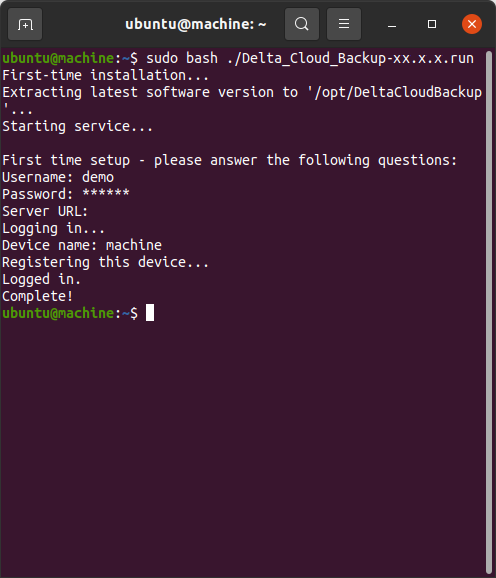
- If you have successfully entered your username and password, you will see the message:
Automatic startup of the backup agent after machine restart
During the initial installation, the backup agent starts running immediately. However, it will not start automatically if your machine is restarted. If your operating system uses systemd, you can follow these steps to enable the backup agent to start automatically:
-
Create a new file at the path
/etc/systemd/system/delta-backup.serviceand open it with a text editor: -
Place the following content in it:
-
Reload the systemd configuration with the following command:
-
Enable the newly created systemd unit with the following command: