Installing the backup agent on macOS
Minimum requirements
The minimum system requirements are as follows:
- x86_64 or Apple silicon processor. x86_64h is supported
- macOS 10.11 "El Capitan" or newer. We recommend using a version of macOS that is currently receiving support from Apple (usually the last 3 versions)
Installation
Follow these steps to install your backup agent:
- Log in to the client area with your email and password.
- Select from the left menu Active services -> Delta Cloud Backup and select your service to open its settings.
- Add a new device for backup by selecting Devices -> Add device from this page.
- Select macOS from the operating system type menu.
- On the next screen you will see 2 options - to download the installation script to your computer or to download it directly to the device you want to back up using the direct download URL
https://backup.eu-sof-1.deltacloud.io/dl/8(x86_64) orhttps://backup.eu-sof-1.deltacloud.io/dl/20(Apple silicon). After completing one of these actions, click the Next button. - Run the installer and follow its steps to complete the installation.
- On the first launch, the backup agent will ask you for a username and password. Go back to the client area. On the fourth step of Devices -> Add device you will find your username and password:
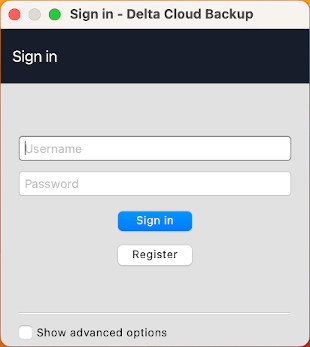
If you have completed the installation and configuration successfully, you will be greeted by a graphical interface through which you can configure your backup. For your convenience, after you have successfully connected your device, you can configure your backups through your client area.