Introduction to Volumes
The "Volumes" section on your Cloud VPS server page allows you to manage the server's disk space. Here you can view attached volumes and attach or detach additional volumes from your project.
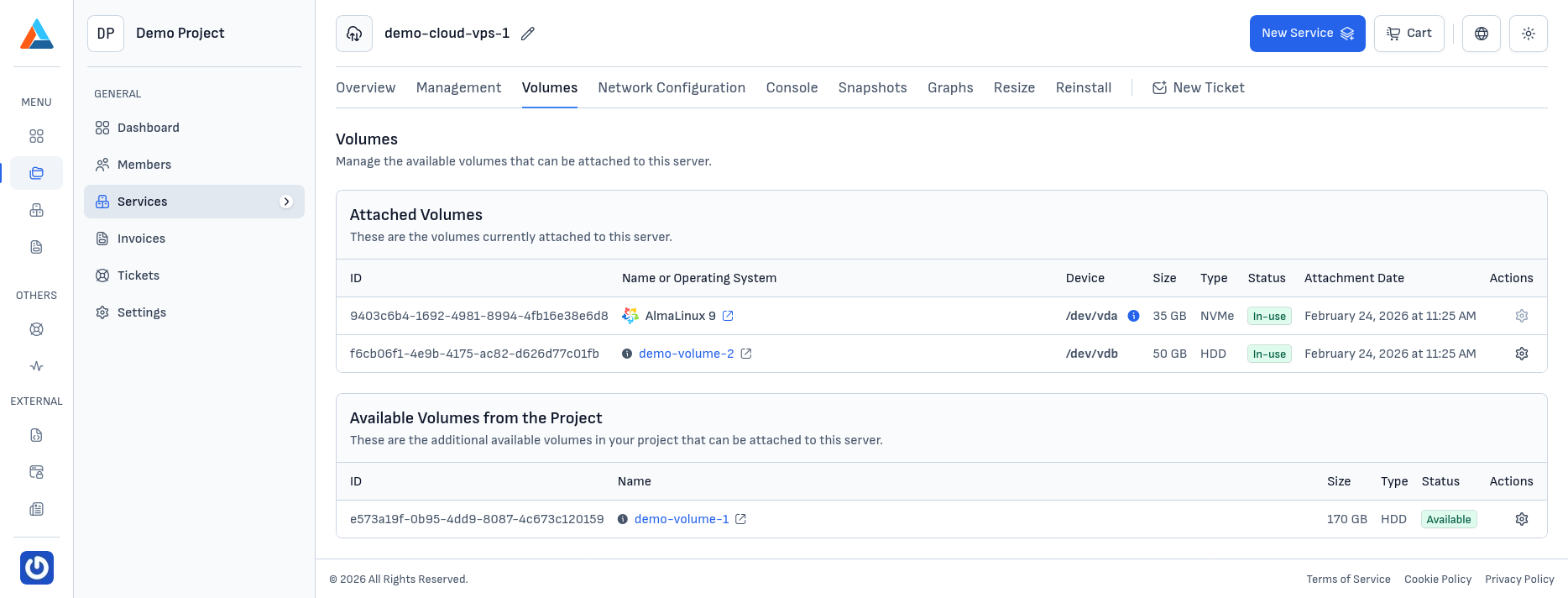
The section is organized into two parts:
Attached Volumes
This section displays all volumes currently attached to your server. For each volume, you can see the following information:
- ID — the unique identifier of the volume
- Name or Operating System — the name of the volume or the operating system of the volume
- Device — the device on which the volume is mounted
- Size — the size of the volume
- Type — the volume type
- Status — the current state of the volume
- Attach Date — when the volume was attached to the server
- Actions — management options (detach)
Available Volumes from the Project
This section displays all volumes in your project that are not attached to any server and can be freely attached to the current server. For step-by-step attach and detach instructions in the client area, see Managing Volumes.
Configuration in the Guest Operating System
After you attach a volume in the client area, you often need to configure it inside the operating system—formatting, creating a file system, mounting, or growing a partition when the size was increased. These actions are performed over SSH or RDP, not in the Delta.BG client interface: