Managing Access to Buckets and Objects
Bucket Access
Bucket access determines who can see the list of files (objects) in the bucket.
Types of File List Access
Object Storage supports two types of access to the file list in a bucket:
Private List
With a private list, the file list can only be seen by users who connect using access keys (S3 keys). This is the more secure option and is recommended for sensitive data.
Advantages:
- Higher level of security;
- Control over who has access;
- Suitable for personal or corporate data.
Public List
With a public list, anyone who has a direct link to the bucket can see the list of files in it, without needing to connect using access keys. This is suitable for public data sharing.
Advantages:
- Easy access without authentication;
- Suitable for public sharing;
- Convenient for static resources.
Configuring File List Access
To configure file list access for a bucket, follow these steps:
Opening Settings
- Select the bucket for which you want to configure access
- Navigate to the "Settings" tab
- Find the "File List" section
- Click the "Edit" button
Selecting Access Type
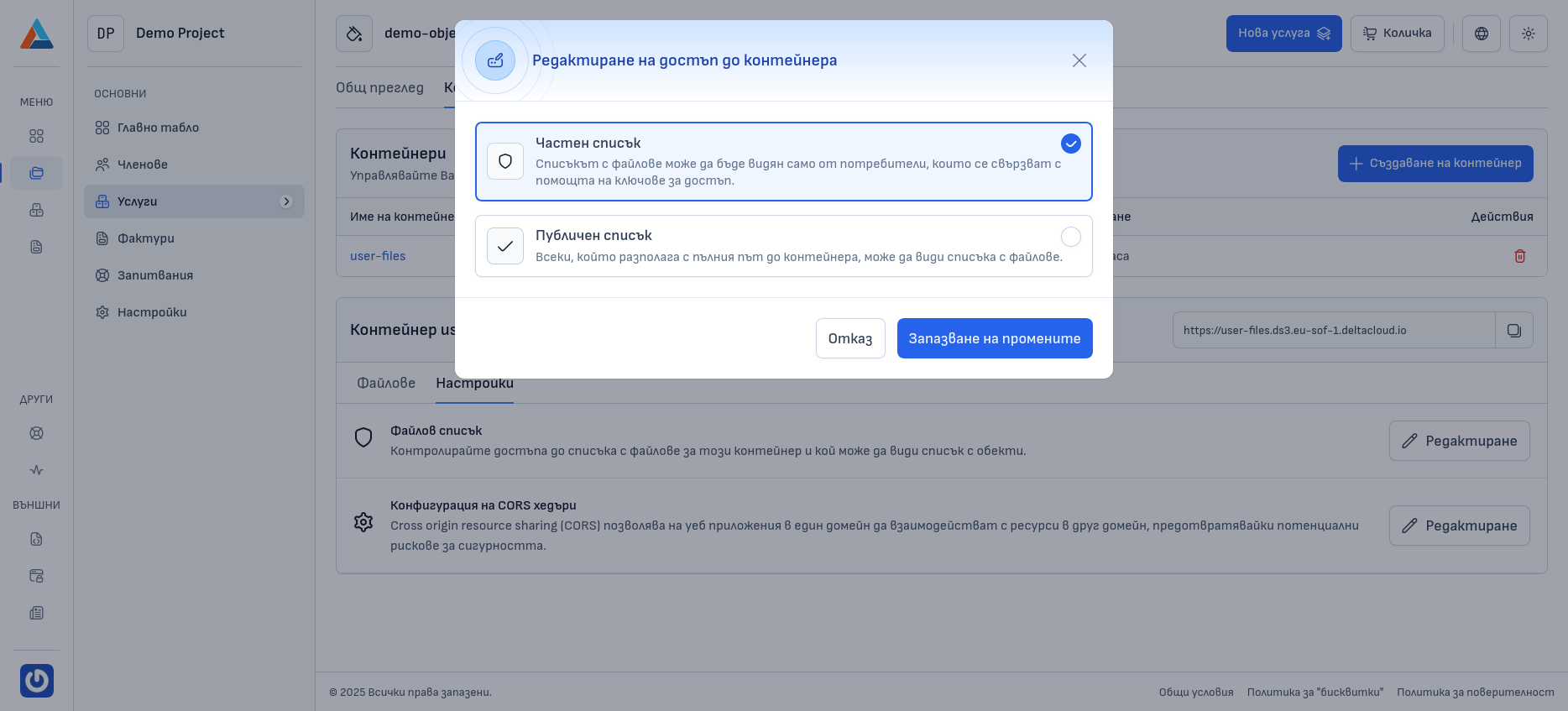
In the dialog, you will see two options:
- Private List - select this to enable private access. In this mode, only users with valid S3 keys can see the file list;
- Public List - select this to enable public access. In this mode, anyone with a link to the bucket can see the file list.
Saving Changes
After selecting the desired access type, click the "Save Changes" button to apply the settings.
Object Access
Object access determines who can view and download individual files (objects) in the bucket.
Types of Object Access
Each object can have its own access type, independent of the bucket settings:
Private Access
With private access, the object can only be viewed and downloaded by users who connect using access keys (S3 keys).
Advantages:
- Higher level of security for the specific file;
- Control over who has access to the file;
- Suitable for sensitive data.
Public Access
With public access, anyone who has a direct link to the object can view and download it, even if the file list in the bucket is private, without needing to connect using access keys.
Advantages:
- Easy access without authentication;
- Suitable for public sharing of specific files;
- You can share a link directly to the file.
Independent Settings
Object access settings are independent of the bucket file list access settings. You can have a private file list, but individual objects can be publicly accessible.
Configuring Object Access
To configure access for an individual object, follow these steps:
Finding the Object
Find the desired object in the file list.
Opening the Actions Menu
Click the icon with three horizontal dots in the "Actions" column to open the menu with action options for the object.
Selecting the Action
Select the "Manage Permissions" option to configure the access permissions for the object.
Configuring Permissions
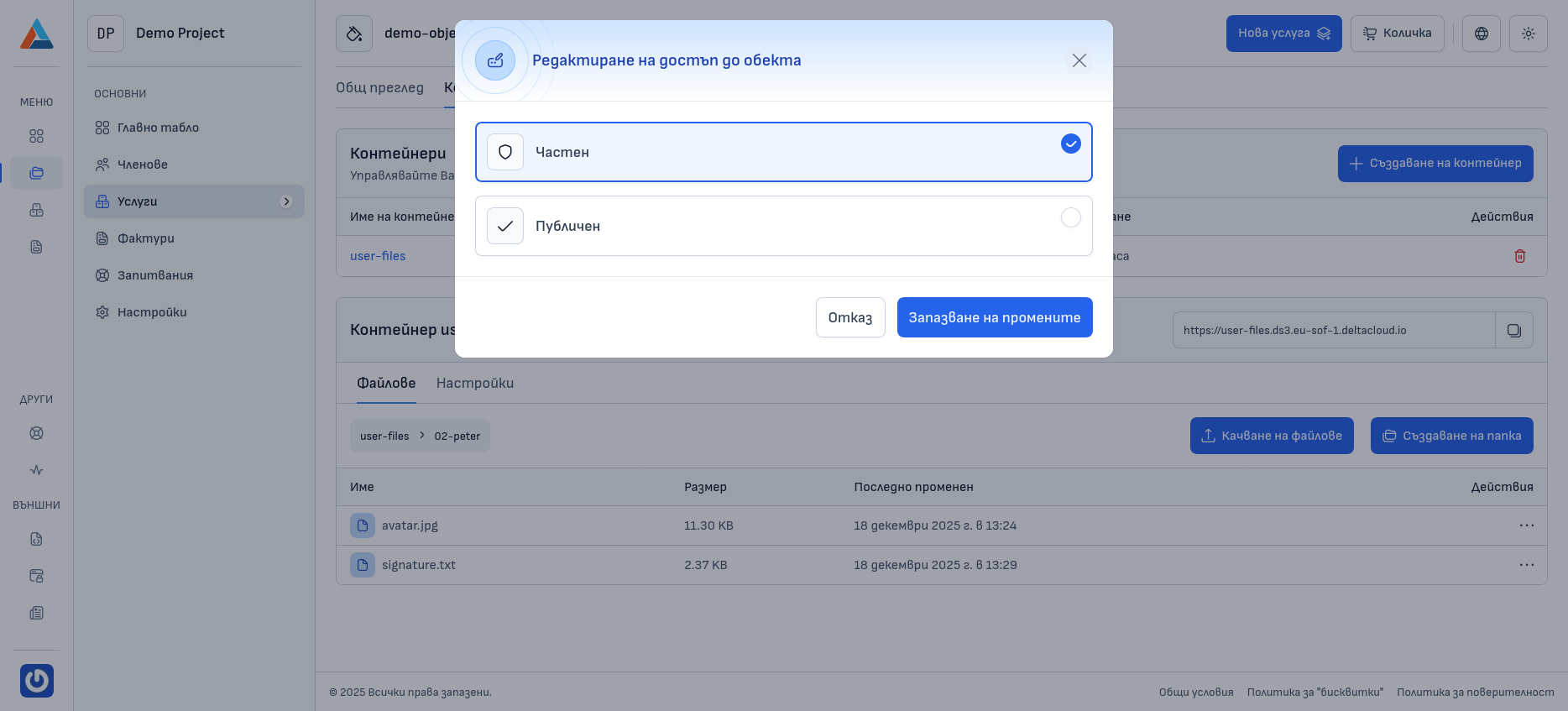
In the dialog, you will see two options:
- Private Access - select this to enable private access. In this mode, only users with valid S3 keys can view and download the object;
- Public Access - select this to enable public access. In this mode, anyone with a link to the object can view and download it.
Confirmation
Click the "Save Changes" button to confirm the changes.
Relationship Between Bucket and Object Access
It is important to understand how bucket and object access settings work together:
- File list access (bucket) determines who can see the list of objects in the bucket.
- Object access determines who can view and download a specific object.
- If the file list is private but the object is public, users with a link to the object can access it, but they will not be able to see the file list.
- If the file list is public but the object is private, users can see the list, but they will not be able to access the private object without authentication.