CORS Configuration
What Is CORS?
CORS (Cross-Origin Resource Sharing) is an HTTP mechanism that allows web applications on one domain to interact with resources on another domain, preventing potential security risks. CORS allows the server to specify which domains can send requests to it from web browsers. Without CORS, browsers block requests between different domains due to the Same-Origin Policy.
When to Use CORS?
CORS configuration is necessary when:
- Your web application is on a different domain than the bucket;
- You want to allow JavaScript code to send requests to your objects;
- You are using AJAX or Fetch API to access the data;
- Your application uses
XMLHttpRequestto upload or download files.
Configuring CORS Rules
Opening Settings
- Select the bucket for which you want to configure CORS;
- Navigate to the "Settings" tab;
- Find the "CORS Headers Configuration" section;
- Click the "Edit" button;
There you will find a table with the created CORS rules, if you have already created any. You can have multiple CORS rules for a single bucket. Rules can be reordered in the table by clicking the up and down arrows on the right side of the table, or deleted by clicking the trash icon.
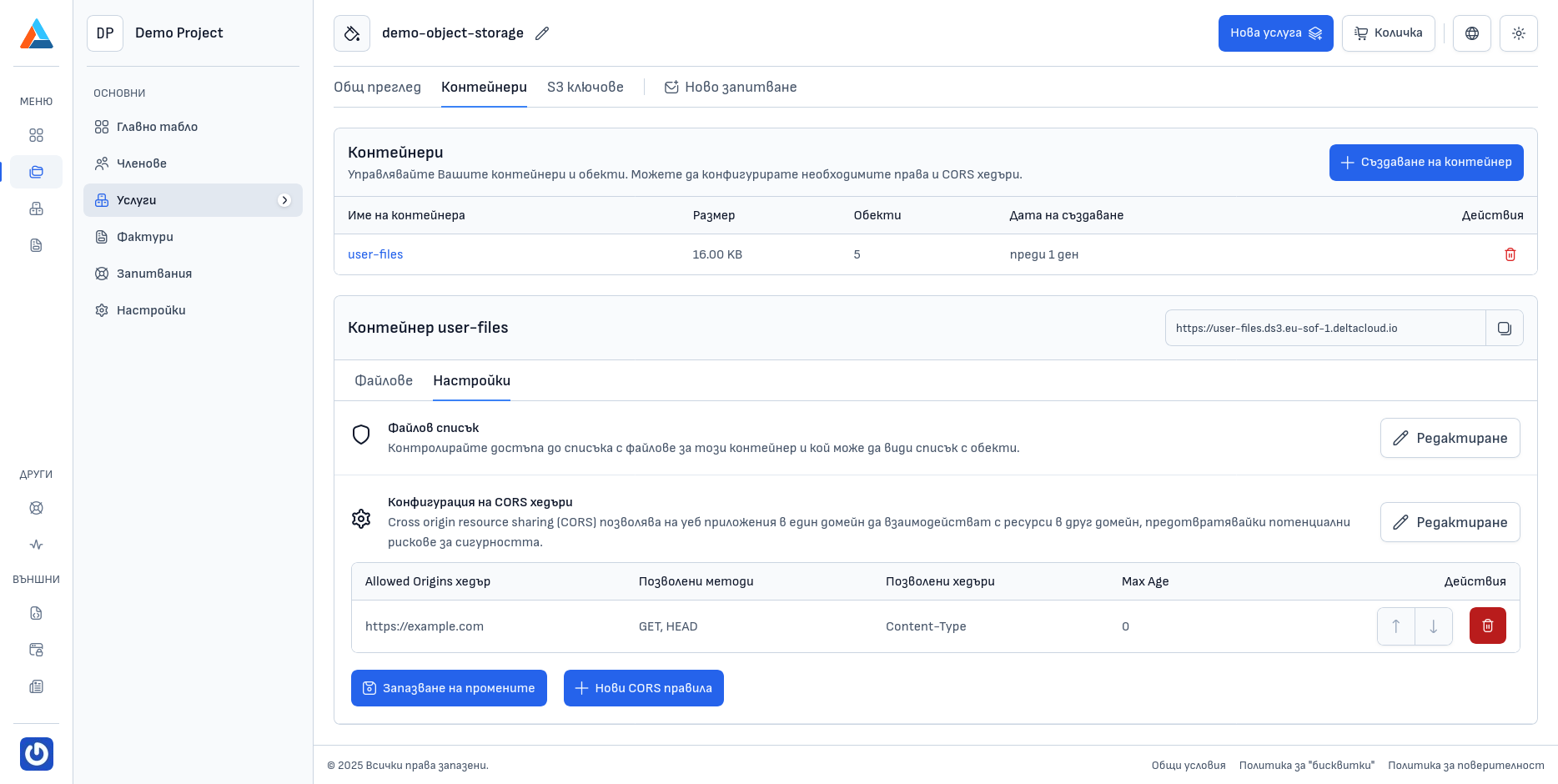
Creating a CORS Rule
Click the "New CORS Rules" button to open a dialog for creating a new rule.
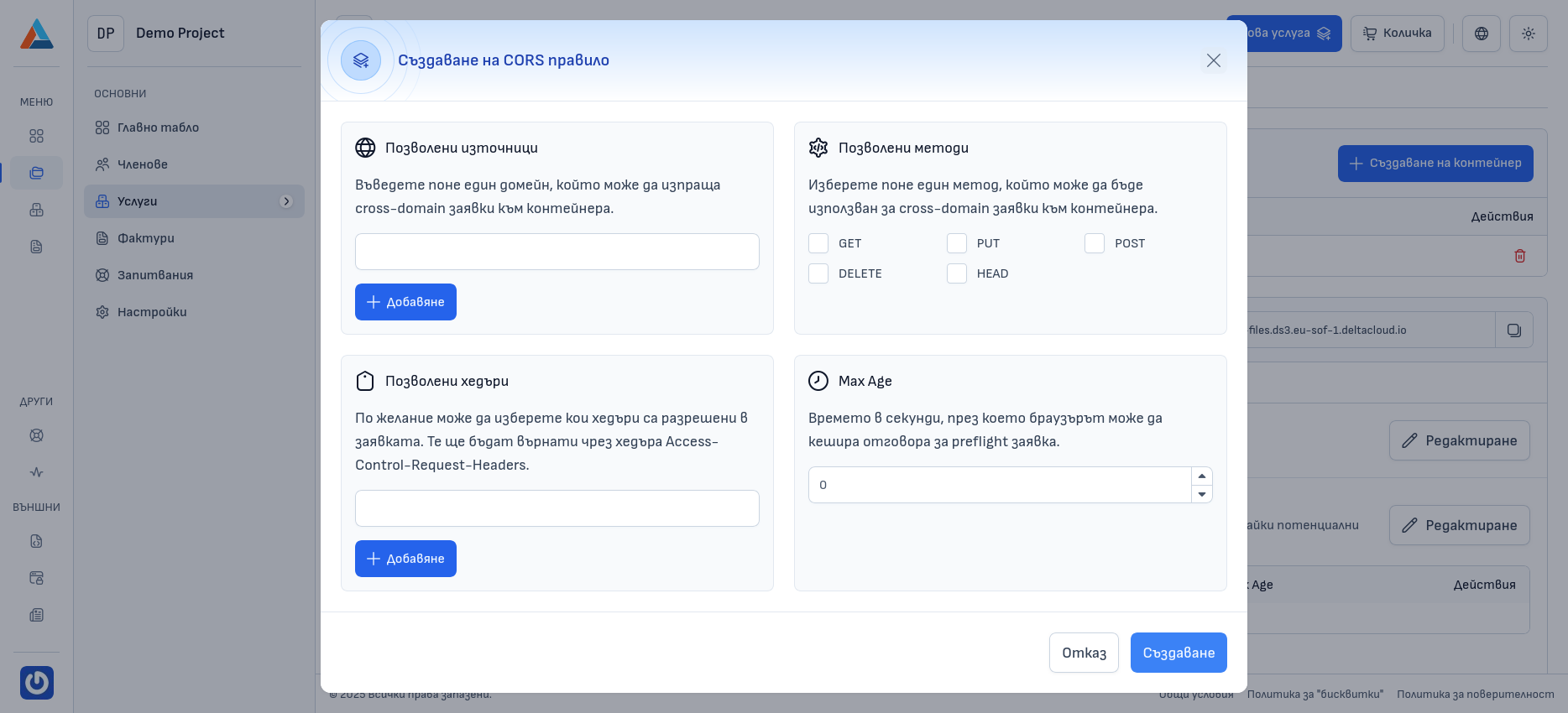
Configuring Parameters
In the dialog for creating a new rule, you can configure the following parameters:
Allowed Origins
Enter the domains that can send cross-domain requests to the bucket.
- You can add multiple domains;
- Use
*to allow all domains (not recommended for production environments); - Format:
https://example.comorhttps://*.example.com.
Example
If your website is at https://mywebsite.com, enter that exact domain.
Allowed Methods
Select at least one HTTP method that can be used for cross-domain requests:
- GET - for downloading objects;
- PUT - for uploading or updating objects;
- POST - for uploading objects;
- DELETE - for deleting objects;
- HEAD - for checking the existence of objects.
Allowed Headers
Optionally, you can select which headers are allowed in the request. They will be returned via the Access-Control-Request-Headers header.
Commonly used headers:
Content-Type- for specifying the content type;Authorization- for user authentication;X-Requested-With- for AJAX requests;CSRF-Token- for protection against CSRF attacks.
Max Age
The time in seconds during which the browser can cache the result of the preflight request. This reduces the number of additional requests.
- Default:
0(the browser does not cache) - Recommended:
3600(1 hour) or86400(1 day)
Saving the Rule
After configuring all parameters, click the "Create" button to save the rule.
Managing CORS Rules
After creating CORS rules, they will appear in the configuration table. For each rule, you can see:
- Allowed Origins Header - the allowed domains;
- Allowed Methods - the selected HTTP methods;
- Allowed Headers - the permitted headers;
- Max Age - the caching time;
- Actions - option to delete.
You can have multiple CORS rules for a single bucket.
Reordering Rules
Rules can be reordered in the table by clicking the up and down arrows on the right side of the table.
Deleting a CORS Rule
To delete a CORS rule, follow these steps:
Finding the Rule
Find the rule you want to delete in the CORS rules table.
Selecting the Action
Select the "Delete" option in the "Actions" column.
Confirmation
Save the changes by clicking the "Save Changes" button to apply them.