Managing Folders
What Are Folders?
In the Object Storage service, folders are objects used for organizing files in a hierarchical structure. It is important to understand that folders in Object Storage are also objects - they are not physical directories like in traditional file systems, but logical containers that help structure data.
Folders allow you to group related files together and create a more organized structure for your data, which makes it easier to navigate and manage large numbers of files.
Creating a Folder
To organize your files into folders, follow these steps:
Selecting a Bucket
Select the bucket in which you want to create a folder.
Opening the Creation Dialog
Click the "Create Folder" button to open a dialog for creating a new folder.
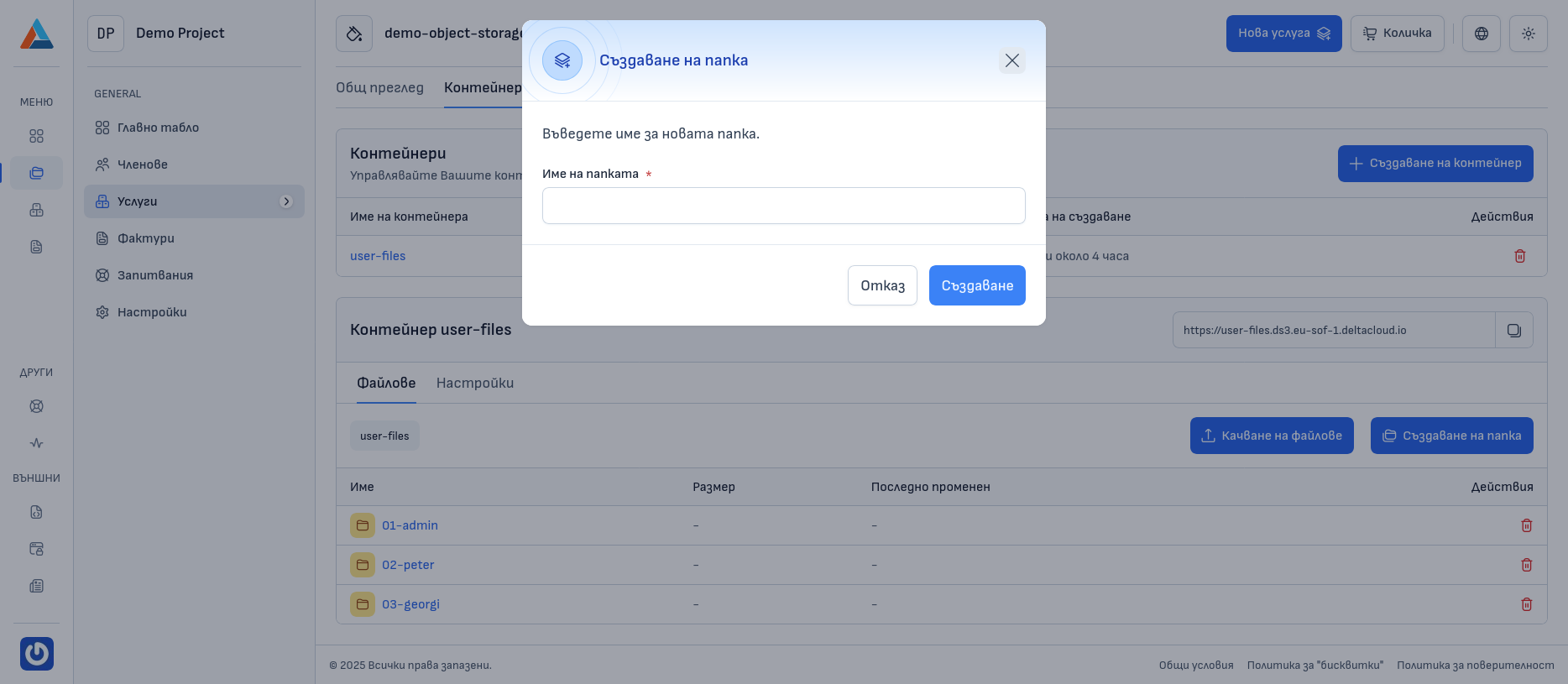
Entering a Name
Enter a unique name for the folder. The name may contain letters, numbers, hyphens, and underscores.
Folder Name Requirements
The folder name must be unique and meet the following requirements:
- May contain only lowercase letters, numbers, and hyphens;
- Must start and end with a letter or number;
- The length must be between 3 and 63 characters.
Confirmation
Click the "Create" button to create the new folder.
Deleting a Folder
Finding the Folder
Find the desired folder in the file list.
Opening the Actions Menu
Click the icon with three horizontal dots in the "Actions" column to open the menu with action options for the folder.
Selecting the Action
Select the "Delete" option to open a dialog for deleting the folder.
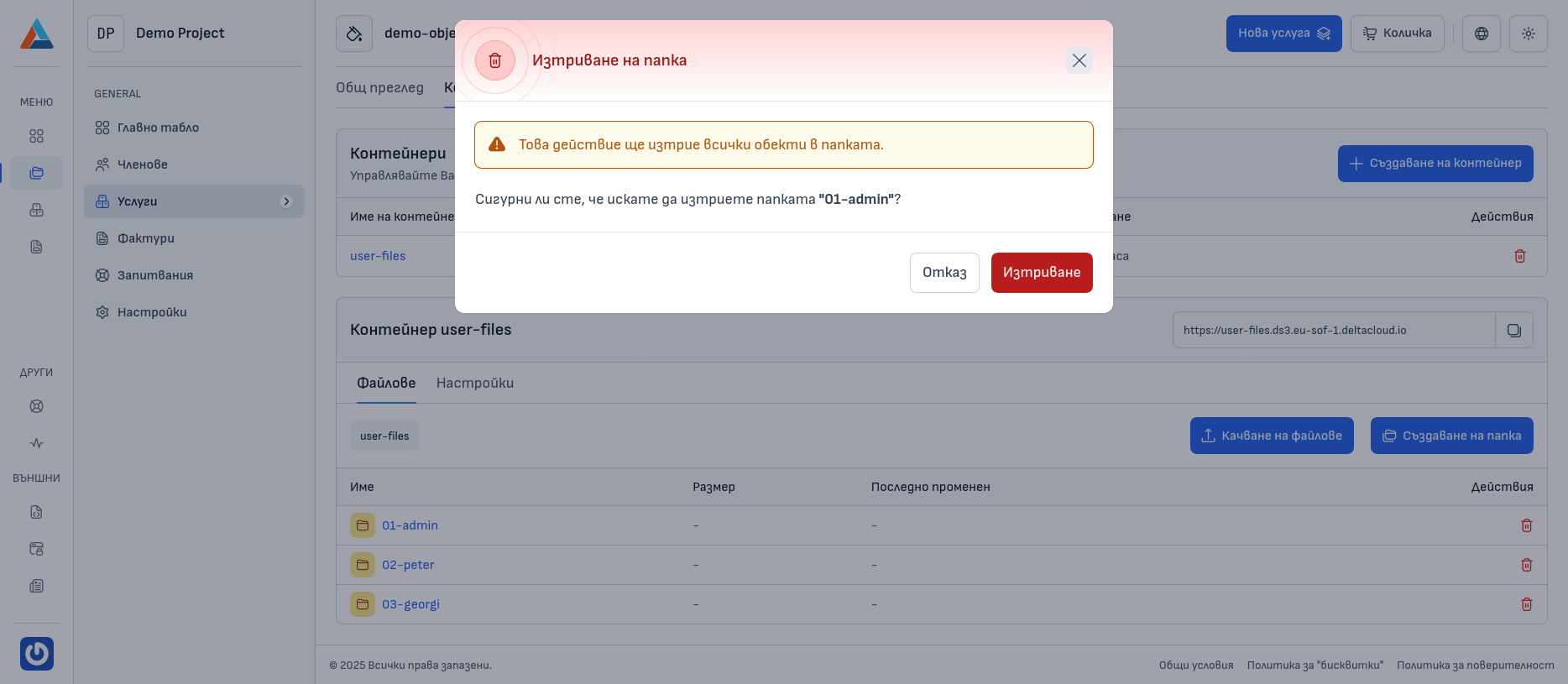
Confirmation
Warning
Deleting a folder will remove all files and subfolders within it. This action is irreversible! Make sure you really want to delete the folder before confirming.
Click the "Delete" button to delete the folder.
Renaming a Folder
In Object Storage technology, direct renaming of folders is not supported. This is due to the system architecture and the way Object Storage works with folders.
Why Is Folder Renaming Not Available?
In Object Storage, there is no real concept of folders in the sense of traditional file systems. What we see as "folders" is actually part of the object key name.
The Difference Between Traditional File Systems and Object Storage
In traditional file systems (such as Windows or Linux):
- There is a physical separation between files and folders;
- report.pdf is a file, and documents is a folder, meaning the folder documents exists as a separate entity that can contain other folders and files within it;
- Renaming a folder is an operation only on the folder itself, without affecting its contents.
In the Object Storage architecture:
- There is no real hierarchy - everything is simply keys in a flat namespace;
- The keys report.pdf and documents/report.pdf are two completely different objects with no real relationship between them;
- The "folder" documents/ does not exist as a separate object - it is simply part of the key name;
- For Object Storage, documents/report.pdf is just one key that contains the / character in its name, without there being an actual documents folder.
For example, if you have an object with the key documents/report.pdf, the "folder" documents/ is not a separate object, but simply a prefix in the key. All objects that we see as being in the "documents" folder are actually objects whose keys start with documents/.
S3 clients, as well as our web interface, display folders as separate objects for a better user experience, but in reality they are only logically grouped objects.
Why Can't a Folder Be Renamed?
"Renaming a folder" would mean: - changing the path (key) of all objects whose keys start with a specific prefix; - creating new objects with new keys; - copying the contents of all objects; - deleting the old objects.
The Object Storage API does not directly support such an operation, as it is not an atomic operation at the storage level, but a logical operation at the application level that requires multiple separate operations.
Alternative Way to Change a Folder Name
If you still need to change the name of a folder, you can use the following approach:
Creating a New Folder
Create a new folder with the desired name in the same bucket.
Moving the Files
Download all files and subfolders from the old folder to your device, then upload them to the new folder.
Deleting the Old Folder
Delete the old folder with the original name from the bucket.