Managing Objects
What Are Objects?
In the Object Storage service, objects are the files that you store in buckets. Each object contains the file itself along with metadata that describes it. Objects can be of any type - documents, images, video files, archives, and more.
Viewing Objects
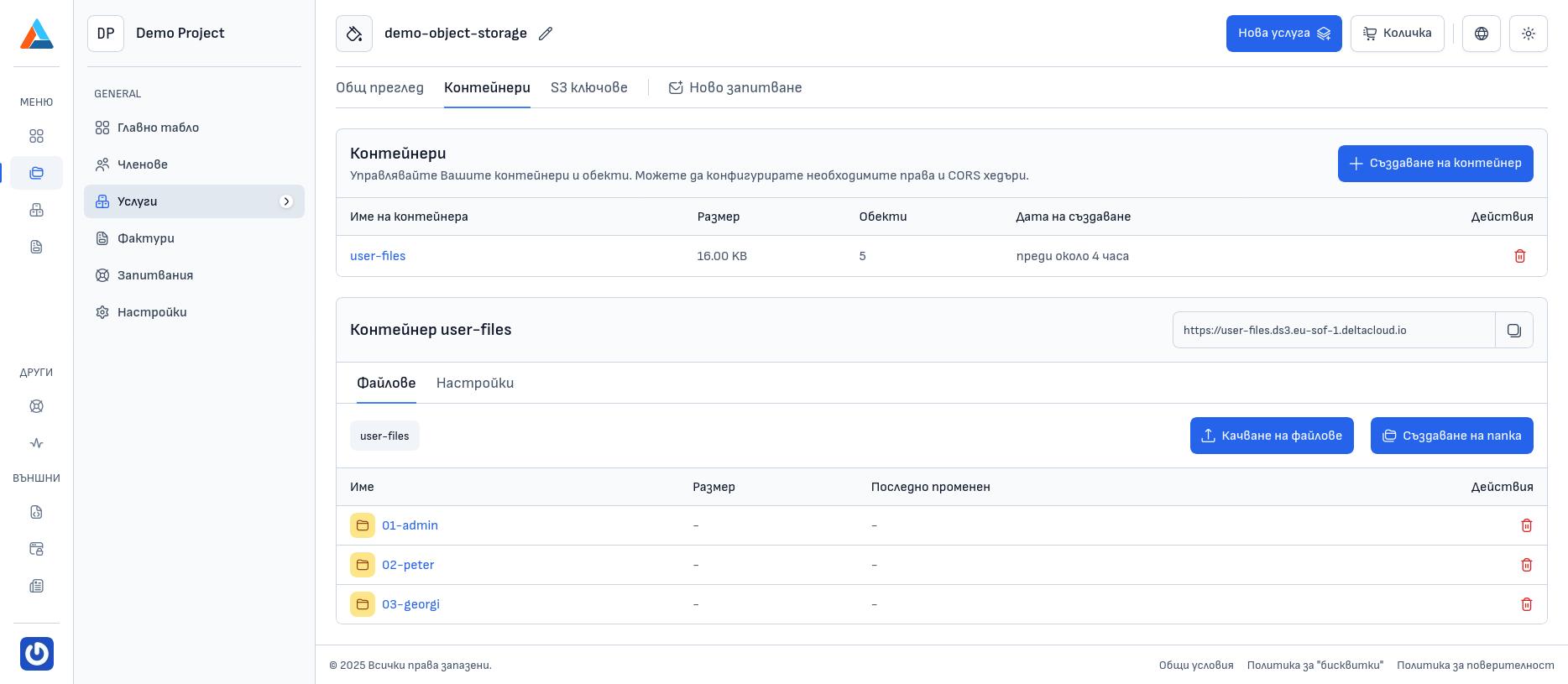
When you select a bucket, you will see its contents in the "Files" tab. Here you can see:
- Name - the name of the file
- Size - the size of the file
- Last Modified - when the file was last modified
- Actions - options for managing the file
Uploading Objects
To upload files (objects) to a bucket, follow these steps:
Selecting a Bucket
Select the desired bucket from the bucket list.
Opening the Upload Dialog
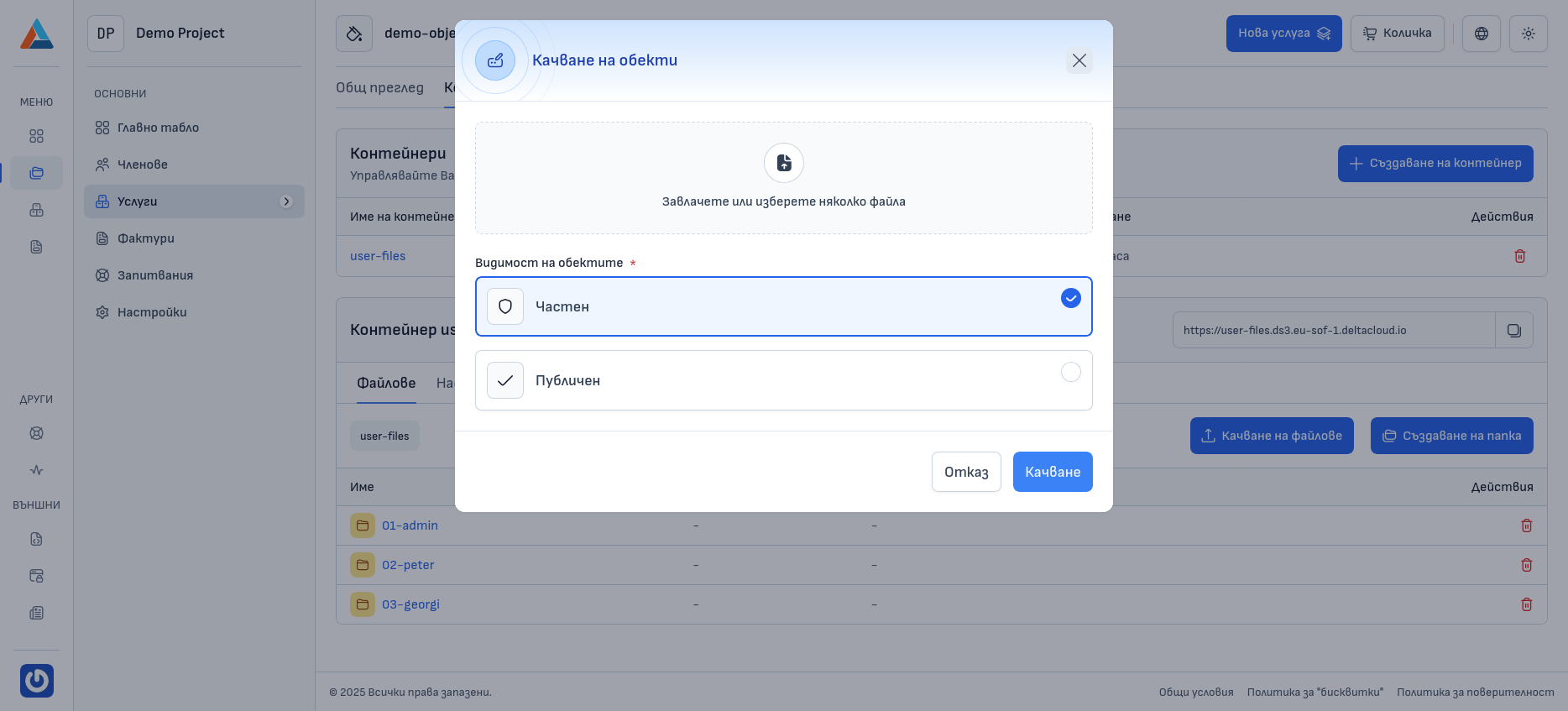
Click the "Upload Files" button to open a dialog for uploading files.
Selecting Files
Select the files you want to upload from your device. You can upload multiple files simultaneously, with no size limitations.
File Access
Select whether the files should be publicly accessible or accessible only to users with valid S3 keys.
Confirmation
Click the "Upload" button to upload the files to the selected bucket.
Downloading an Object
Finding the Object
Find the desired object in the file list.
Opening the Actions Menu
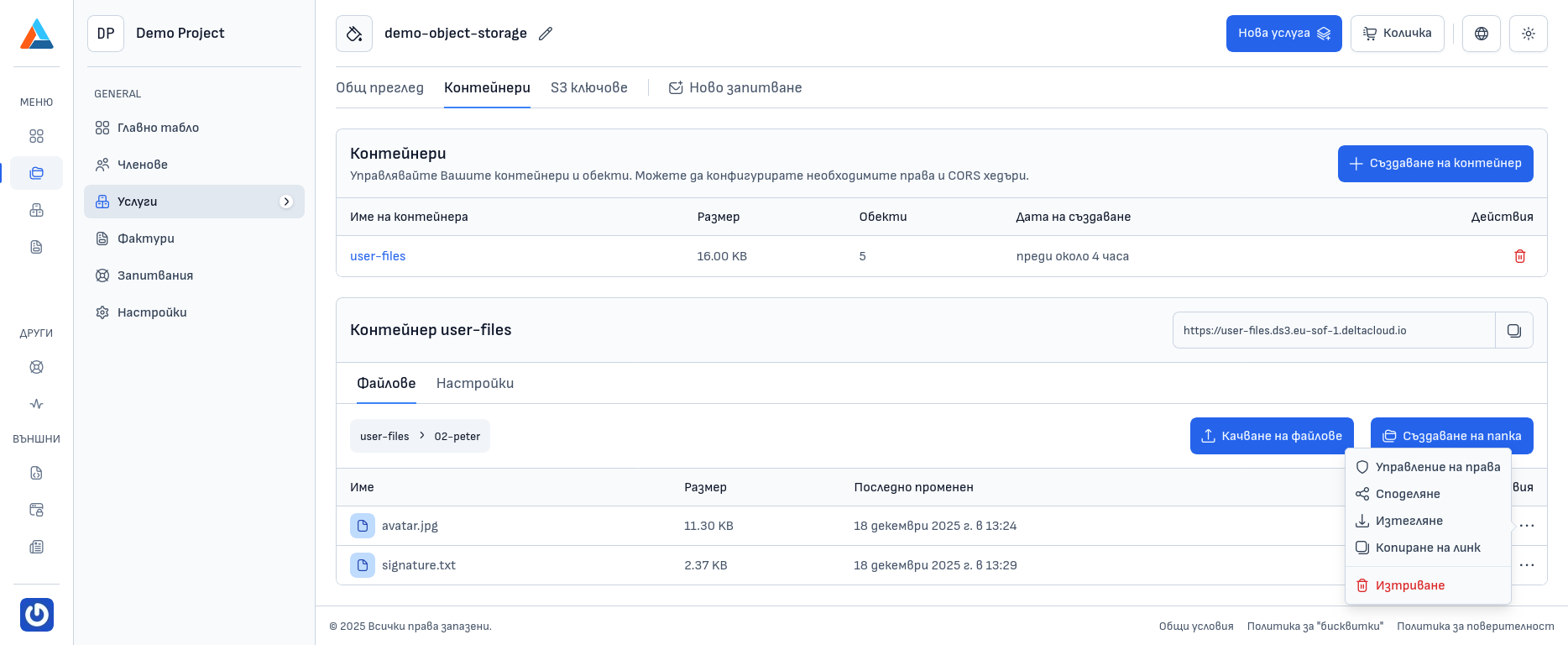
Click the icon with three horizontal dots in the "Actions" column to open the menu with action options for the object.
Selecting the Action
Select the "Download" option to download the object to your local device.
Sharing an Object
Finding the Object
Find the desired object in the file list.
Opening the Actions Menu
Click the icon with three horizontal dots in the "Actions" column to open the menu with action options for the object.
Selecting the Action
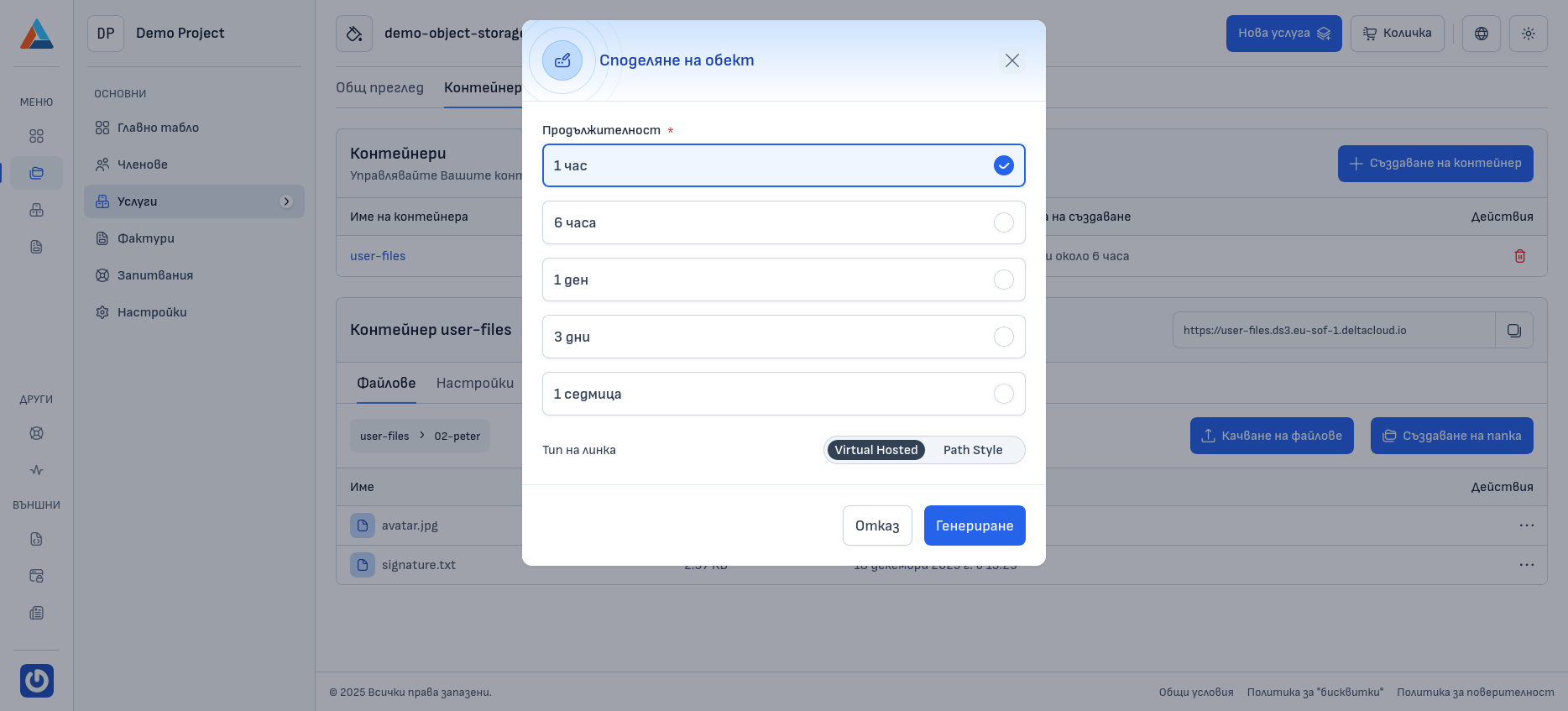
Select the "Copy Link" option to copy the link to the object.
Managing Object Visibility
Finding the Object
Find the desired object in the file list.
Opening the Actions Menu
Click the icon with three horizontal dots in the "Actions" column to open the menu with action options for the object.
Selecting the Action
Select the "Manage Permissions" option to configure the access permissions for the object.
Configuring Permissions
Select the desired access permissions - public or private access.
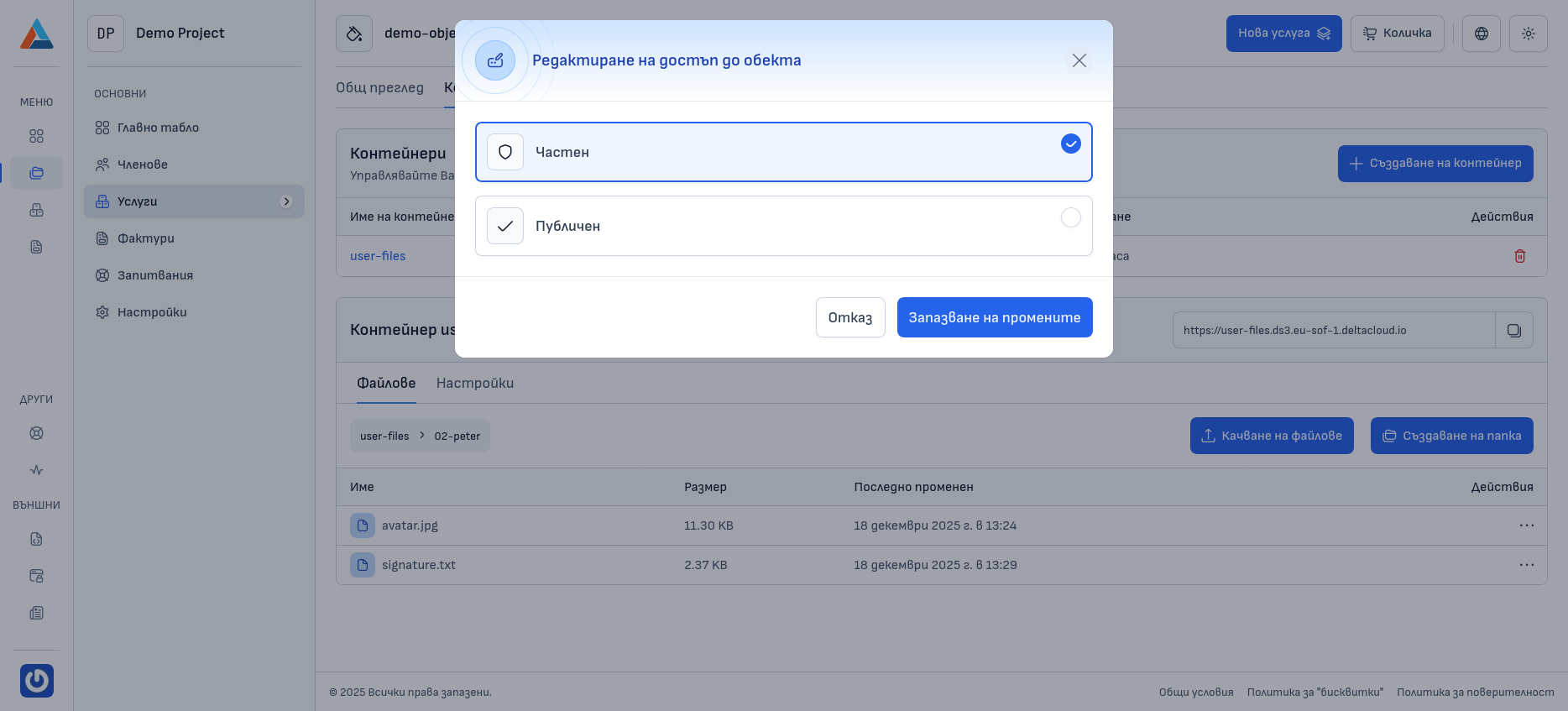
Confirmation
Click the "Save Changes" button to confirm the changes.
Deleting an Object
Finding the Object
Find the desired object in the file list.
Opening the Actions Menu
Click the icon with three horizontal dots in the "Actions" column to open the menu with action options for the object.
Selecting the Action
Select the "Delete" option to open a dialog for deleting the object.
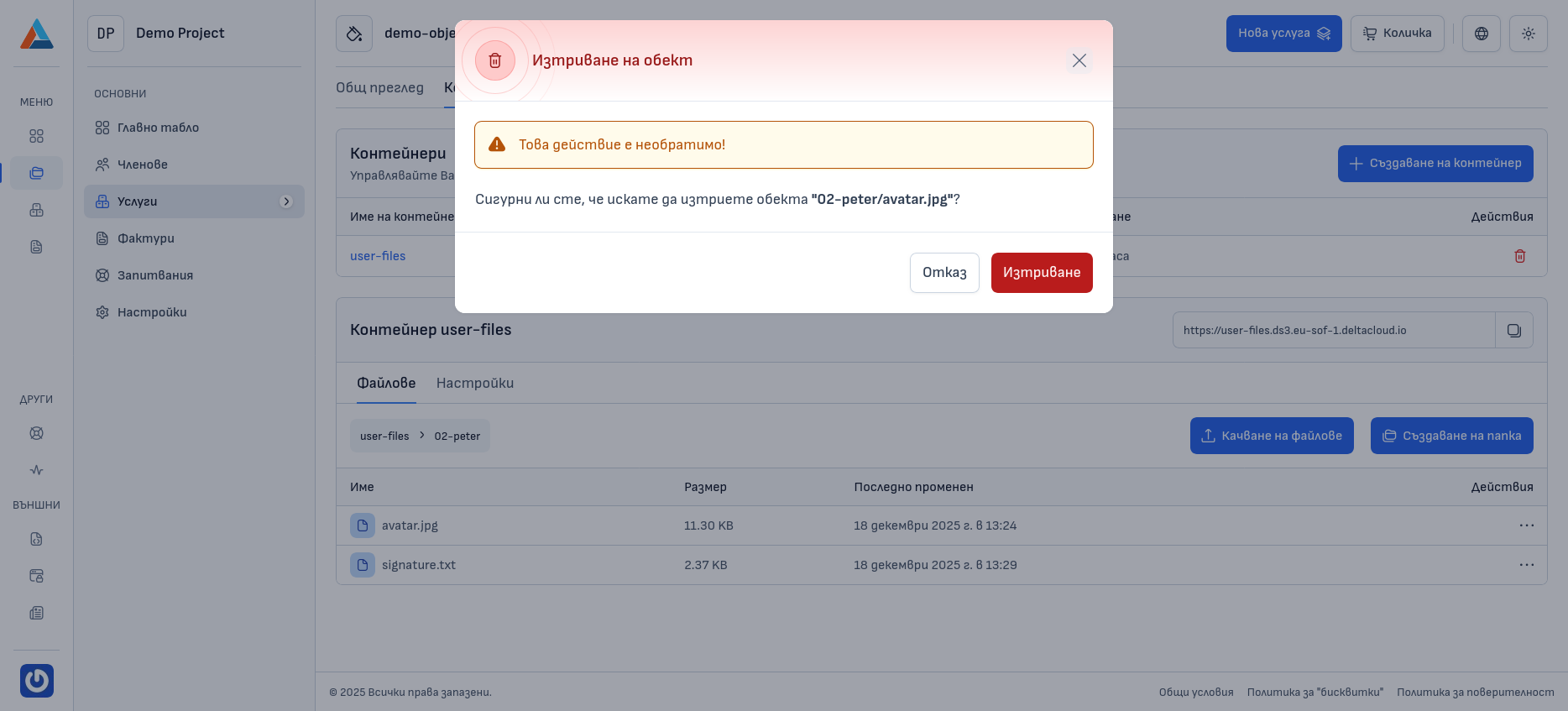
Confirmation
Warning
Deleting an object is an irreversible action! Make sure you really want to delete it before confirming.
Click the "Delete" button to delete the object.
Renaming an Object
In Object Storage technology, direct renaming of objects (files) is not supported. This is due to the system architecture and the way the Object Storage API works.
Why Is Renaming Not Available?
In Object Storage, the name of an object is part of its unique identifier (key). Changing the name would mean creating a new object with a new key, which is not supported as a single atomic operation by the Object Storage API.
Object Storage does not provide a "rename" or "move" operation for objects, as this would require: - creating a new object with a new key - copying the content and metadata - deleting the original object
This is a logical operation at the application level, not at the storage level.
Alternative Way to Change the Name
If you still need to change the name of an object, you can use the following approach:
Download the Object
Download the object (file) locally to your device.
Upload It with the New Name
Upload the downloaded file back to the bucket with the desired new name.
Delete the Original Object
Delete the old object with the original name from the bucket.