Where to Find the GTM Container Configuration Code
The GTM container configuration code is your "key" that connects GTM Server Hosting with your container in Google Tag Manager. It ensures that Google correctly recognizes your server and can securely process the events and data from it.
You will receive this code directly from Google Tag Manager when you create a new server container.
In this short article, we will show you step by step how to create a server container and where exactly to copy the configuration code from.
Important: Before you begin, make sure you already have an account in Google Tag Manager. If you don't have one yet — see the official guide: How to create a Google Tag Manager account
Step 1: Create a New Account and Container
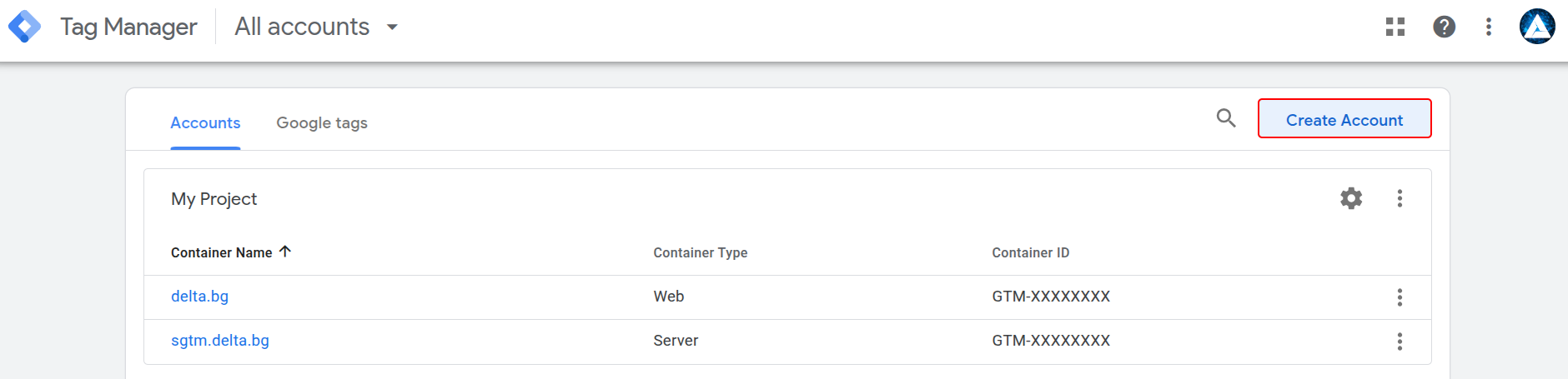
Open Google Tag Manager and click the "Create Account" button.
Here you will create a new account and set the basic settings for your GTM project.
Step 2: Enter the Container Details
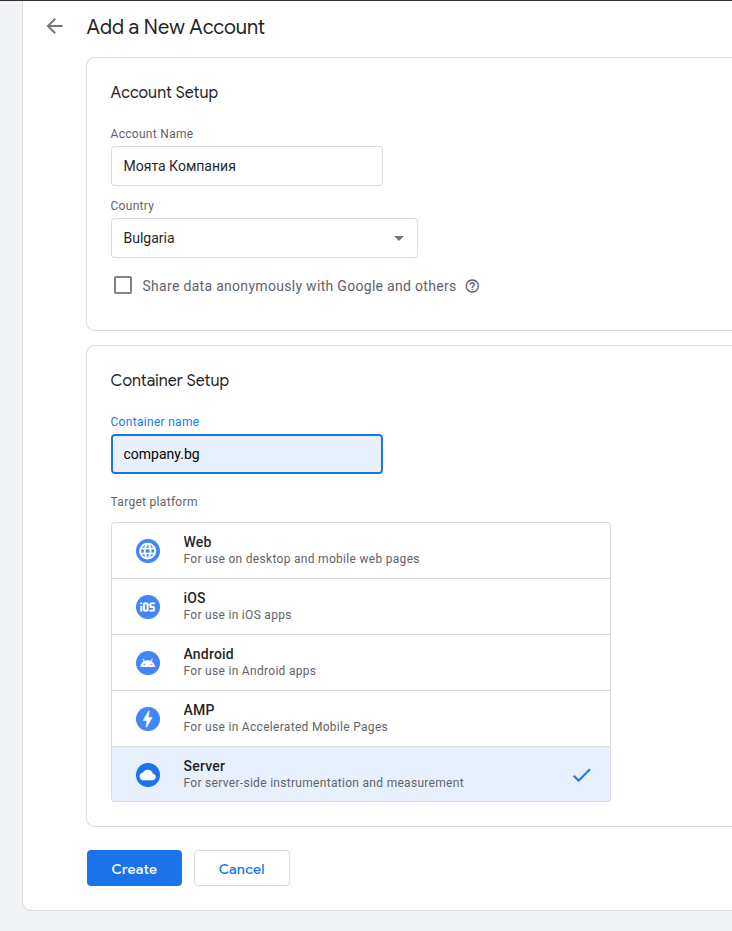
Fill in the following fields:
- Account Name — for example My Business
- Country — select the country where you are located
- Container Name — for example Server-Side GTM
- Target platform — select Server
Then click "Create".
Step 3: Copy the Configuration Code
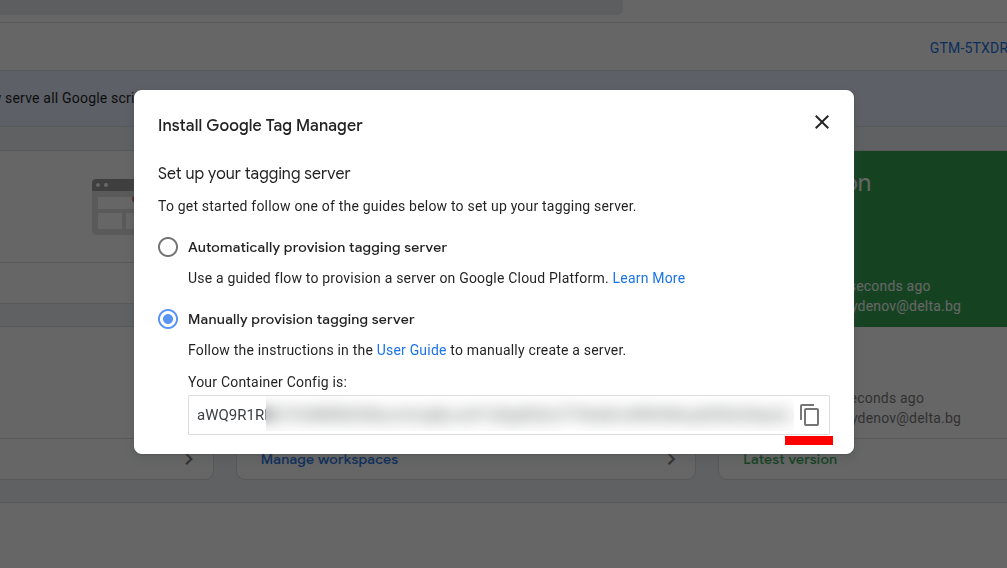
After the container is created, the "Install Google Tag Manager" window will open. Select "Manually provision tagging server" — this will display your Container Configuration Code.
Done!
Now you can see your configuration code in Base64 format. Click the copy icon and paste it in Delta.BG when setting up your GTM Server (in the "Container configuration code" field).
After entering the code, your server will automatically connect to the GTM container and will be ready to use!