SSH keys
The SSH Keys section (Settings → SSH Keys) manages the public SSH keys attached to your account. Keys added here are uploaded automatically to every new managed server you order — so you can sign in without a password from the very first login.
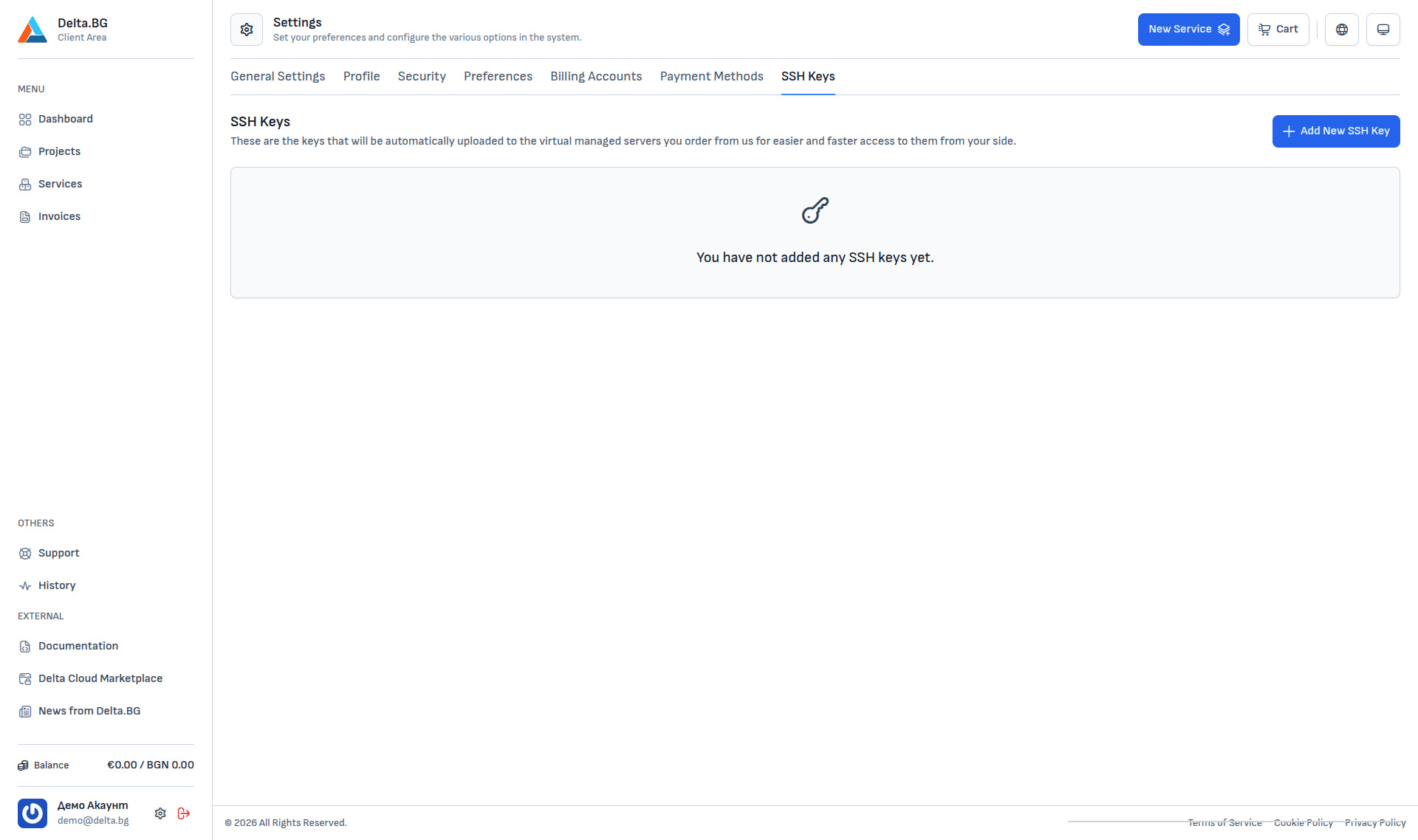
Adding a new key
The "+ Add New SSH Key" button opens a dialog with two fields:
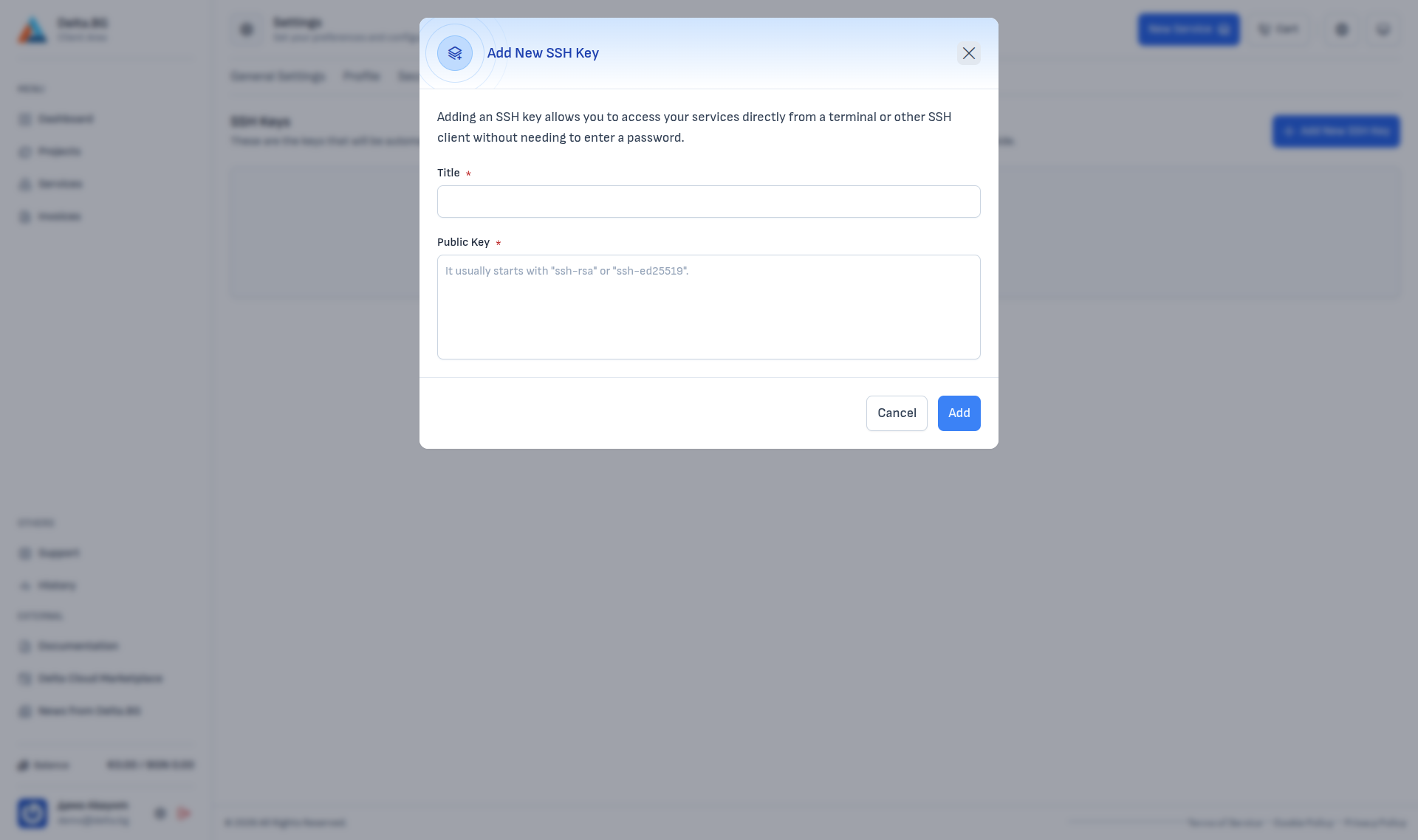
| Field | Description |
|---|---|
| Title | A custom name for the key — for example "Laptop", "Workstation", "CI server". |
| Public Key | The contents of the .pub file. Starts with ssh-rsa, ssh-ed25519 or a similar prefix, followed by the key itself and an optional comment. |
After filling in the fields press Add.
Generating an SSH key
If you do not have an SSH key yet, you can generate one locally. The commands below are per operating system — each produces a key pair (public + private), and the private key never leaves your computer.
Linux
Accept the default path (~/.ssh/id_ed25519) with Enter, or specify another. When done, the public key lives in ~/.ssh/id_ed25519.pub:
Copy the full output and paste it into the Public Key field.
macOS
The commands match Linux exactly (macOS ships OpenSSH by default):
You can optionally add the key to the macOS keychain so you do not have to type your passphrase on every SSH session:
Windows
Windows 10/11 ship an OpenSSH client by default. Open PowerShell and run:
Accept the default path (C:\Users\<user>\.ssh\id_ed25519). The public key lives at C:\Users\<user>\.ssh\id_ed25519.pub and can be printed with:
If the ssh-keygen command is missing, install the OpenSSH client from Settings → Apps → Optional features → Add a feature → OpenSSH Client.
Info
The private key (id_ed25519 without the .pub extension) stays on your computer and is never uploaded to the customer area.
Usage
SSH keys are provisioned automatically when you order a new managed virtual server — the key is added to the main user's ~/.ssh/authorized_keys and you can sign in with:
Warning
Keys added after a server has been created are not uploaded automatically. You will need to copy them manually to ~/.ssh/authorized_keys on the already-provisioned server.