Invoice Detail
Opening a specific invoice from the list reveals its full contents, the history of transactions against it, and the payment methods available when it's still unpaid.
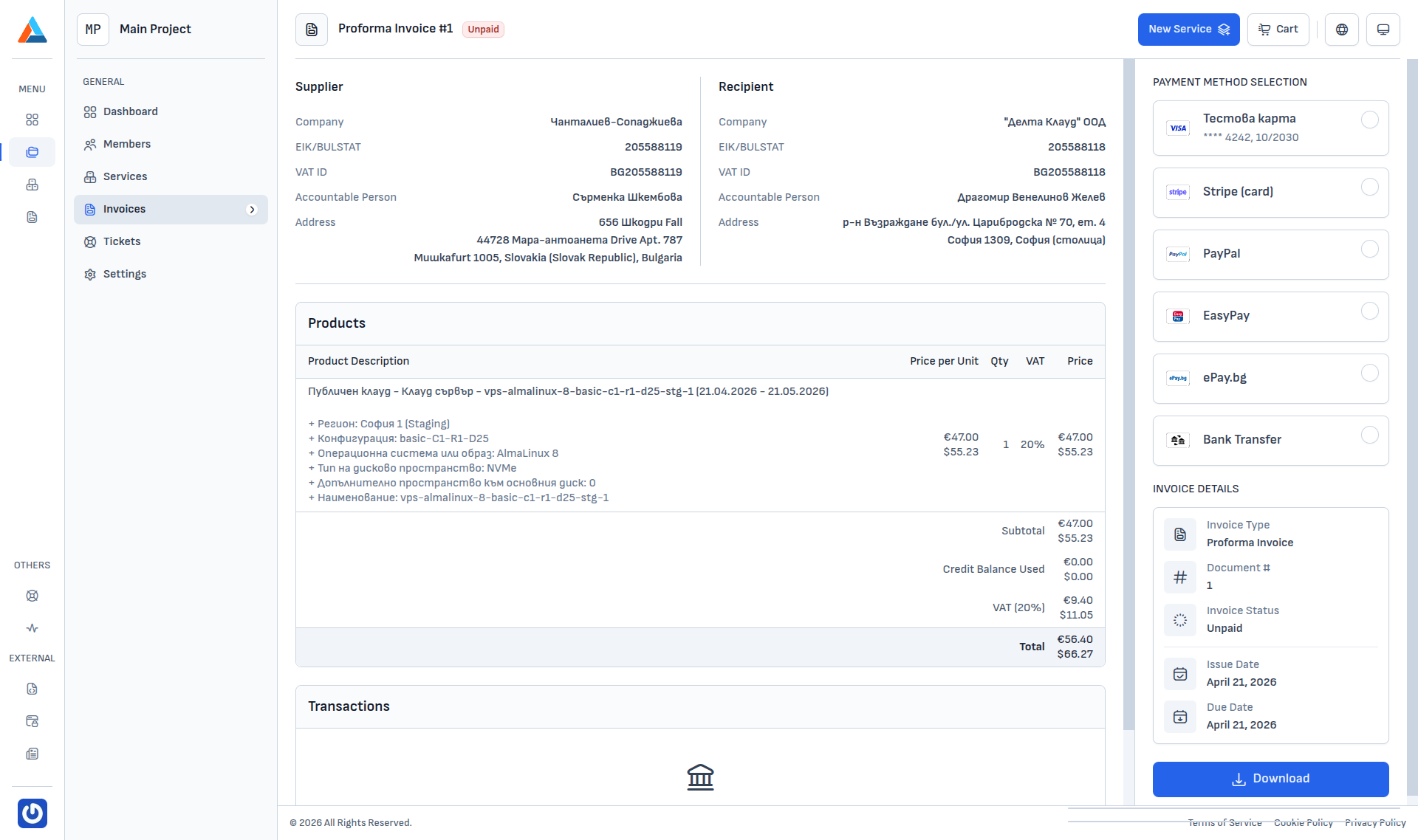
Header
The top of the page shows the document number and type (e.g. Proforma Invoice #1) and its status — Paid, Unpaid, or Overdue.
Supplier and Recipient
The two side-by-side blocks contain:
- Supplier — Delta.BG as the issuer: company, EIK, VAT ID, accountable person, and address.
- Recipient — your billing information (from the project's billing account): company, EIK, VAT ID, accountable person, and address.
Info
Recipient data comes from the project's default billing account. If you need to issue an invoice to a different legal entity, change the billing account before ordering — see Project Settings.
Warning
Corrections to an issued but unpaid invoice can be requested by opening a ticket to the Sales department — we will correct the invoice before it's paid. A paid invoice cannot be corrected — tax invoices are official documents and are not subject to edits, regardless of whether they have already been filed.
Products
The Products table lists every service on its own row together with its configuration (region, flavor, image, disk type, extra disk space, label). The summary rows at the bottom show:
- Subtotal — amount before VAT.
- Credit Balance Used — amount covered by your credit balance (if any).
- VAT — rate and value.
- Total — in the invoice's primary currency and converted to USD (or another fallback currency).
Transactions
The Transactions section lists every incoming payment and refund attached to this invoice. For an unpaid invoice the block is empty with a "No transactions for this invoice." message.
Payment methods
When an invoice is unpaid, the right-hand sidebar exposes the available payment methods:
- Saved card (in the example Test Card
**** 4242, 10/2030) - Stripe (card) — enter a new card through Stripe Checkout.
- PayPal
- EasyPay
- ePay.bg
- Bank Transfer
Selecting a method starts the corresponding flow — Stripe Checkout, PayPal, EasyPay instructions, ePay.bg redirect, or the IBAN for a bank transfer.
Invoice details
The last block on the right summarises:
- Invoice Type — Proforma, Tax Invoice, or Credit Note.
- Document # — for quick reference.
- Invoice Status — Paid / Unpaid / Overdue.
- Issue Date
- Due Date
Download
The Download button at the bottom of the right-hand sidebar retrieves the official PDF document. The same button is also available in the download column of the list.