Adding a Device
To start protecting a device, you need to install the Delta Cloud Backup Agent on it and connect it to your backup account. The client area provides a step-by-step wizard that guides you through the process.
Starting the Wizard
Navigate to the Section
Go to the "Devices" section on the service page.
Open the Add Device Dialog
Click the "+ Add Device" button to open the device registration wizard.
Select the Platform
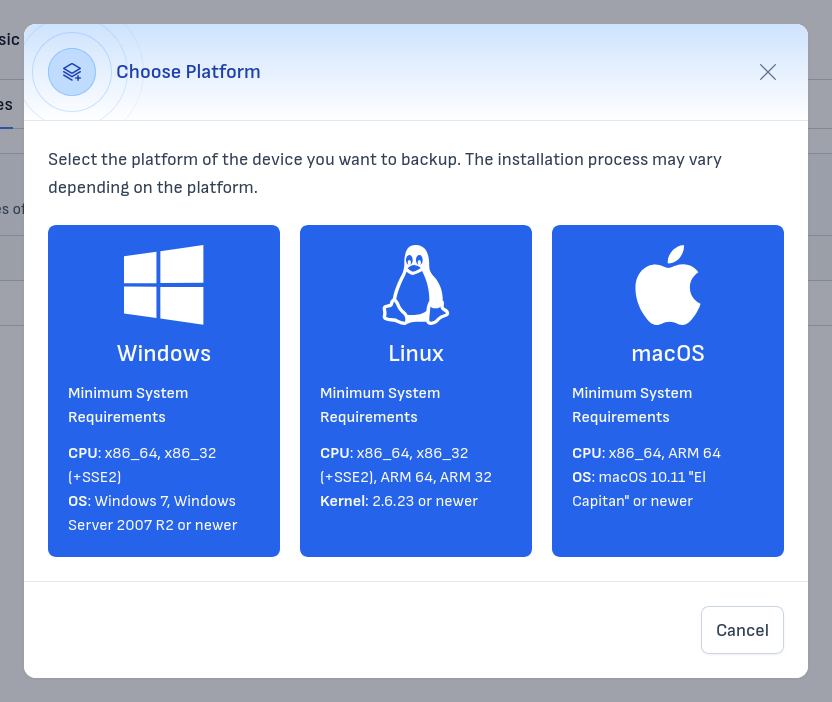
Select the operating system of the device you want to protect: Windows, Linux, or macOS. The system requirements for each platform are displayed on the respective card.
After selecting a platform, the wizard will show platform-specific instructions for downloading, installing, and configuring the agent. Follow the guide for your operating system:
- Windows — installation using the Windows installer
- Linux — installation via .deb, .rpm, or .run packages
- macOS — installation using the macOS .pkg installer
Common case: deleted device and re-registration
If you delete a device from the client area and then reinstall the agent, you may not be prompted for Username and Password again. In most cases, this means the local agent still has a cached previous session.
Follow these steps:
- Open the "+ Add Device" wizard and proceed to the platform-specific configuration step.
- Make sure the agent background service is running on the device.
- Disconnect the old session and start a new interactive login prompt.
- Enter the new Username and Password shown in the wizard.
- Confirm that the device appears again in the Devices list.
Note
Reinstalling alone does not always reset the local agent registration. If the issue persists, use the platform-specific guides to perform re-registration in the correct sequence for your operating system.
For a complete reinstall and reconnect flow, see Reinstalling and reconnecting the agent.
Completion
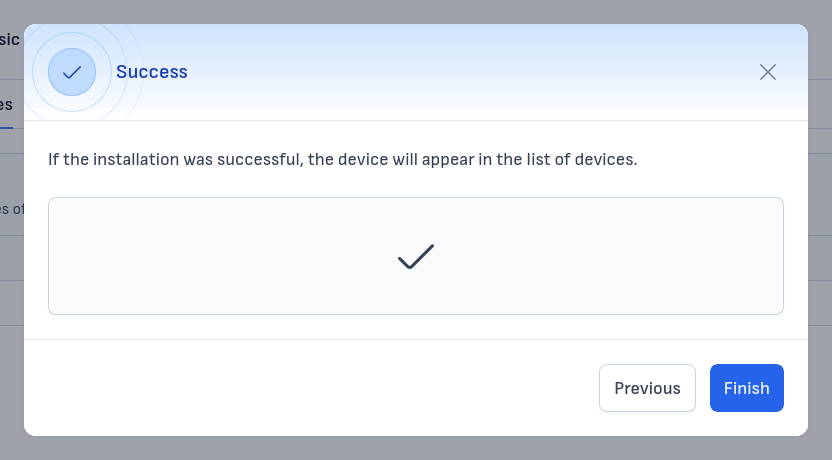
After completing the platform-specific steps, the wizard will display a confirmation message. Click "Finish" to close the wizard. Your new device will now appear in the Devices list with its current status.
Tip
After registering a device, the next step is to configure Protected Items — the specific data sources (files, databases, etc.) that you want to back up on that device.