Retention Policy
The Retention Policy step defines how long backup data is kept in the storage vault before it is automatically deleted. This is the final step in the protected item creation wizard.
Configuring the Retention Policy
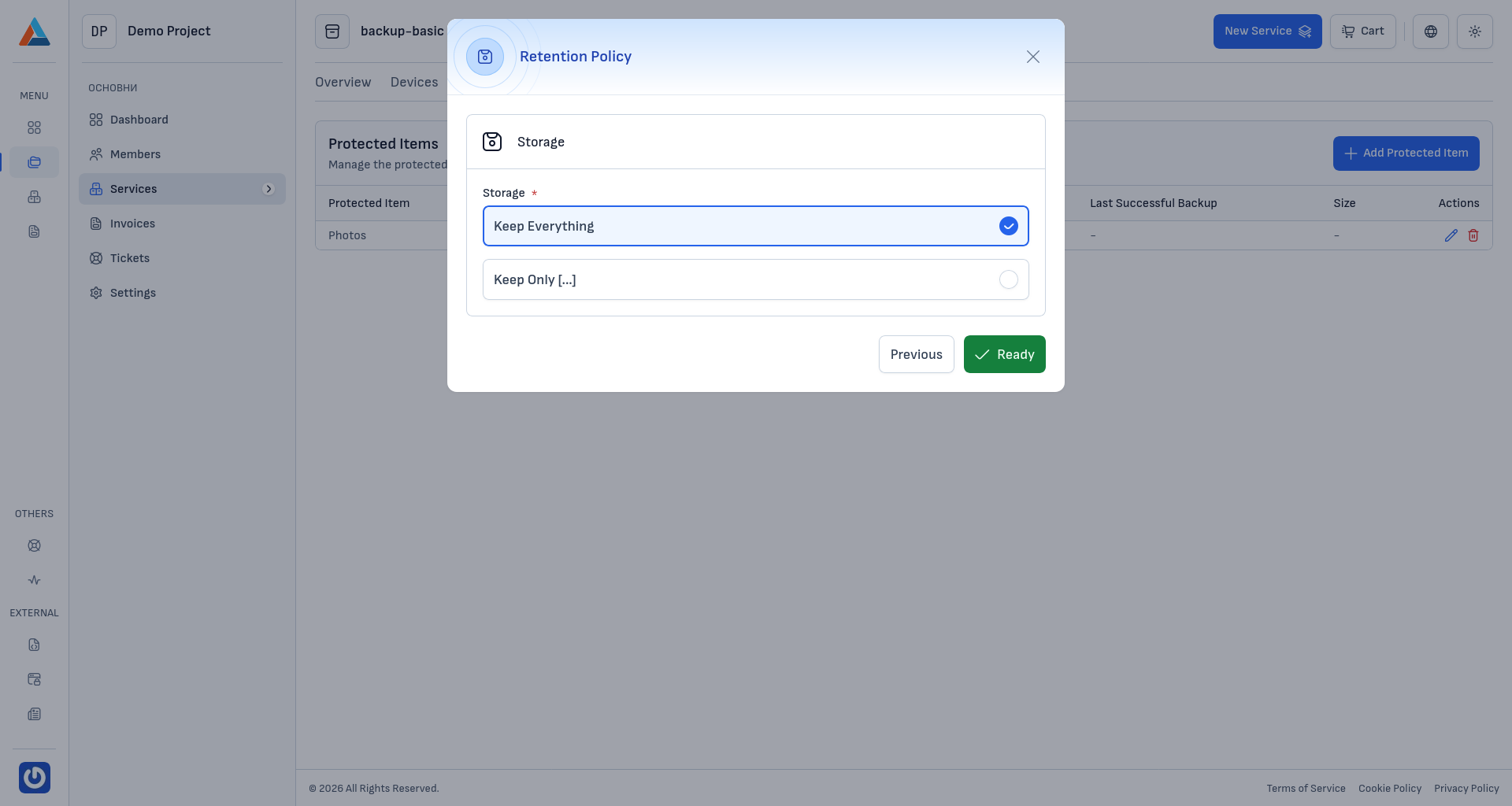
Storage Vault
Select the storage vault to which this retention policy applies. This should match the storage vault selected in the Schedule step.
Retention Mode
Choose one of two modes:
- Keep Everything — all backup snapshots are kept indefinitely. No data is automatically deleted. This is the simplest option but will increase storage usage over time.
- Keep Only [...] — only backups matching a specific rule are kept. All other backups are automatically deleted when the retention policy is applied.
Retention Rules
When Keep Only [...] is selected, choose one of the following rules to determine which backups are retained. The [...] placeholder represents a value you need to specify (a number or a date).
- Most Recent [...] Backups — enter the number of most recent backups to keep
- All Backups Newer Than Specified Date — enter a specific date; all backups after that date are kept
- All Backups Since [...] — enter a number of days, weeks, or months to keep backups from
- The First Backup For Each of the Last [...] Days — enter a number of days
- The First Backup For Each of the Last [...] Weeks — enter a number of weeks
- The First Backup For Each of the Last [...] Months — enter a number of months
- The Last [...] Backups, One For Each Day — enter a number of backups to keep
- The Last [...] Backups, One For Each Week — enter a number of backups to keep
- The Last [...] Backups, One For Each Month — enter a number of backups to keep
- The Last [...] Backups, One For Each Year — enter a number of backups to keep
Note
Only one retention rule can be active at a time. Each rule reveals additional fields (such as a number or date input) for specifying the retention criteria.
Completing the Wizard
After configuring the retention policy, click "Finish" to create the protected item. The backup job will be scheduled according to your configuration and will appear in the Protected Items list.
Tip
You can edit the protected item at any time to change its backup source, execution commands, schedule, or retention policy.