Files and Folders
The Files and Folders backup type allows you to back up specific files and directories from the device's filesystem. This is the most common backup type and is available on all supported platforms (Windows, Linux, and macOS).
After selecting Files and Folders as the backup type in the first step, the wizard will display the file selection screen.
Selecting Files and Folders
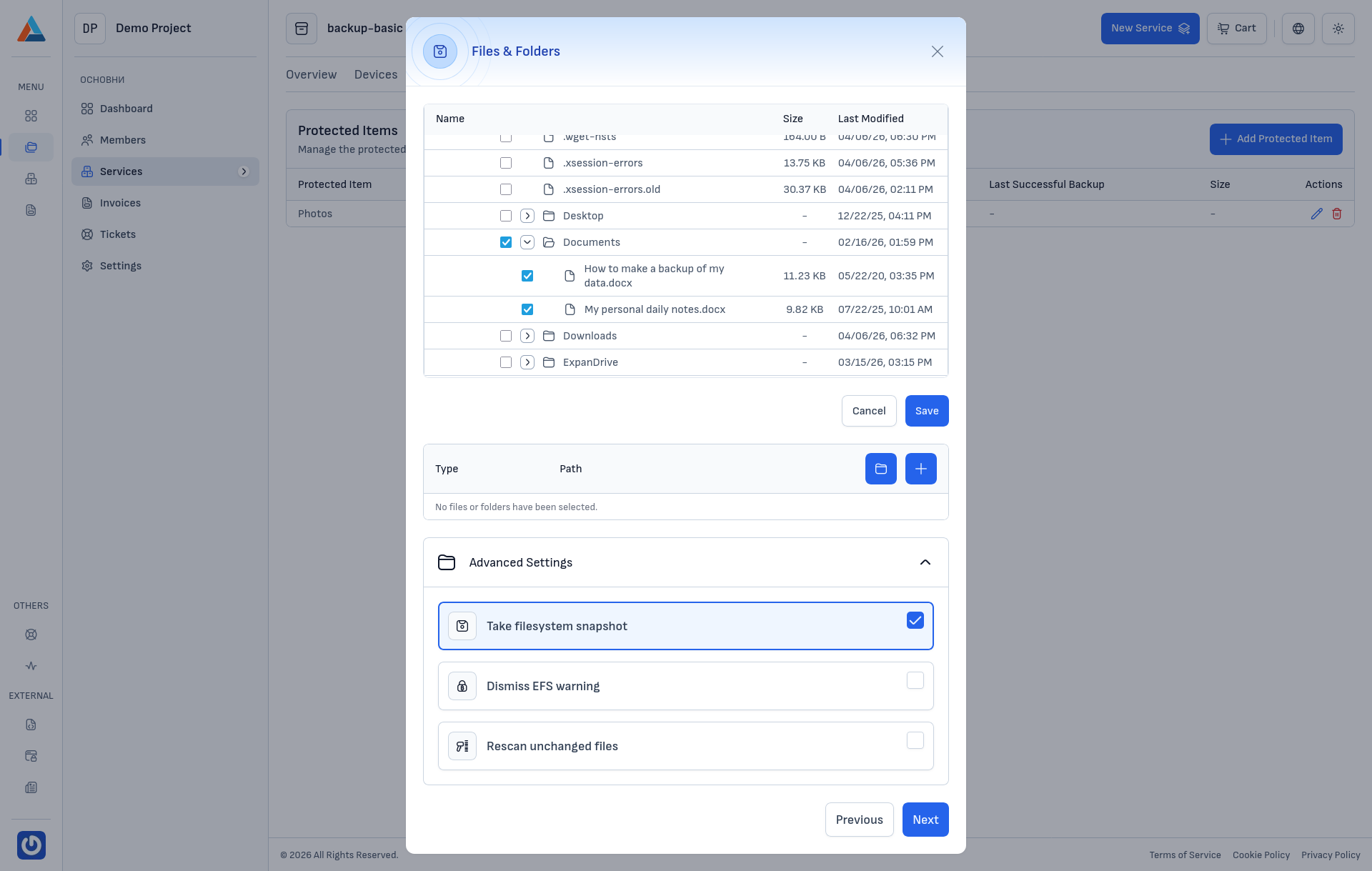
The file browser displays the filesystem of the selected device. You can navigate through directories and select specific files or entire folders for backup by checking the corresponding checkboxes.
For each entry, the browser shows the Name, Size, and Last Modified date.
Tip
Select entire folders rather than individual files when possible. This ensures that new files added to the folder in the future are automatically included in the backup.
Include and Exclude Patterns
Below the file browser, you can define additional rules to fine-tune which files are included in or excluded from the backup using the Type and Path fields.
The available pattern types are:
- Include — include a specific file or folder path
- Exclude — exclude a specific file or folder path
- Include pattern — include files matching a glob pattern
- Include RegEx — include files matching a regular expression
- Exclude RegEx — exclude files matching a regular expression
Click the add button to create a new rule, or the remove button to delete an existing one.
Advanced Settings
The Advanced Settings section provides additional options for the backup behavior:
- Take filesystem snapshot — creates a Volume Shadow Copy (VSS) snapshot before backing up, allowing the agent to back up files that are currently in use. This option is enabled by default and is recommended for most scenarios.
- Dismiss EFS warning — suppresses warnings related to Encrypting File System (EFS) encrypted files.
- Rescan unchanged files — forces the agent to re-examine files that have not changed since the last backup. This increases backup time but ensures data integrity.
After configuring the file selection, click "Next" to proceed to the Execution Commands step.