Adding a macOS Device
This guide covers the platform-specific steps for registering a macOS device. Before you begin, make sure you have completed the initial steps from the Adding a Device guide and selected macOS as the platform.
Installation Steps
Download the Software
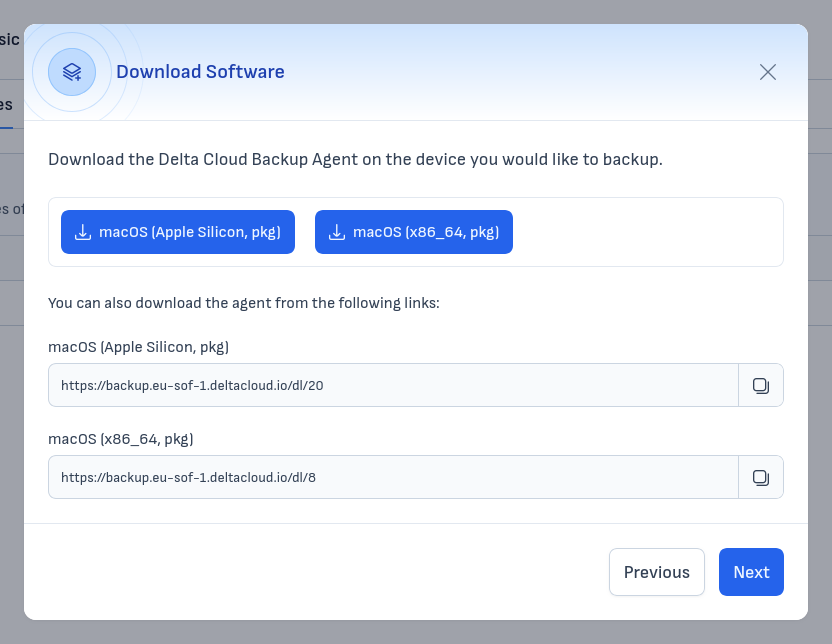
Choose the appropriate package for your Mac:
- macOS (Apple Silicon, pkg) — for Macs with M1, M2, M3, or M4 chips
- macOS (x86_64, pkg) — for Macs with Intel processors
Click the corresponding button to download, or copy the download link provided below.
Install the Software
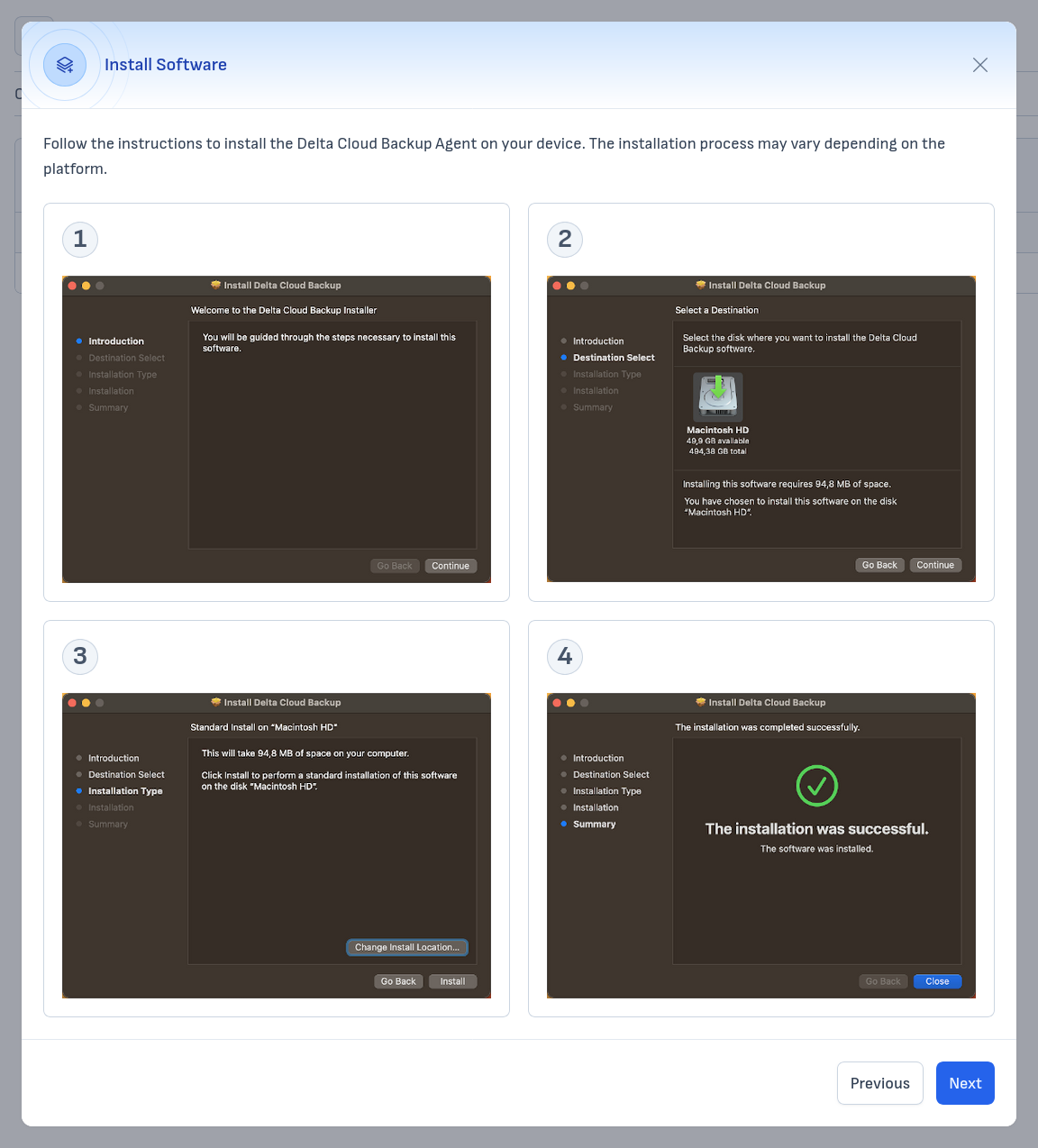
Open the downloaded .pkg file and follow the macOS installation wizard:
- Review the welcome screen and click "Continue".
- Accept the license agreement.
- Choose the installation location and click "Install".
- Wait for the installation to complete, then click "Close".
Configure the Software
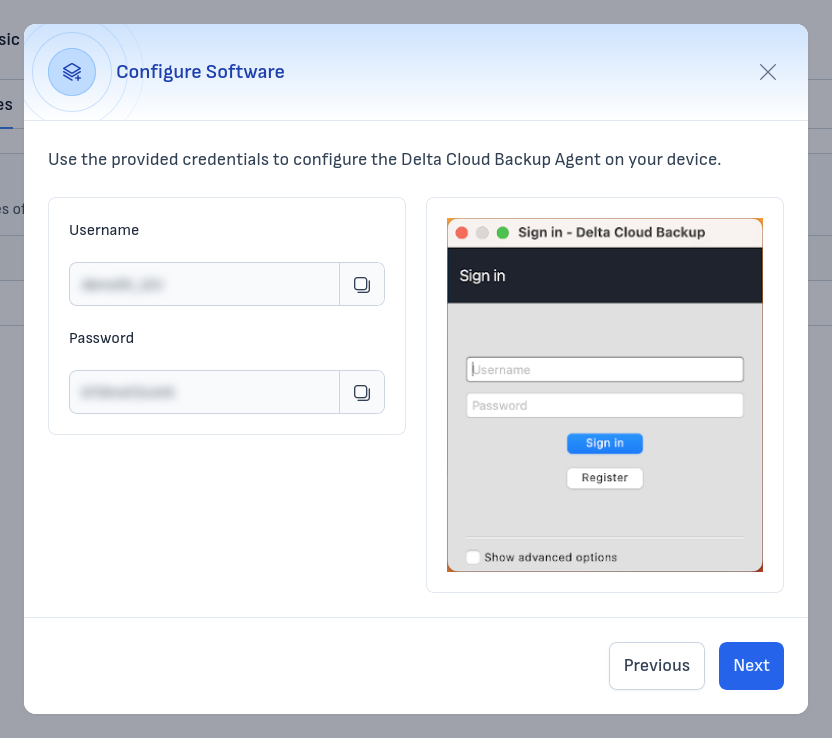
After installation, the Delta Cloud Backup Agent will open a Sign in window. Enter the Username and Password displayed on the left side of the wizard and click "Sign in".
Once the agent connects successfully, return to the wizard in the client area and proceed to the Completion step.