Members
The Members section (Project → Members) manages who has access to the project and with what role.
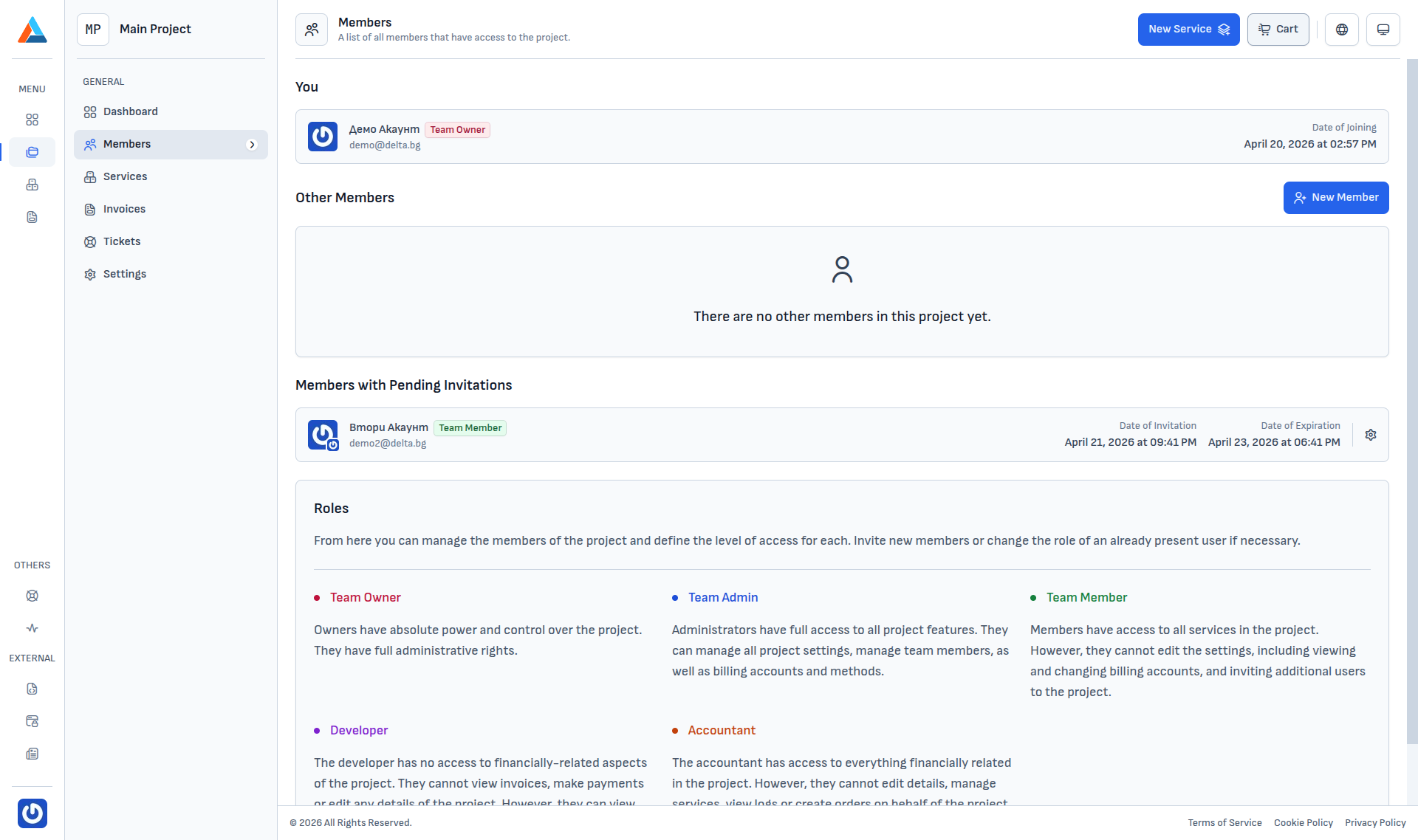
The page is split into three blocks:
- You — your own record, your role in this project and the date you joined.
- Other Members — everyone else who has accepted their invitation.
- Members with Pending Invitations — invitations that have been sent but not accepted yet.
Below them is a reference with descriptions of all roles.
Roles
Each member receives one of five roles that determines what they can do:
| Role | Rights |
|---|---|
| Team Owner | Full administrative rights. The project is created with the owner = whoever created it; the role cannot be changed. |
| Team Admin | Full access to every feature — settings, services, invoices, members, payment methods and billing accounts. |
| Team Member | Access to services, but no access to settings, billing accounts or inviting new members. |
| Developer | Can view and manage services. Cannot see invoices, make payments or edit project details. |
| Accountant | Sees everything financial (invoices, payment methods). Does not manage services, create orders or view the history. |
Info
Role restrictions also apply at the menu level — for example Team Member and Developer do not see the Settings item in the project sidebar.
Inviting a new member
The New Member button in the Other Members block opens the invite dialog:
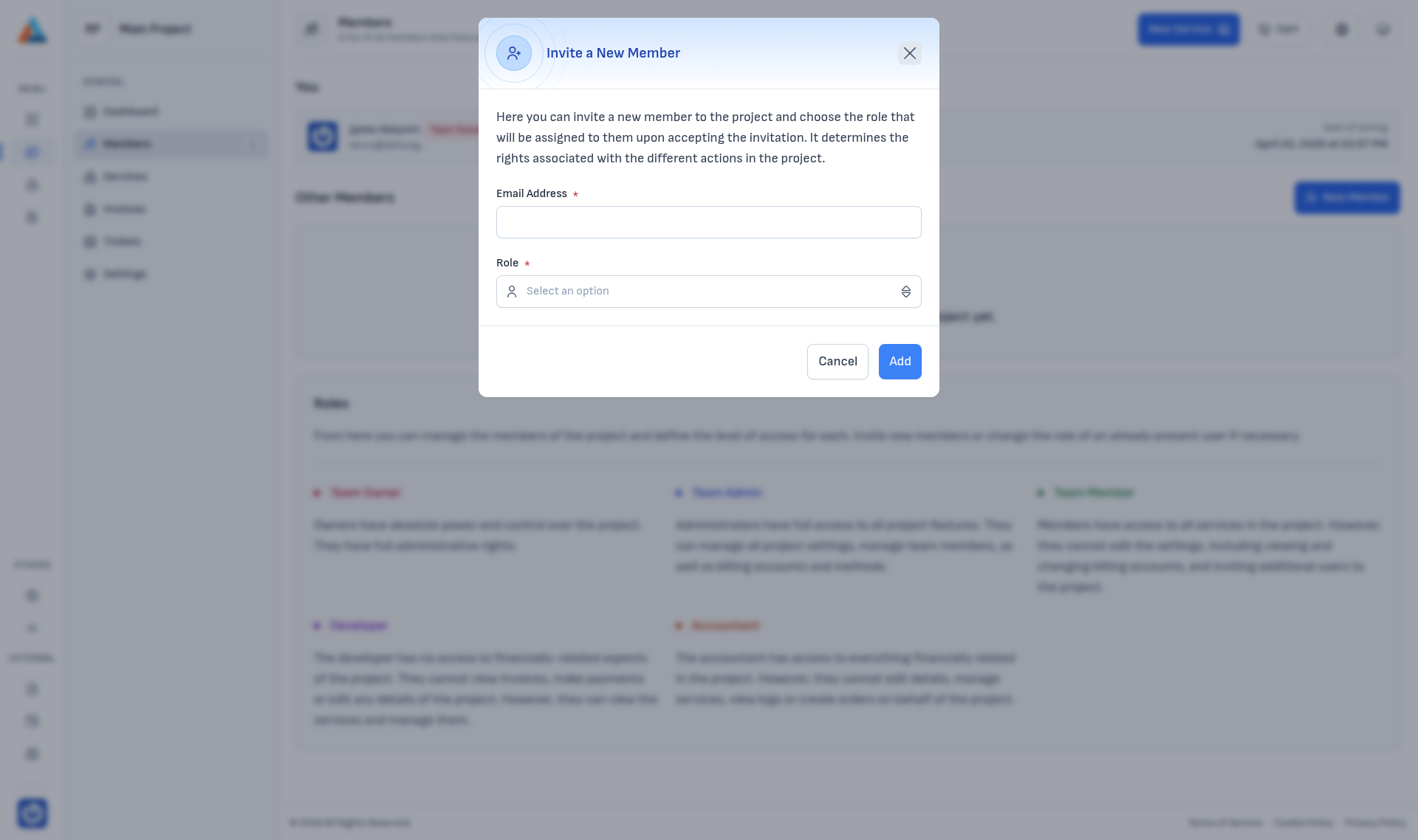
Two fields:
| Field | Description |
|---|---|
| Email Address | The address the invitation is sent to. It can belong to someone who is not yet a Delta.BG customer — they will register when they accept. |
| Role | The role the member will receive upon acceptance. |
Pressing Add emails the invitation link and adds a record to the Members with Pending Invitations block.
Managing a pending invitation
Each pending invitation has a Manage button that opens a menu:
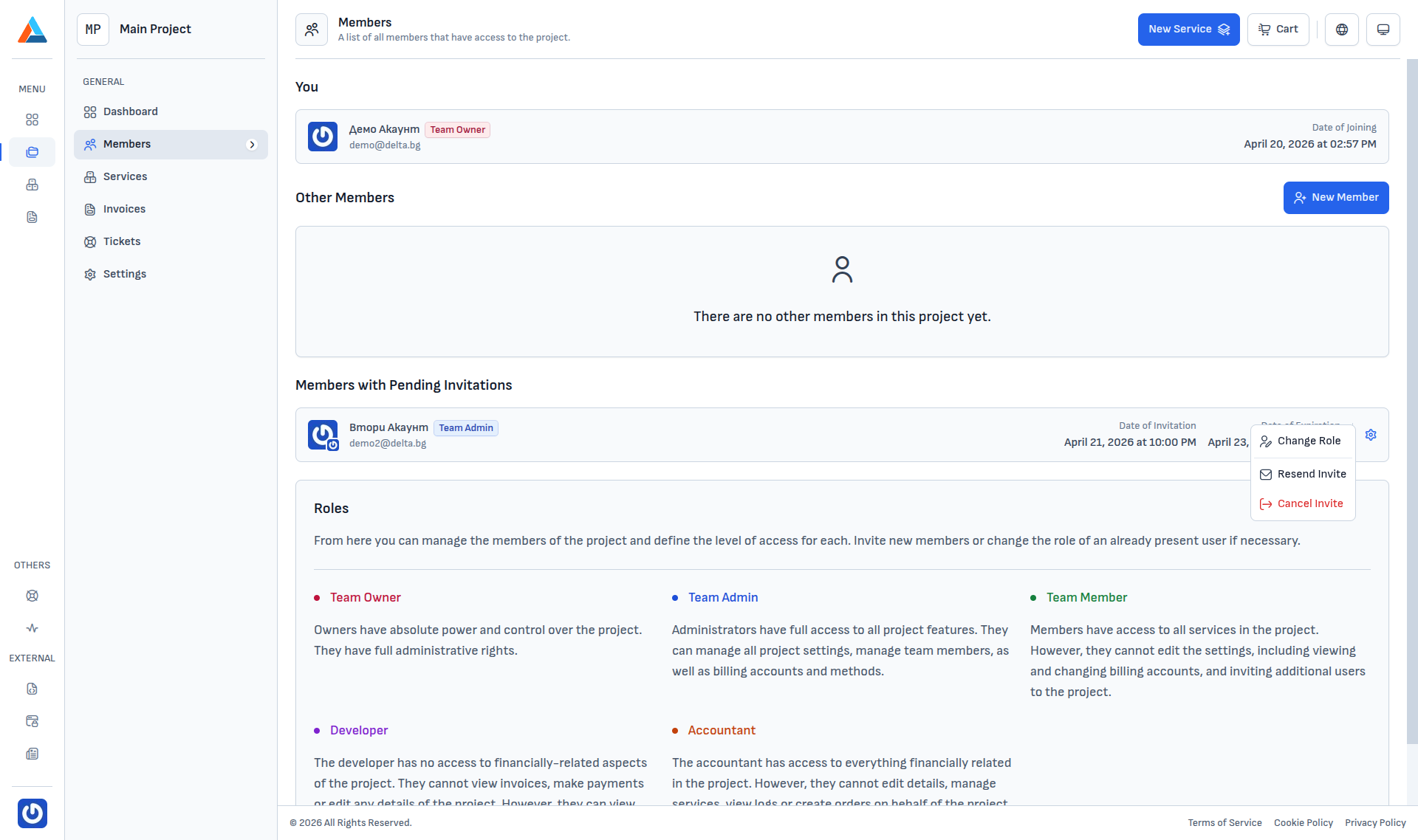
| Option | Description |
|---|---|
| Change Role | Opens a dialog where you pick a different role. The change takes effect the moment the invitee accepts. |
| Resend Invite | Re-sends the same invitation email — useful if the original message was not found. |
| Cancel Invite | Revokes the invitation — the link stops working and the row disappears. |
Change Role
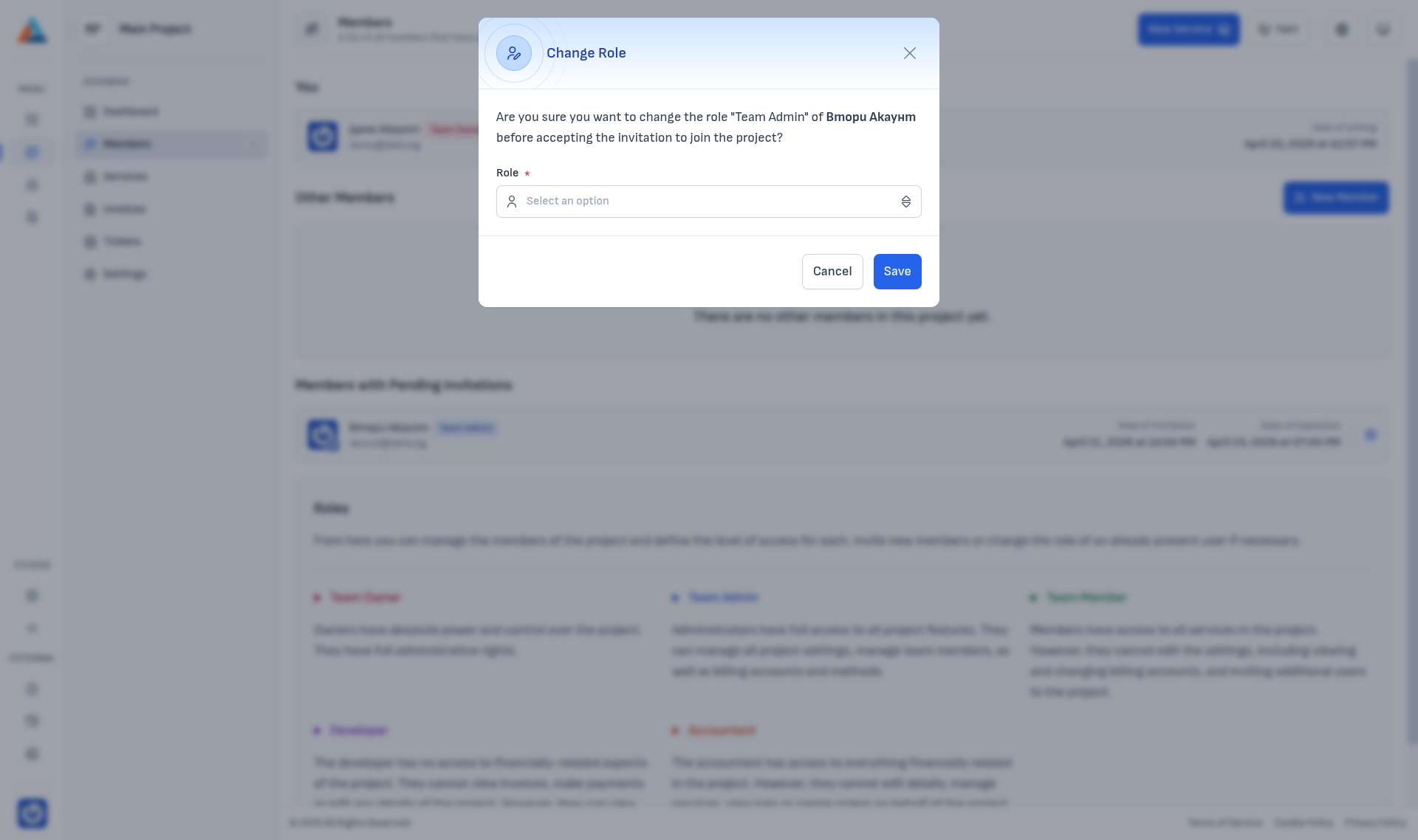
Pick a new role from the dropdown and press Save. The change does not require any action from the invitee.
Cancel Invite
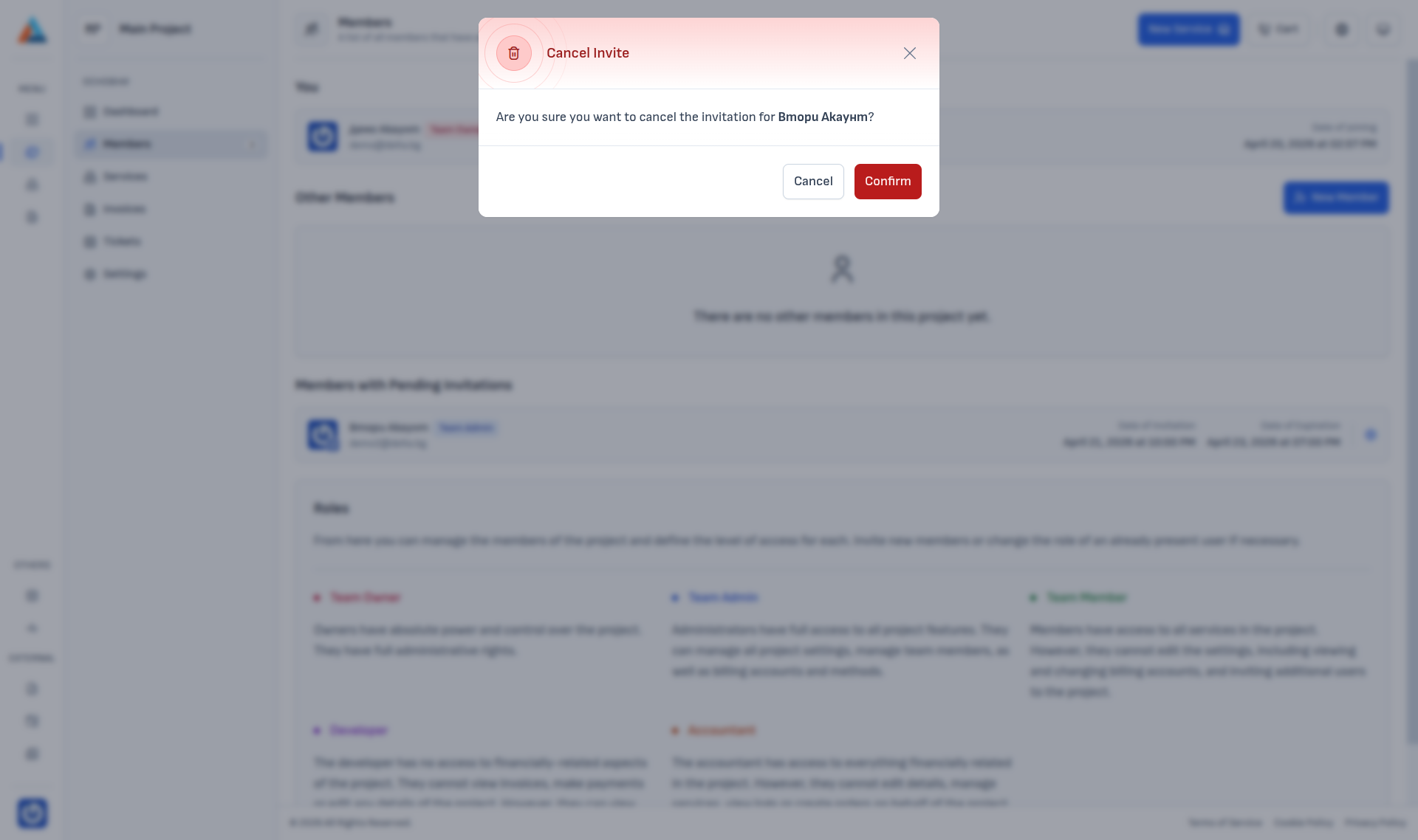
Confirmation is required to avoid accidental revocations. After pressing Confirm the email link stops working and the invitation is removed from the list.
Accepting an invitation
On the invitee's side the invitation appears in the Project Invitations table on Menu → Projects (see Overview). Acceptance can happen two ways:
- From the Accept button next to the invitation in the table — a short confirmation dialog opens.
- From the email link — it opens a page that auto-accepts the invitation on visit.
Warning
If the email link does not work (for example because the domain differs from what you expected), sign in and accept from the projects list. Both paths give the same result.
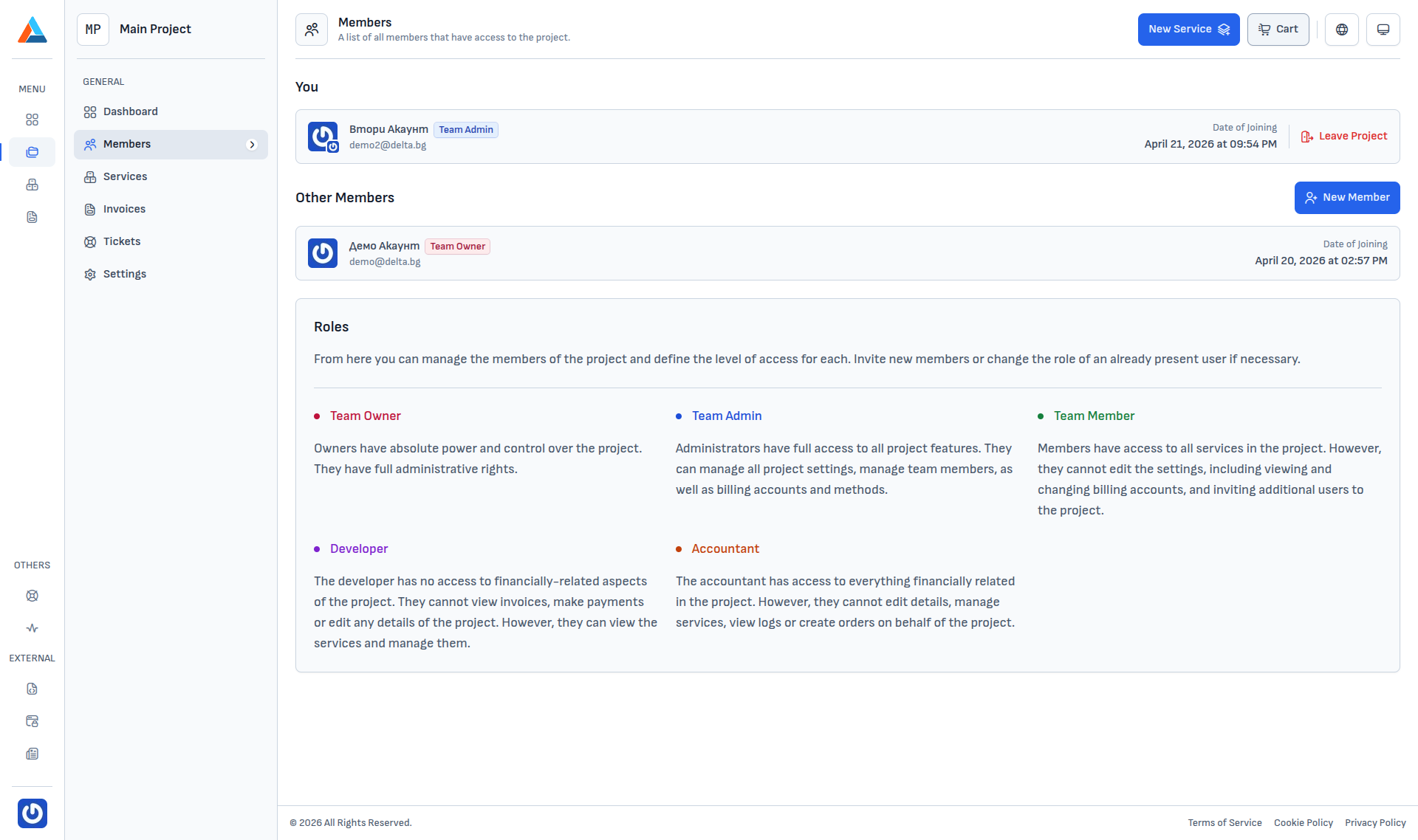
View for a regular member
Members without the Team Owner role see the page slightly differently — for example a Team Admin sees their own record with a Leave button, while the other roles appear like any other member:
Leaving a project
If you are a member (not the owner), you can leave the project at any time from the You block → Leave Project button:
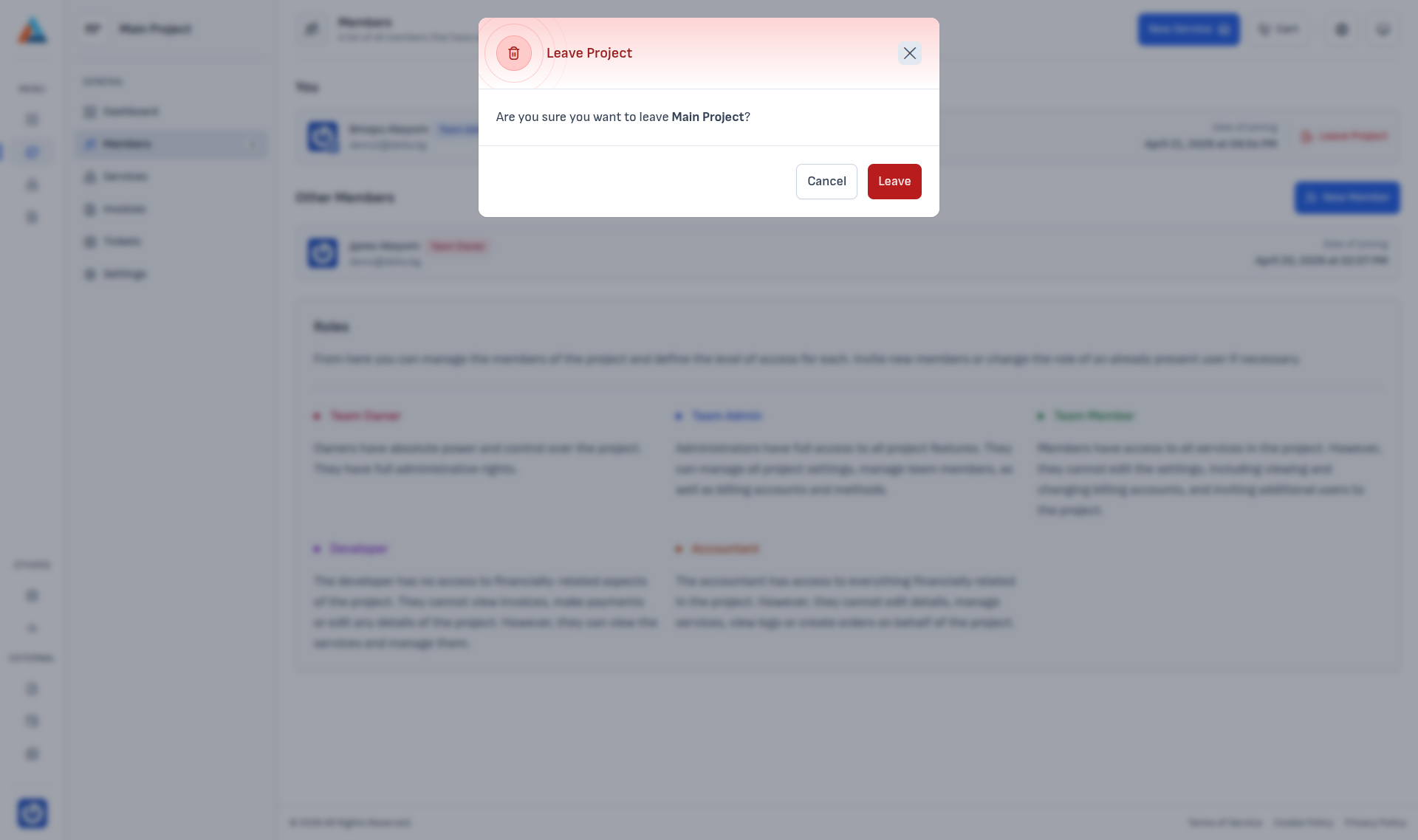
After confirming you lose access. The project's services and data are not affected; if the owner re-invites you, you need to accept the invitation again.
Info
The owner cannot leave their own project through this button — to hand over ownership, contact Support.