Payment methods
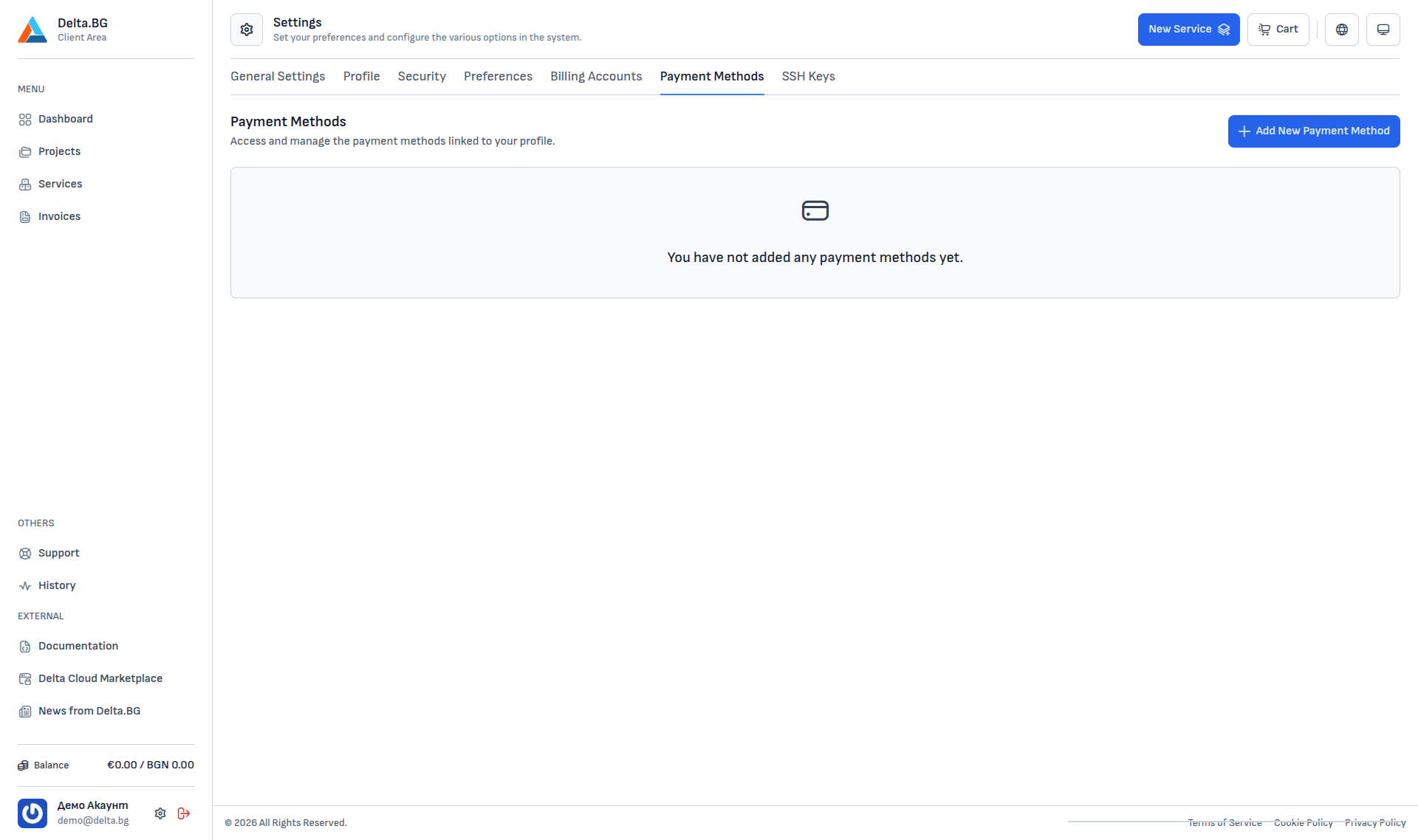
The Payment Methods section (Settings → Payment Methods) manages the methods you can use to pay your invoices automatically. Saving a method here is optional — you can place orders without it and pay each invoice one-off.
What saved methods are for
Saved payment methods:
- Can be set as a default method on a project. When you place an order for that project the method is pre-selected automatically — you do not have to pick it every time.
- Enable automatic charges on future invoices if you opt in at the project level.
If you do not save a method, you can pay each order one-off through the options the checkout shows you, without leaving stored card details on your account.
Adding a method
The "+ Add New Payment Method" button opens a dialog:
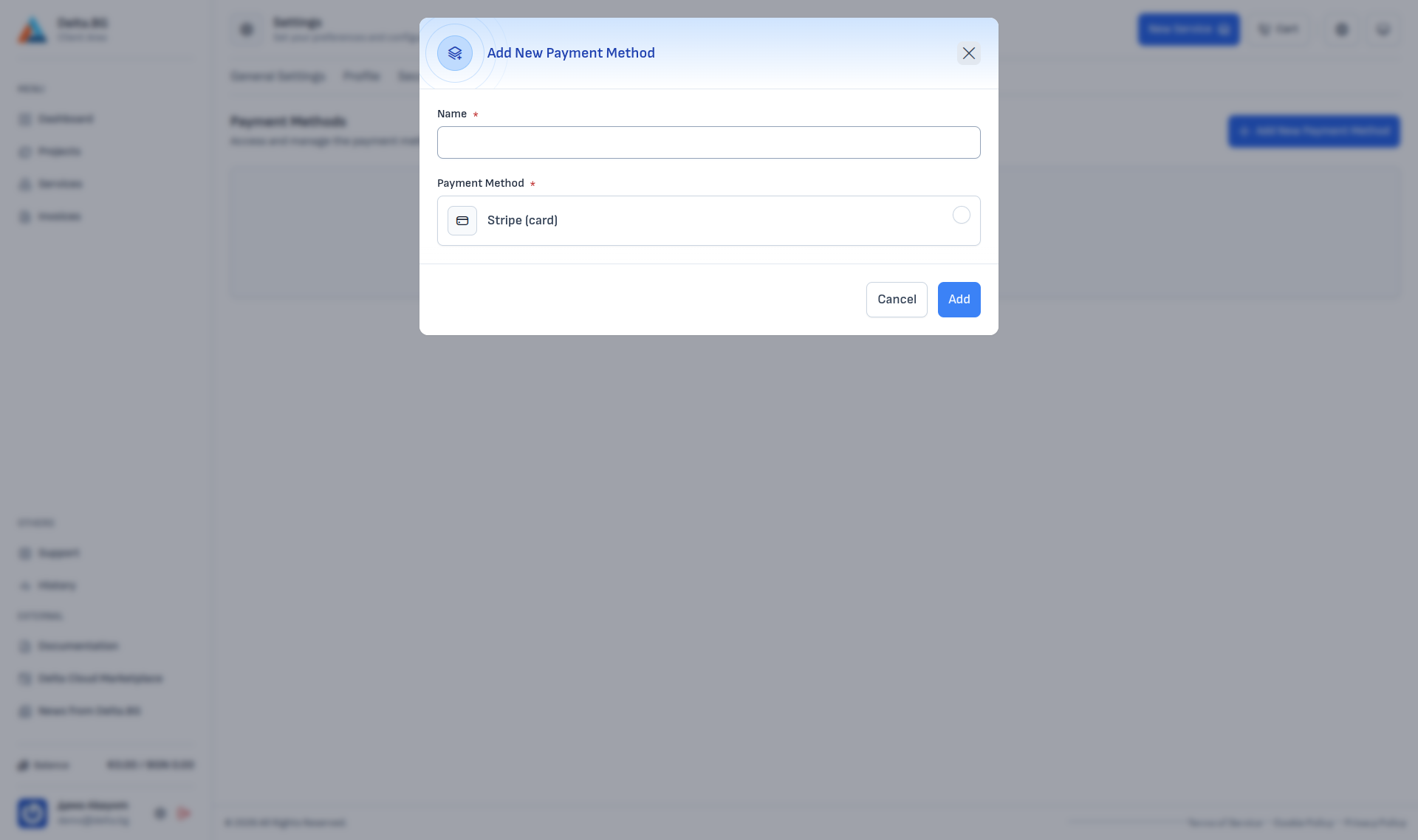
| Field | Description |
|---|---|
| Name | A custom label you will see throughout the interface — for example "Test card", "Company card". Helpful when you keep several active cards. |
| Payment Method | Currently Stripe (card) is supported. |
After picking Stripe (card) the Stripe-provided card-entry elements load directly in the dialog. Follow their prompts and press Add.
Attaching to a project
Once you have saved a method you can set it as the default method on a specific project — see Projects (in a future version of the documentation). From then on the method will appear pre-selected in the cart every time you order a service for that project.