Adding a Linux Device
This guide covers the platform-specific steps for registering a Linux device. Before you begin, make sure you have completed the initial steps from the Adding a Device guide and selected Linux as the platform.
Installation Steps
Download the Software
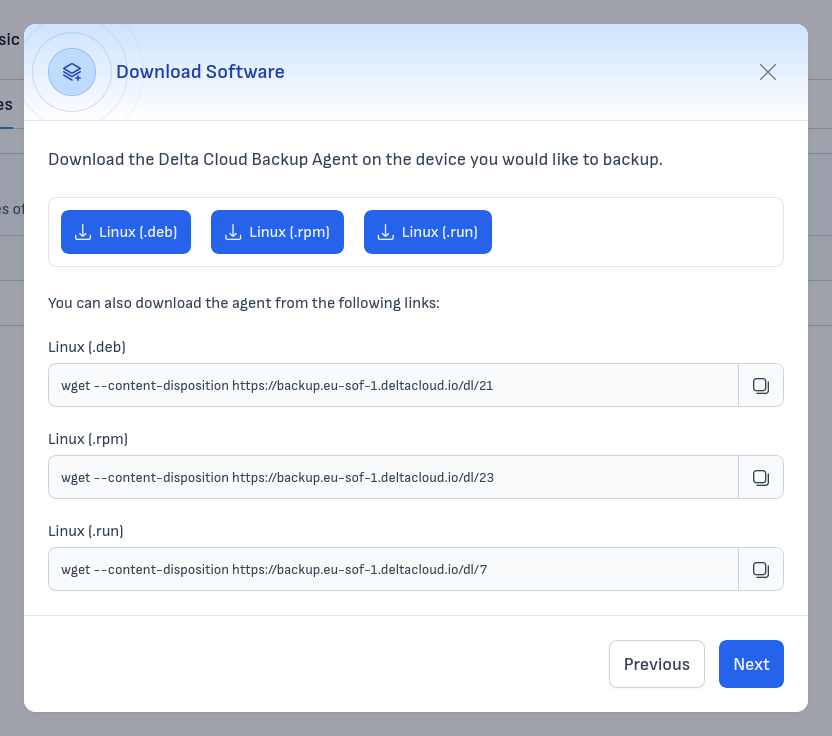
Choose the appropriate package format for your distribution:
- Linux (.deb) — for Debian, Ubuntu, and derivatives
- Linux (.rpm) — for CentOS, RHEL, Fedora, and derivatives
- Linux (.run) — universal self-extracting installer
Click the corresponding button to download the package, or copy the wget command provided below to download it directly on the server.
Install the Software
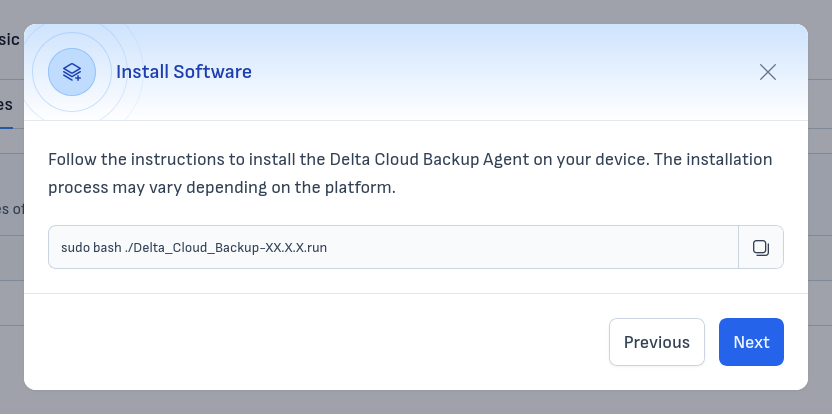
Run the installer using the command shown in the wizard. For the .run package:
Note
Replace XX.X.X with the actual version number of the downloaded file.
Configure the Software
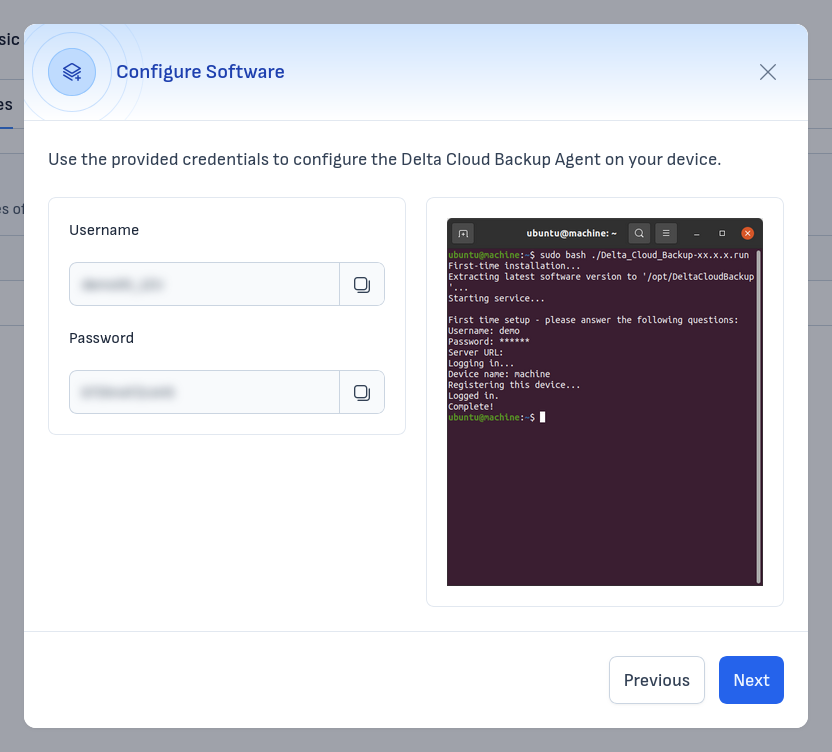
During the first run, the agent will prompt you for the connection details in the terminal. Enter the Username and Password displayed on the left side of the wizard when prompted.
The agent will register the device and start the background service automatically.
Once the agent connects successfully, return to the wizard in the client area and proceed to the Completion step.
Troubleshooting re-registration
If the device was deleted from the client area and a new attempt does not show a Username/Password prompt, run:
sudo systemctl start backup-tool
sudo /opt/DeltaCloudBackup/backup-tool login status
sudo /opt/DeltaCloudBackup/backup-tool login disconnect
sudo /opt/DeltaCloudBackup/backup-tool login prompt
Then enter the Username and Password from the current "+ Add Device" wizard.
To verify:
For a complete reinstall and reconnect flow, see Reinstalling and reconnecting the agent.