Updating the Domain
The domain determines the address through which requests will be forwarded to your GTM server. You can use your own domain or subdomain (e.g., gtm.example.com) for a first-party context, or a service domain from Delta.BG.
Updating the Domain
To update the service domain:
Open the service page
Navigate to your Server-Side GTM service page in the client area and make sure you're on the "Overview" tab.
Click the edit button
In the "Service Configuration" section, find the "Domain" field and click the edit button.
Enter the new domain
In the dialog that opens, enter the new domain or subdomain through which you want requests to be forwarded to the GTM server.
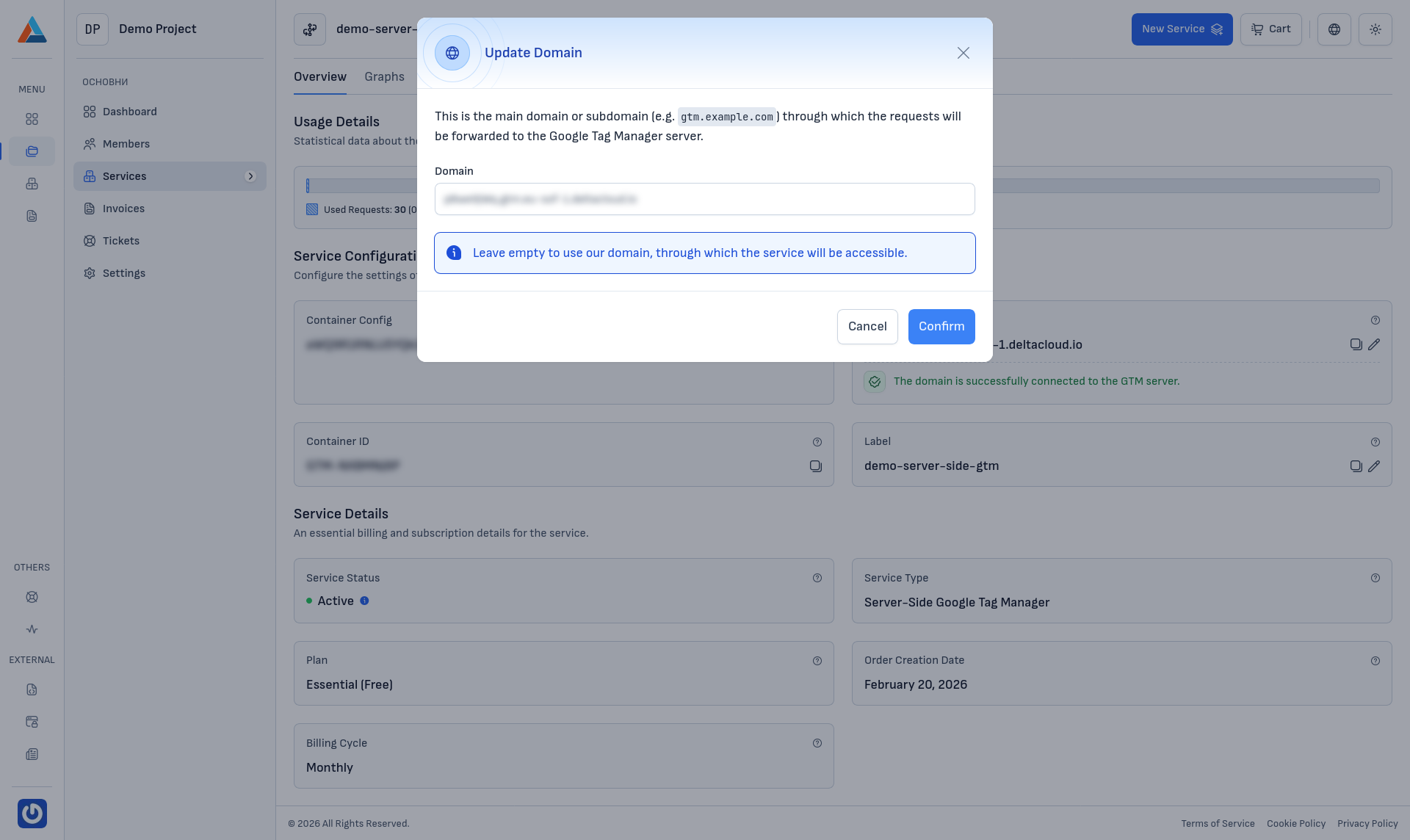
Confirm the change
Click the "Confirm" button to apply the new domain.
Warning
If you're using a custom domain, make sure the domain's DNS records are correctly configured to point to the GTM server before making the change. Otherwise, the service may not be accessible through the specified domain.
Tip
Leave the domain field empty to use a service domain from Delta.BG, through which the service will be accessible automatically.