Restoring Proxmox
When you have a successful backup snapshot of a Proxmox protected item, you can restore it to any device in several ways, depending on how you want to use the recovered data. To configure new backups, see Proxmox protected items.
Available restore methods
Depending on the options shown in the restore wizard for your snapshot, you can recover Proxmox backups as:
- Proxmox — deploy selected VMs or LXC containers directly into a Proxmox VE instance as new items (see the step-by-step flow below).
- Compressed archive — download or place a compressed archive of the restore output.
- Files — restore as files and folders, including configuration (
.conf) and relatedtarpayloads where applicable. - Program Input — restore path suitable for piping or further processing by another program (when offered for your snapshot).
Note
VMware and Hyper-V–target restores from Proxmox backups are not available in the product yet. If you need that workflow, contact our support team so technical support can assist.
Restoring to a Proxmox instance
After you select the Proxmox snapshot and the objects to restore, use the following sequence when you choose the Proxmox restore type.
1. Choose the restore type
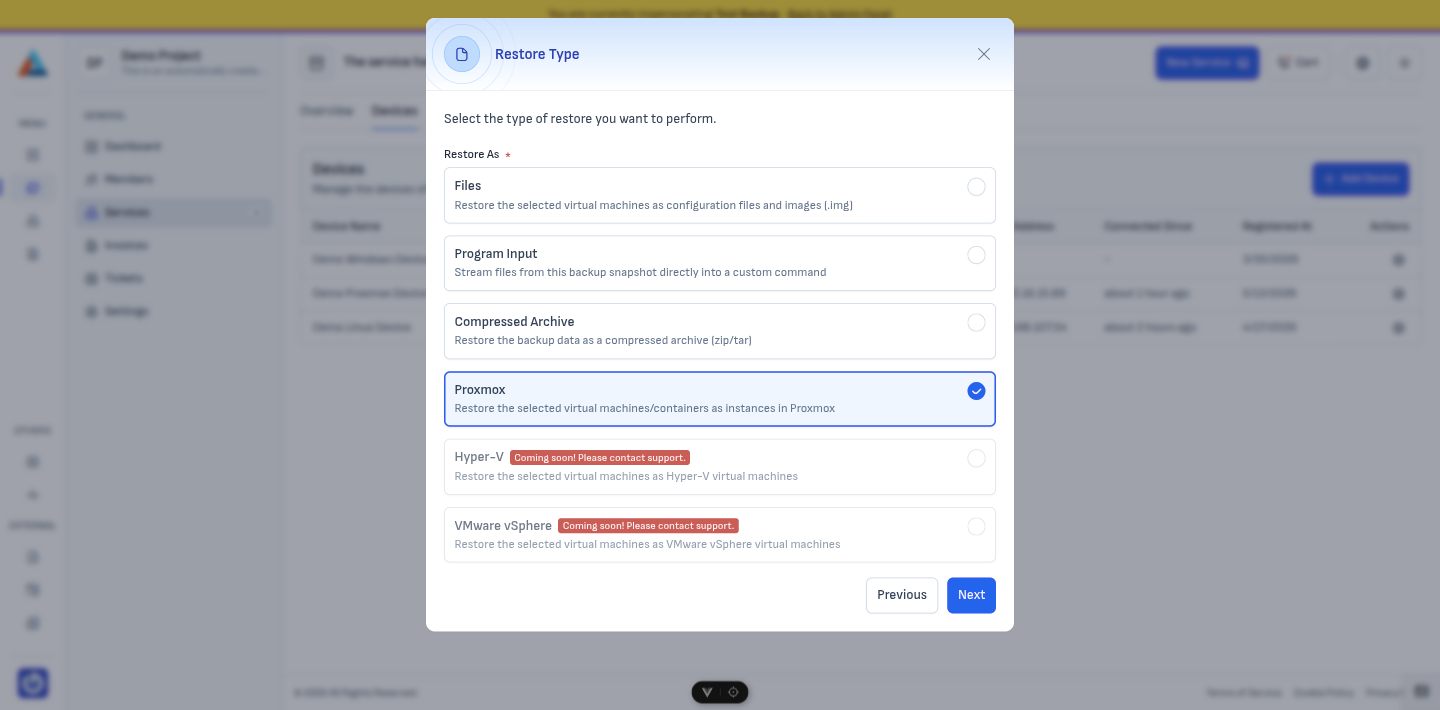
Select the output format for this job. For a direct import into Proxmox, choose Proxmox. The other options on this screen typically include Files, Program Input, and Compressed Archive (exact labels match the client area).
2. Choose VMs and LXC containers to restore
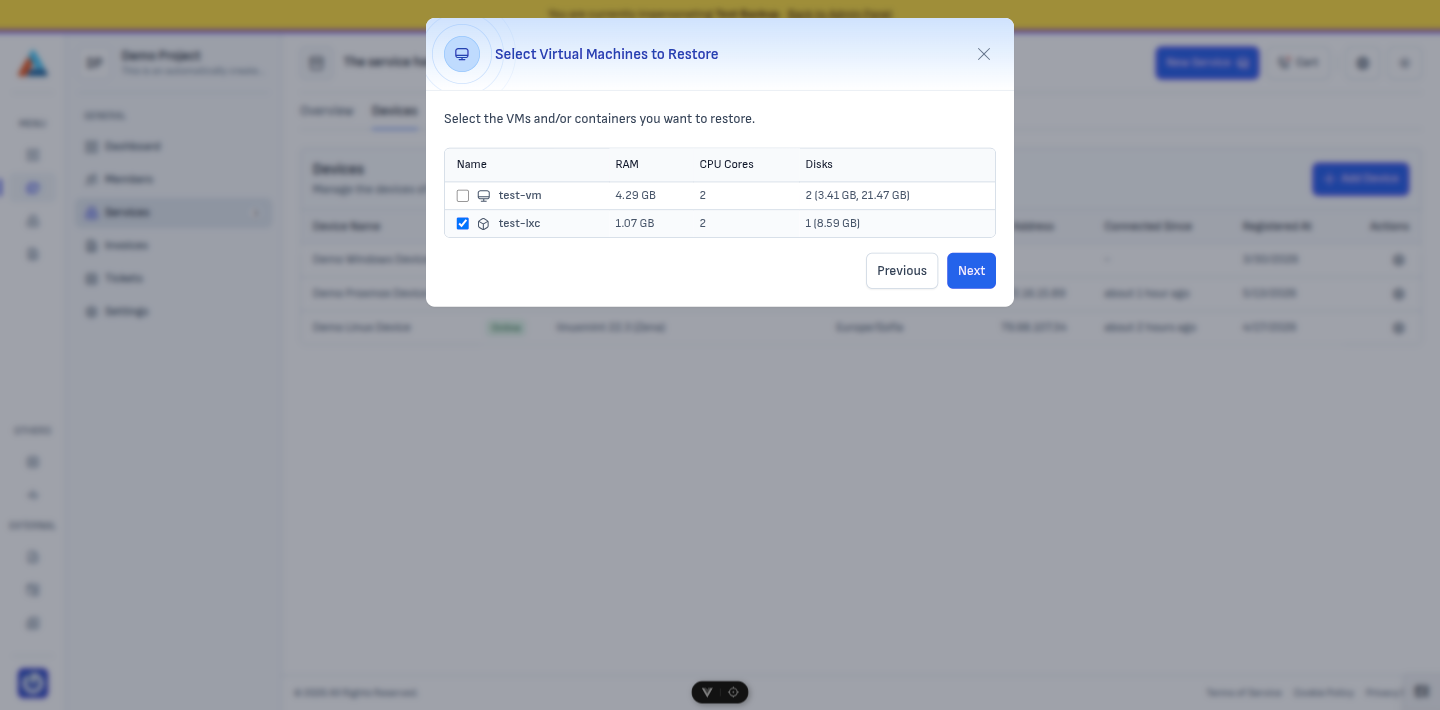
Pick the virtual machines and LXC containers from the snapshot that you want to restore in this job.
3. Connect to the target Proxmox host
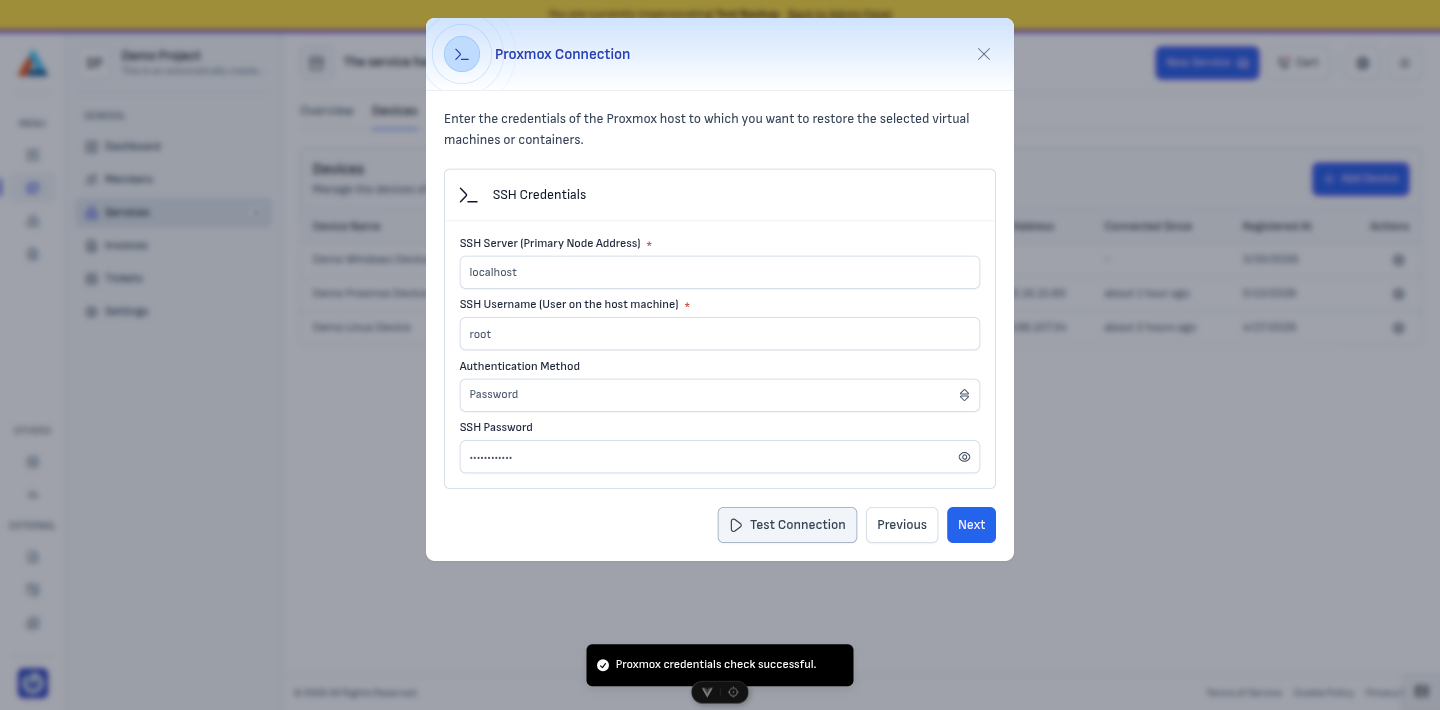
Enter SSH credentials for the Proxmox host you are restoring into (the destination instance). The form is pre-filled by default with the credentials of the device that was originally backed up; change them if you are restoring to a different host.
Run the connection test and resolve any errors before you continue — the wizard requires a successful test to proceed.
4. Choose node and storage
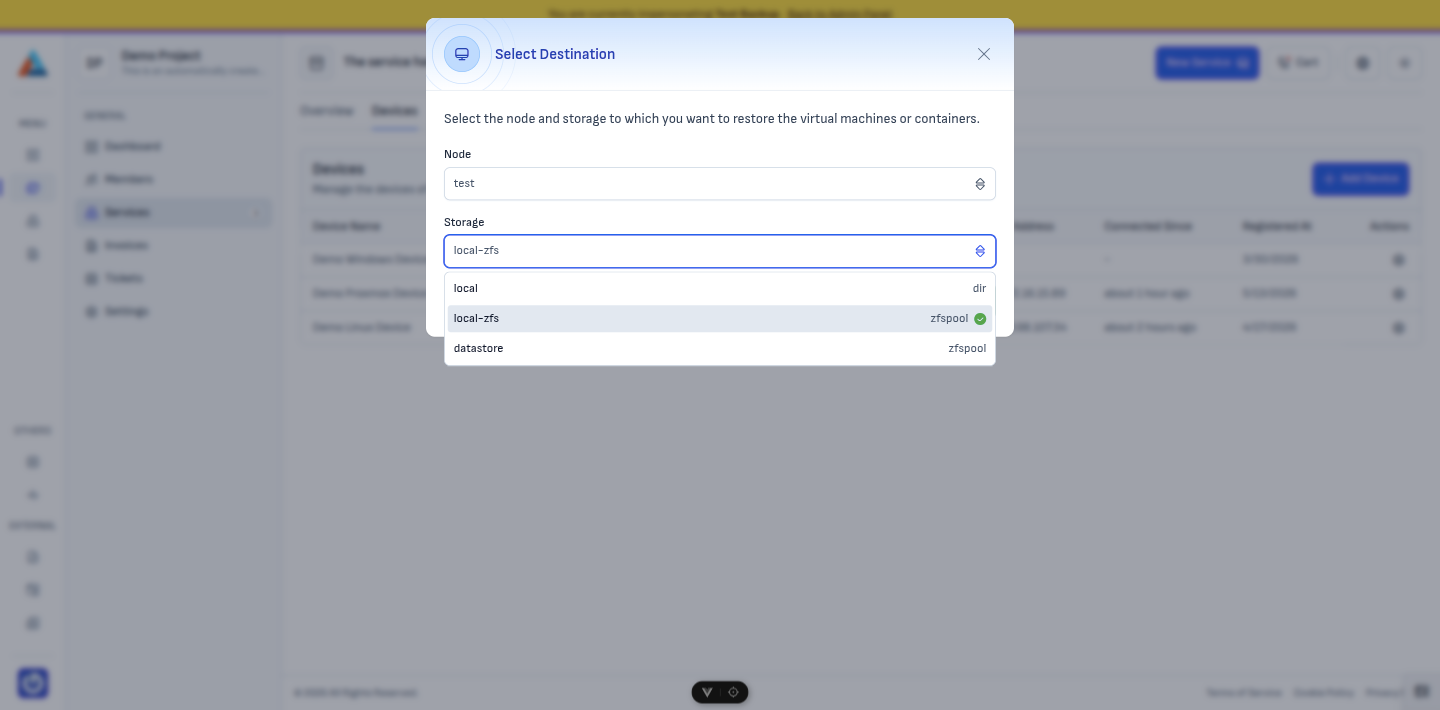
Select the node and storage inside the target Proxmox instance where the restored VM or LXC will be created.
Warning
LXC containers cannot be restored to dir (directory) type storages. Choose a storage backend that supports LXC placement (for example, ZFS, LVM, or other supported types). If you are unsure which storage to use, check your Proxmox storage configuration or ask support.
After the restore
Monitor the job and logs in Jobs. Validate that items appear on the target node with the expected names, network settings, and disk layout before putting them into production.