Managing Snapshots
This page provides detailed instructions for all snapshot operations — from creation to deletion.
Creating a Snapshot
-
Navigate to the Section
Navigate to the "Snapshots" tab on the service page.
-
Click the Add Button
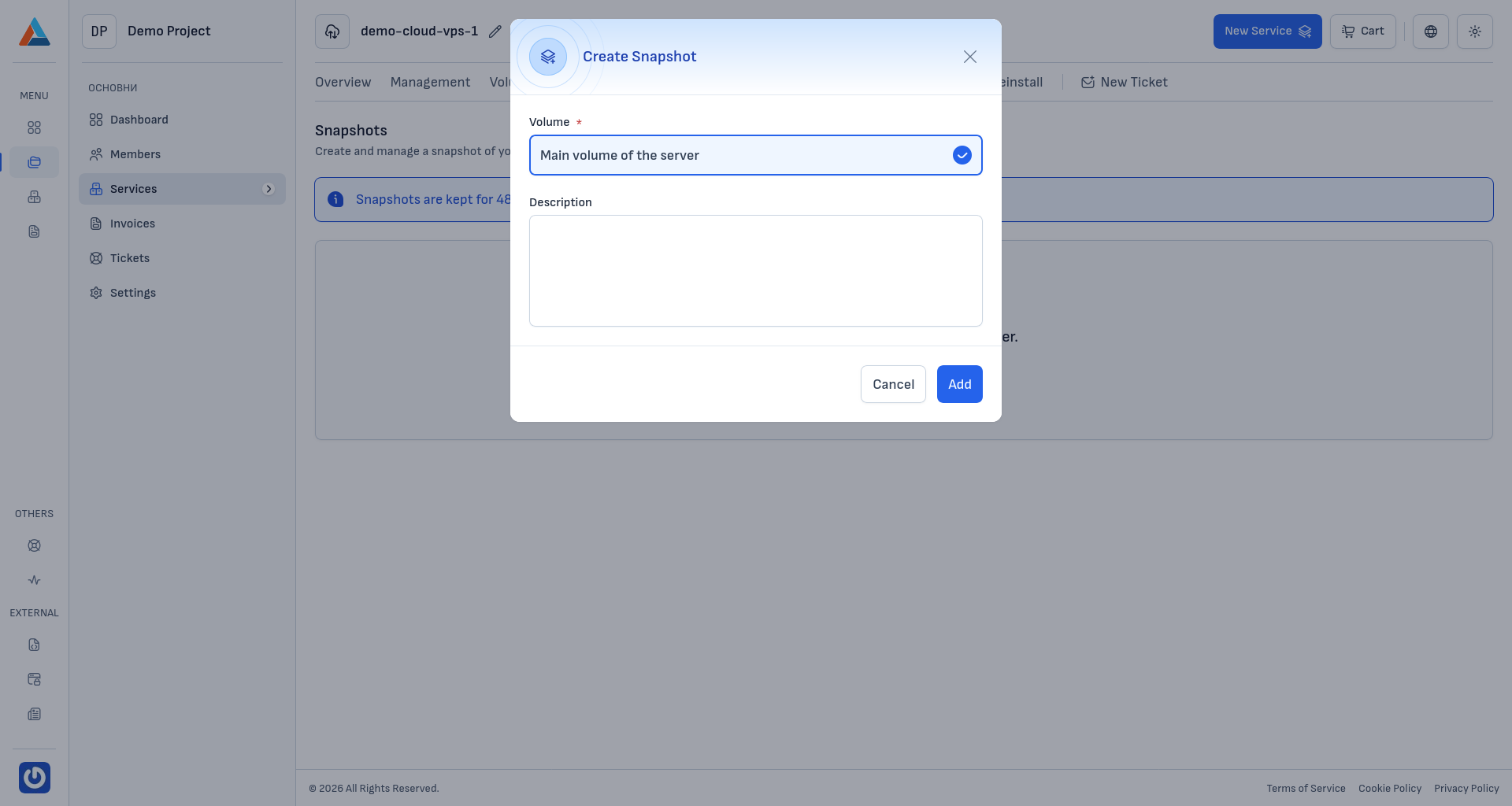
Click the "+ Add" button to open the snapshot creation dialog.
-
Fill in the Parameters
- Volume — The "Volume" field shows "Main volume of the server" — this is the only volume that can be snapshotted from the Cloud VPS service page. For snapshots of additional volumes (Block Storage) attached to the server, use each volume's own page in the client area.
- Description — Optionally enter a description for the snapshot to help you identify it later.
-
Confirm
Click the "Add" button to create the snapshot.
Note
Snapshot creation may take a few minutes depending on the volume size.
Viewing Snapshots
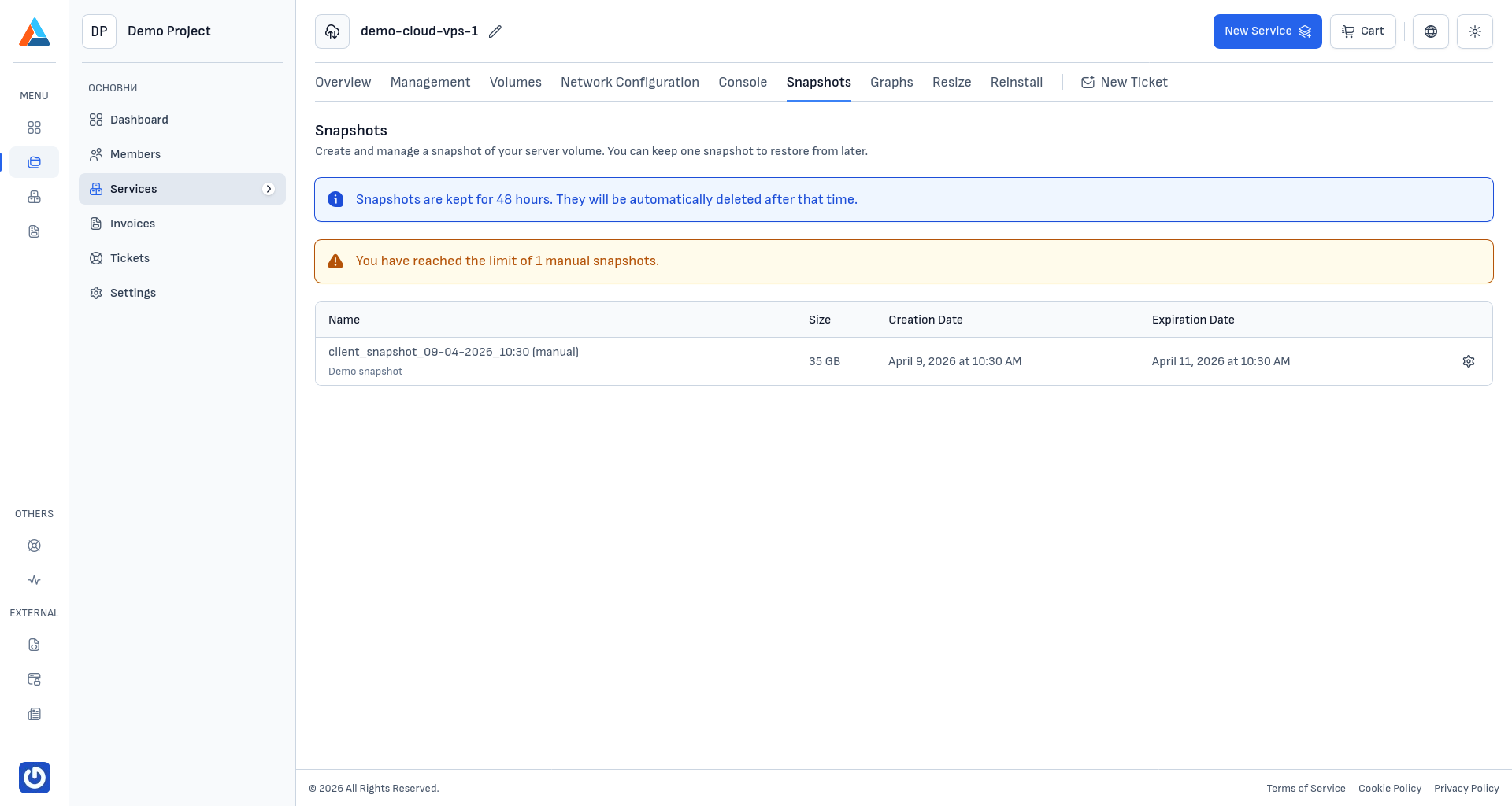
After creating a snapshot, the table displays a list of available snapshots with the following information:
- Name — automatically generated snapshot name with a type label (manual)
- Size — the size of the snapshot
- Creation Date — the date and time the snapshot was created
- Expiration Date — the date and time when the snapshot will be automatically deleted
Note
When you reach the limit of 1 manual snapshot, the system will display a warning. To create a new snapshot, you must first delete the existing one.
Reverting to a Snapshot
You can restore a volume to the state captured in a snapshot. This is useful when you want to return the server to a previous working state.
-
Navigate to the Section
Navigate to the "Snapshots" tab on the service page.
-
Select a Snapshot to Revert
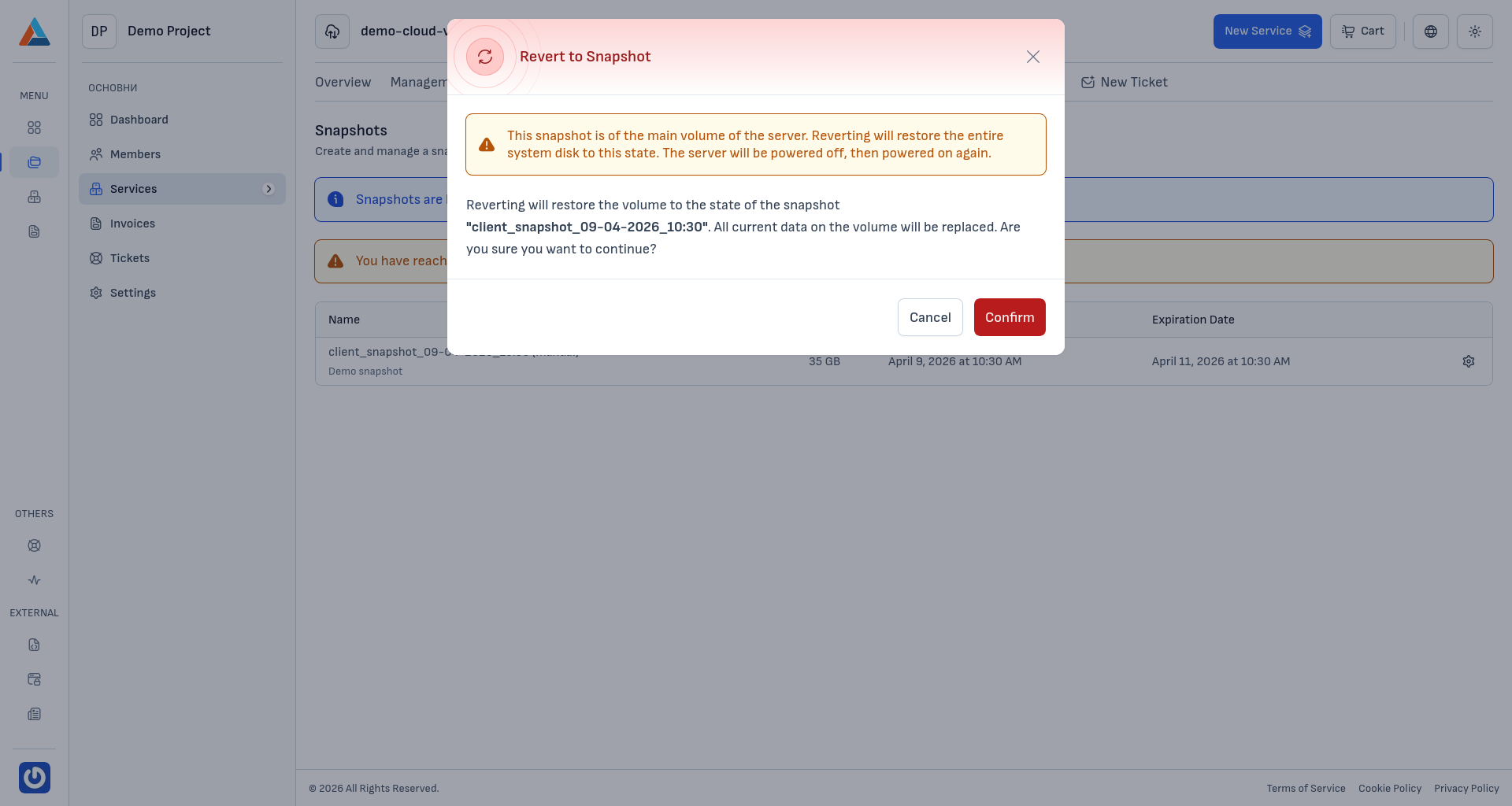
In the snapshot list, click the revert icon next to the snapshot you want to restore from. A confirmation dialog will appear.
-
Confirm
Read the warning carefully and click the "Confirm" button to start the restoration.
Warning
Reverting will restore the volume to the state of the snapshot. All current data on the volume will be replaced. The server will be powered off and then powered on again automatically. This action is irreversible.
Deleting a Snapshot
-
Navigate to the Section
Navigate to the "Snapshots" tab on the service page.
-
Select a Snapshot to Delete
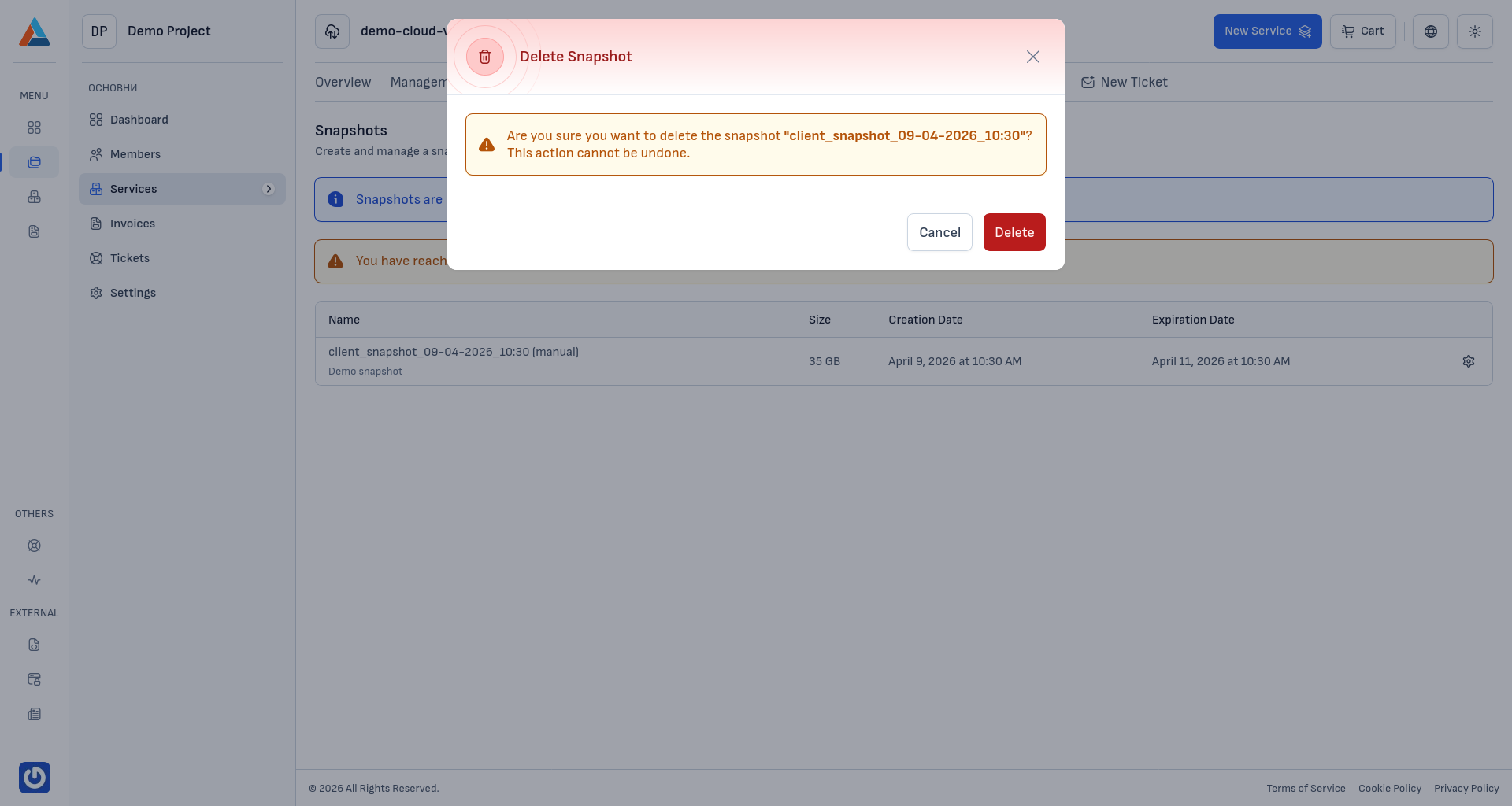
In the snapshot list, click the delete icon next to the snapshot you want to remove. A confirmation dialog will appear.
-
Confirm
Click the "Delete" button to confirm the action.
Warning
This action is irreversible. Once deleted, the snapshot cannot be recovered.