Adding Funds
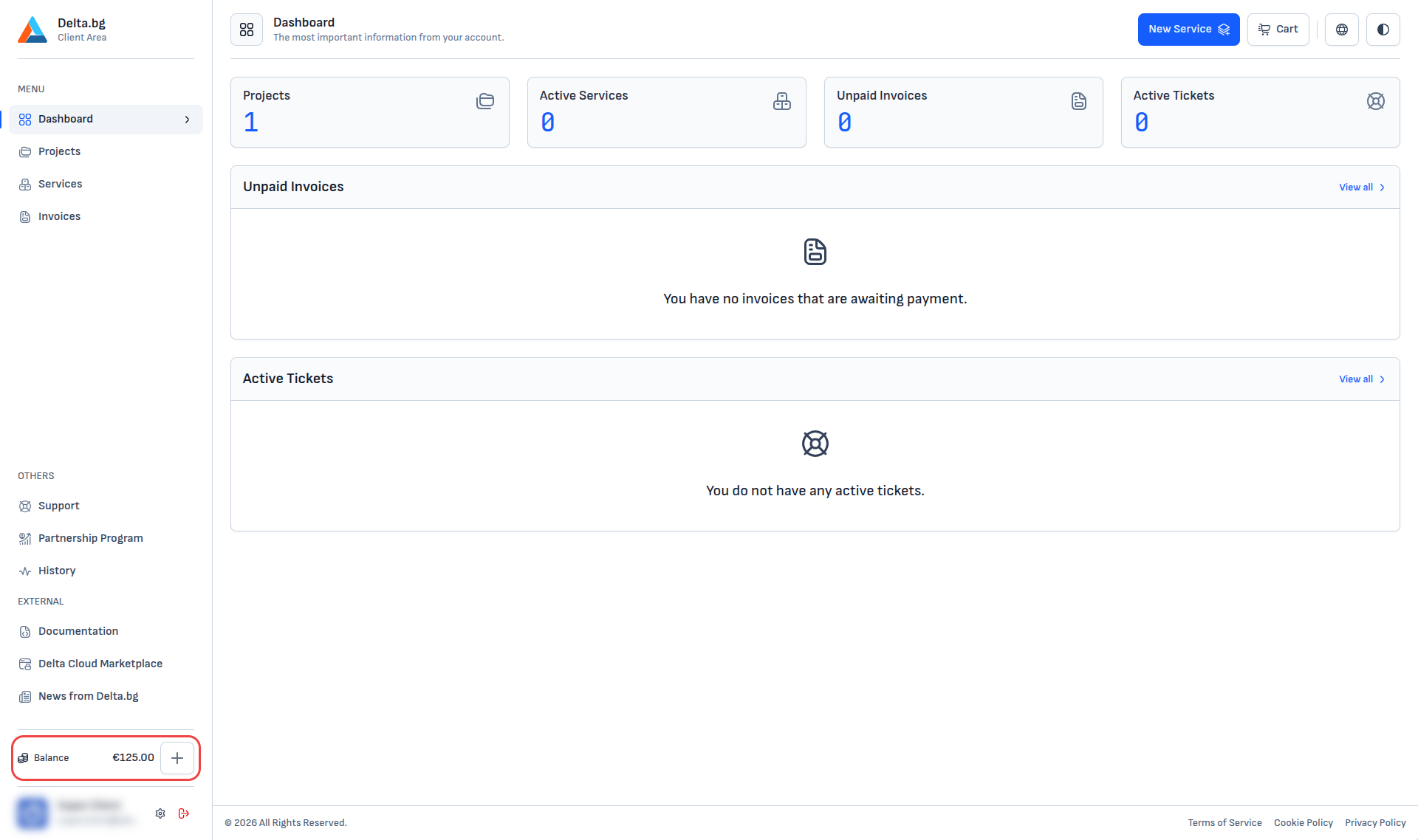
Your credit balance is prepaid money in your account that you can use to pay invoices for Delta.BG services. You top it up in advance with an amount of your choice, then pick Credit Balance as the payment method when you pay an invoice. Your current balance is always shown at the bottom of the left menu, next to Balance.
How to add funds
-
Open the top-up form. Click the "+" button next to Balance at the bottom of the left menu. The same form also opens from the "Add Credit Balance" button in your credit history.
-
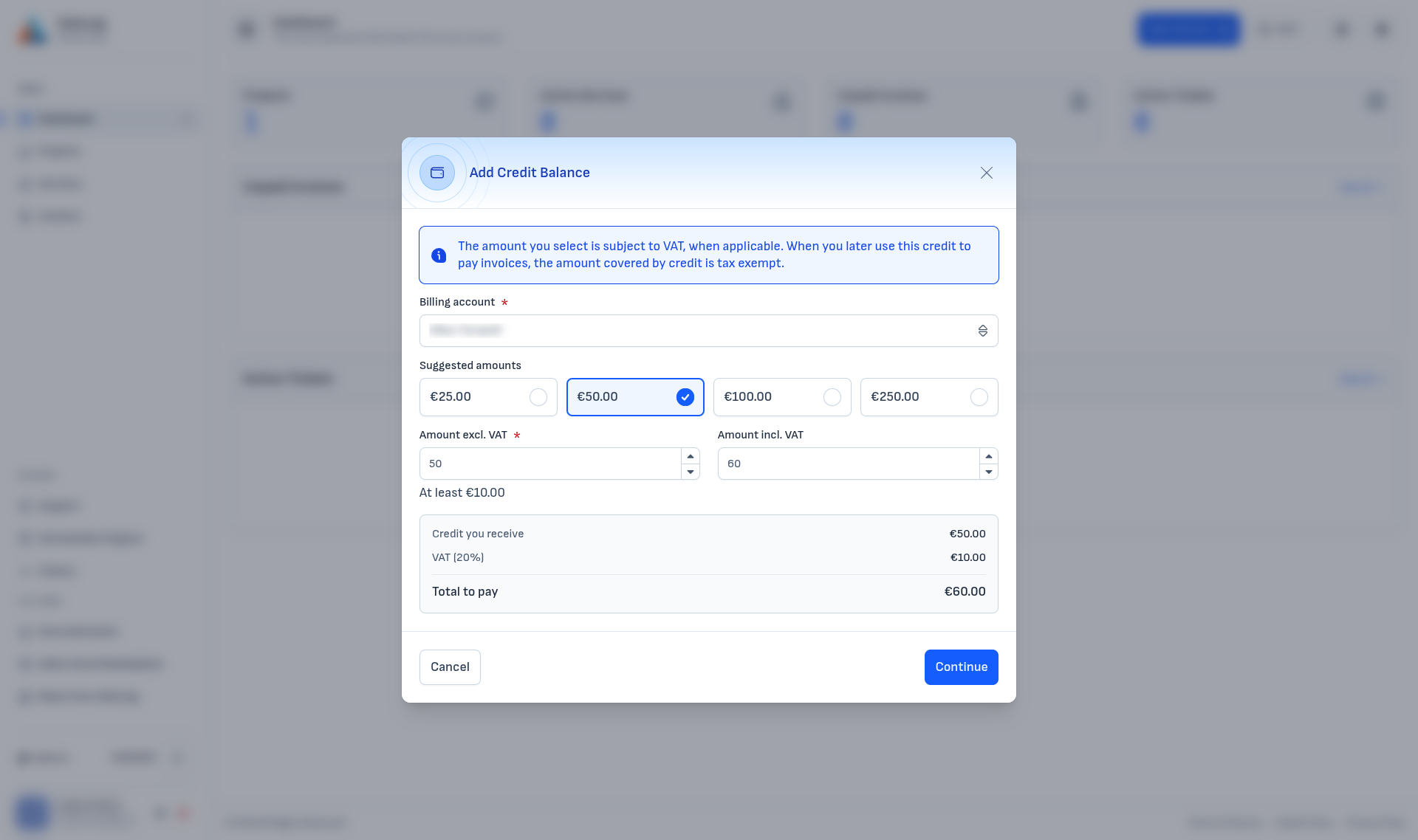
Choose an amount. Click one of the suggested amounts or type your own in "Amount excl. VAT". If you know how much you want to pay in total, fill in "Amount incl. VAT" instead - the other field is recalculated automatically. The minimum amount is shown below the fields, and the summary underneath shows:
- Credit you receive - the amount that will be added to your balance.
- VAT - the tax on the top-up, based on your billing details.
- Total to pay - the amount of the invoice.
If you have more than one billing account, also pick the "Billing account" the invoice should be issued to. Click "Continue".
-
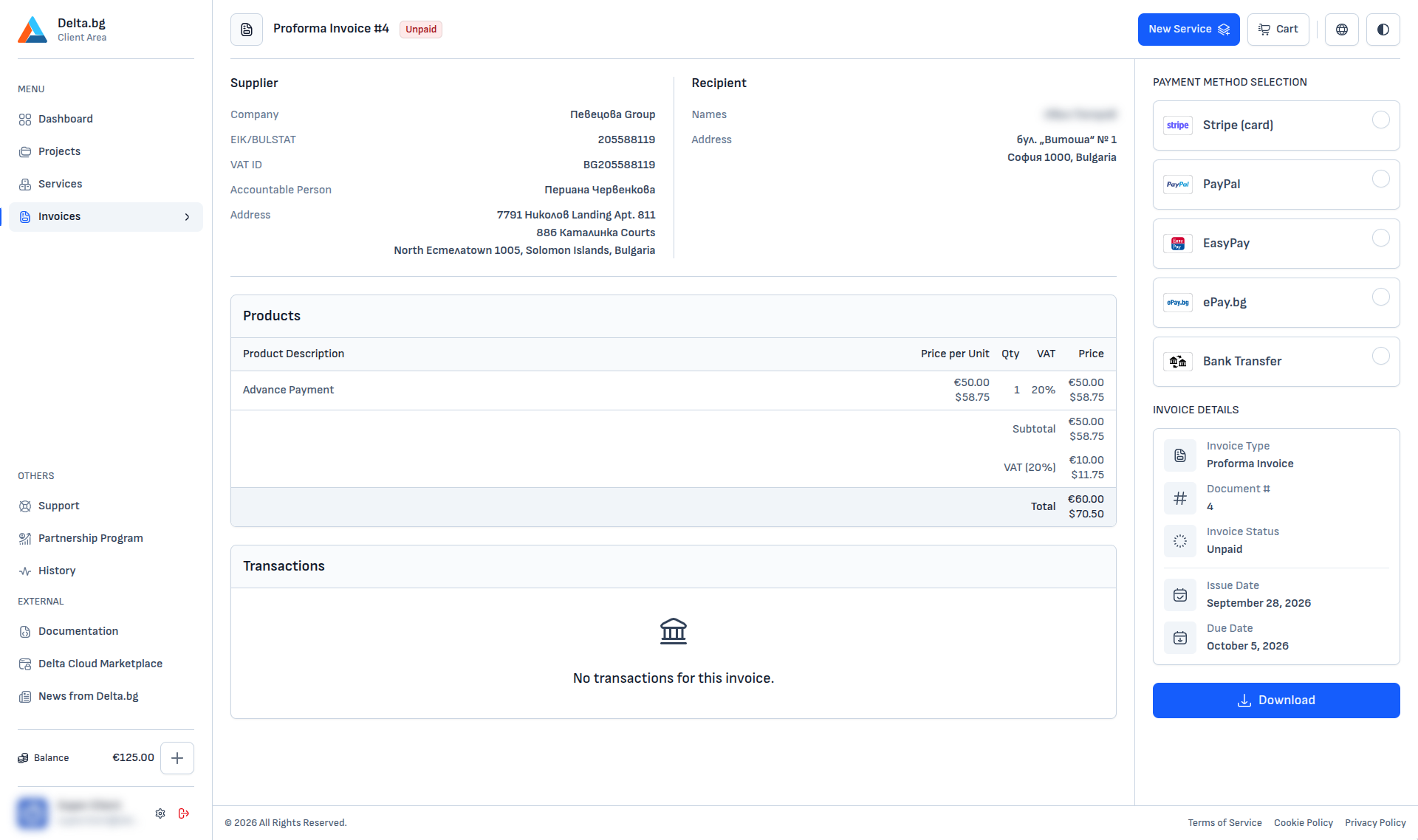
Pay the invoice. The system issues a proforma invoice with an "Advance Payment" line and takes you to it. Choose a payment method in the right-hand column and complete the payment.
-
Done. The credit is added to your balance as soon as the payment is recorded. For bank transfers, this happens once we receive the transfer.
Info
If you already have an unpaid top-up invoice, the form warns you about it. Choosing a new amount updates the existing invoice instead of creating a second one.
Warning
You need a billing account to add funds. If you don't have one, the form points you to Billing Accounts so you can add it.
Payment methods and minimum amount
A top-up invoice is paid with the same methods as any other invoice. The minimum amount for a single top-up is €10.00 excl. VAT. The suggested amounts are €25, €50, €100 and €250, but you can enter any amount above the minimum.
Card (Stripe)
Enter your debit or credit card details directly in Stripe's secure form. If you have a saved card, it appears as a separate option and you can pay in one click. The credit is added as soon as the payment succeeds.
PayPal
You are redirected to PayPal to confirm the payment with your PayPal account. The credit is added as soon as the payment is confirmed.
EasyPay
You receive a payment code and pay in cash at an EasyPay office. The credit is added once EasyPay confirms the payment.
ePay.bg
You are redirected to ePay.bg to pay by card or from your ePay.bg account. The credit is added as soon as the payment is confirmed.
Bank transfer
Our bank details, the amount and the payment reference (the invoice number) are shown. The credit is added once the transfer reaches our account and we record the payment.
Warning
A top-up invoice cannot be paid with credit balance.
VAT on top-ups
Top-ups are subject to VAT where applicable - in the example above, €50.00 of credit costs €60.00 with 20% VAT. When you later pay an invoice with your credit balance, the amount covered by credit is not charged VAT again.
Top-up and payment history
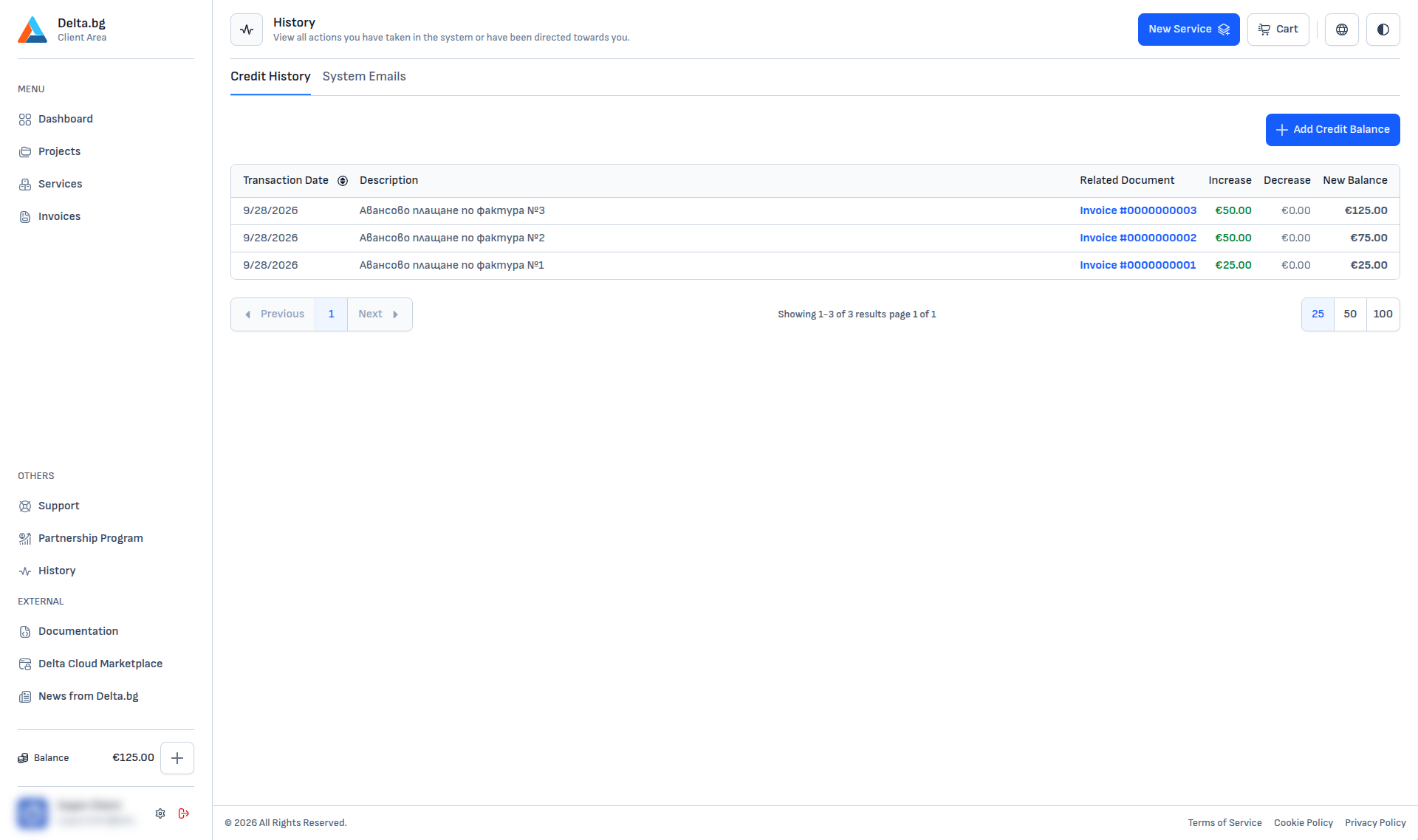
Every change to your balance is listed in Menu → History → Credit History. Clicking Balance in the left menu opens the same page.
| Column | Meaning |
|---|---|
| Transaction Date | When the change happened. |
| Description | What happened - for example "Advance payment for Invoice #…" for a top-up or "Credit applied to invoice" when you paid with your balance. |
| Related Document | The invoice the change relates to - click it to open the invoice. |
| Increase | The amount added to your balance. |
| Decrease | The amount taken from your balance. |
| New Balance | Your balance after the change. |
The top-up invoices themselves (proforma and tax invoice) are also listed under Invoices.
Terms of Service
Credit balance top-ups, the minimum amount and the payment methods are governed by the Delta.BG Terms of Service. If this page and the Terms of Service differ, the Terms of Service apply.