Ticket Detail
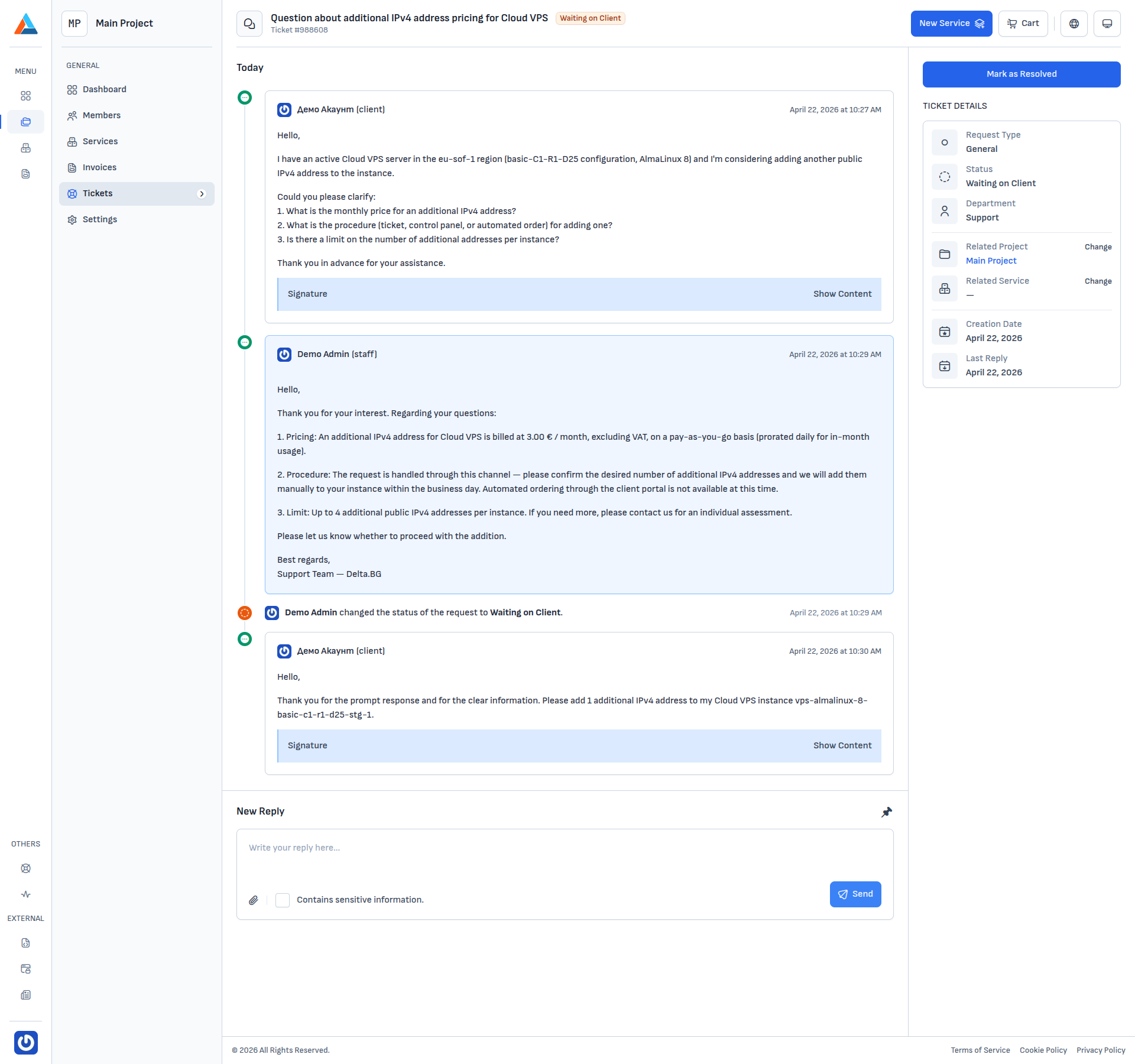
The ticket detail shows the subject, number, and status, the full conversation history, and a summary block in the right-hand sidebar.
Conversation
The main column contains every message in chronological order:
- Client messages carry your account avatar and
(client). - Staff replies carry the employee avatar and
(staff). - Status changes (for example Waiting on Client, Resolved) are logged as separate rows with the corresponding timestamp.
New reply
Below the conversation there's a "New Reply" editor with file attachments and a "Contains sensitive information" checkbox. The "Detach from the top of the page" button detaches the editor so it stays visible while scrolling through a long thread.
Ticket details
The right-hand sidebar summarises:
- Request Type — for example "General".
- Status — the current state of the ticket (full list in the Introduction).
- Department — "Support" by default.
- Related Project — with a "Change" button next to it.
- Related Service — with a "Change" button next to it.
- Creation Date and Last Reply.
Changing the related project / service
The "Change" button next to Related Project or Related Service opens the "Change Project and Service" dialog with two fields — project and service (services are filtered by the selected project).
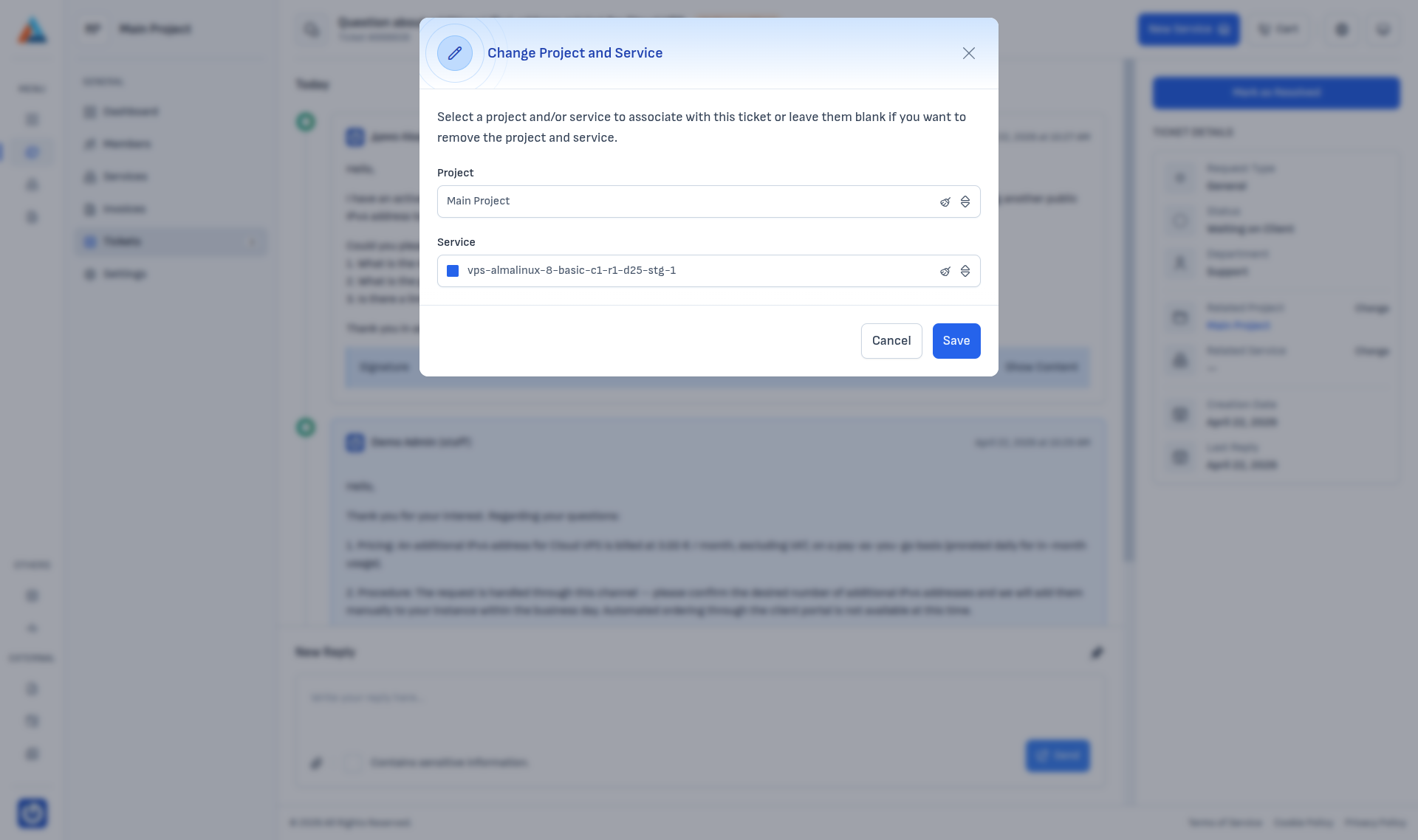
Leaving either field blank removes the corresponding link.
Info
Both "Change" buttons open the same dialog — the only difference is which field receives focus.
Marking as resolved
The "Mark as Resolved" button in the top-right area opens a confirmation dialog:
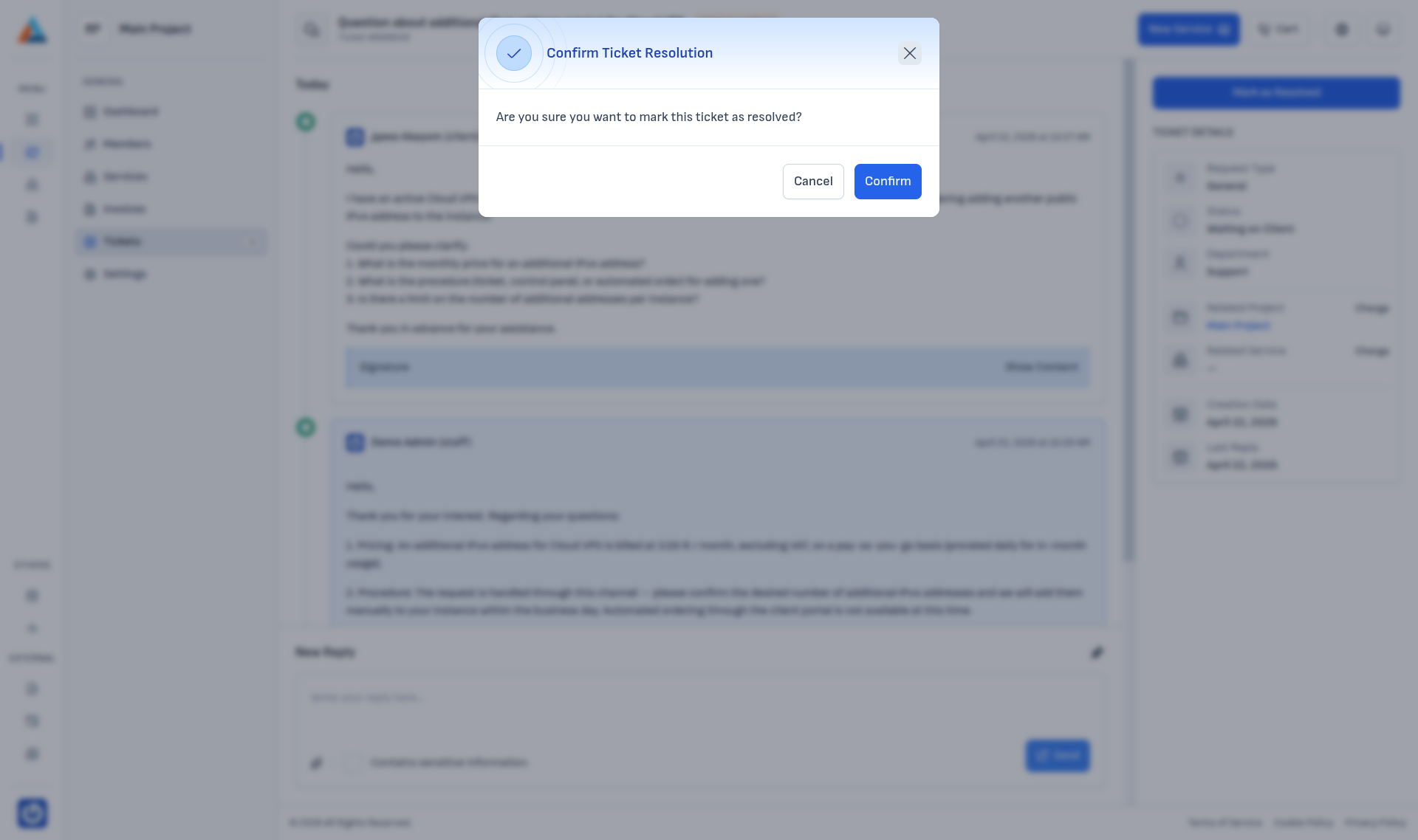
After confirming, the ticket moves to the "Resolved" status. You can always reopen it if you have follow-up questions.