Ordering and Activation
Launching a Delta Marketplace application uses the standard Cloud VPS ordering flow — the marketplace simply pre-selects the image for you. This page covers the two marketplace-specific parts of the process: finding an application in the catalog and what to expect after the server is active. For the full Cloud VPS ordering walkthrough (project and billing details, plans, payment methods, and activation), see Ordering a Cloud VPS server.
Choosing an Application
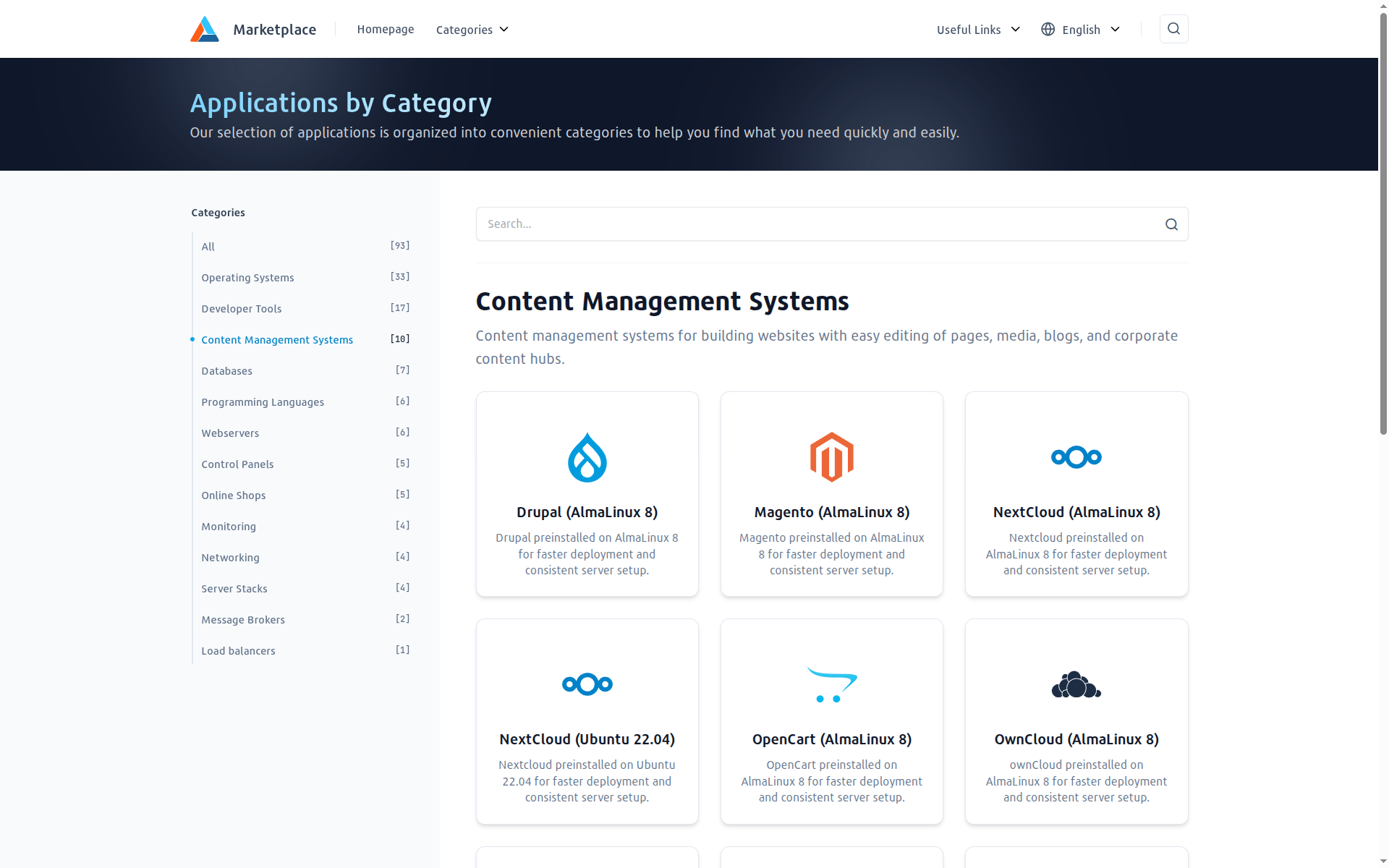
Navigate to the Delta Marketplace catalog. You can:
- Browse categories — pick from operating systems, CMS, databases, developer tools, e-commerce, monitoring, and more
- Search — use the search field in the header to find a specific application by name
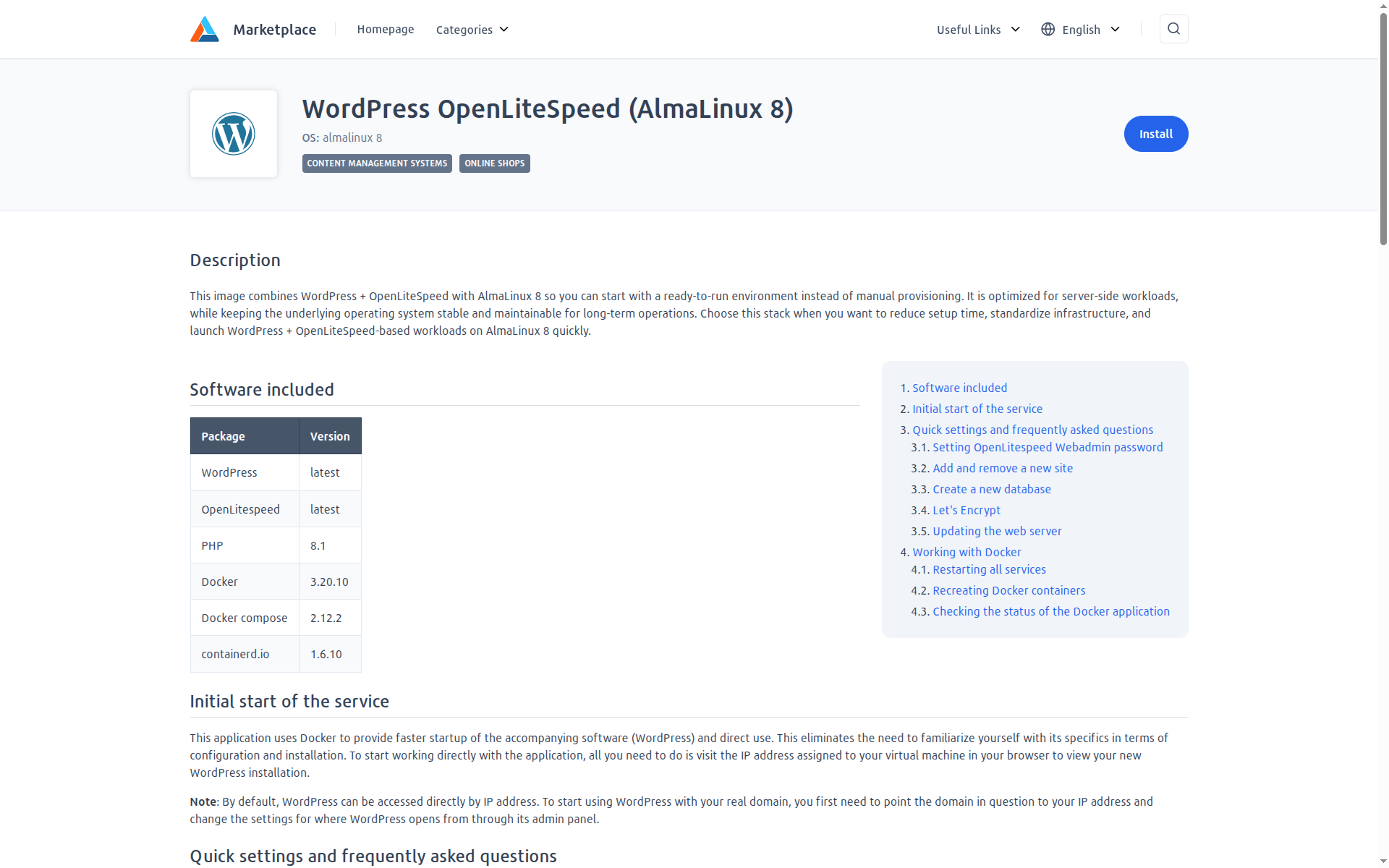
- Open an application page — each listing has a dedicated page with a short description of the software and the operating system the image is based on
Note
Some applications are offered in several variants — for example WordPress on AlmaLinux 8, WordPress on AlmaLinux 9, or WordPress with OpenLiteSpeed. Choose the variant that best matches your operating-system preference.
Once you have chosen an application, click the "Install" button on its page.
Configuring and Paying for the Server
The "Install" button opens the standard Cloud VPS ordering page with the selected marketplace image pre-filled in the Operating System or Image Selection field. Everything else — project and billing details, region, plan, billing cycle, cart, and payment — works exactly as in a regular Cloud VPS order. For a full walkthrough of these steps, see Ordering a Cloud VPS server.
Tip
If you are unsure about the plan, start with a smaller one — Cloud VPS plans can be resized later without losing data.
Service Activation and First Boot
After a successful payment, the Cloud VPS server is provisioned automatically and appears in your list of services in the client area. Activation is the same as with any Cloud VPS order — the difference with a marketplace image is what happens inside the server on first boot.
The server itself usually boots within a few minutes; the marketplace application may need a few more minutes to finish its initial configuration. For example, a LAMP image boots the operating system first, then starts Apache, MySQL, and PHP. Only after those services finish starting will you see the default Apache page in your browser.
Once the application is ready, open the Cloud VPS service page in the client area to find the server's IP address, credentials, and access information — see Management for how to connect, change the default credentials, and work with the application.