Sign in to the customer area
The sign-in page is at https://my.delta.bg/auth/sign-in.
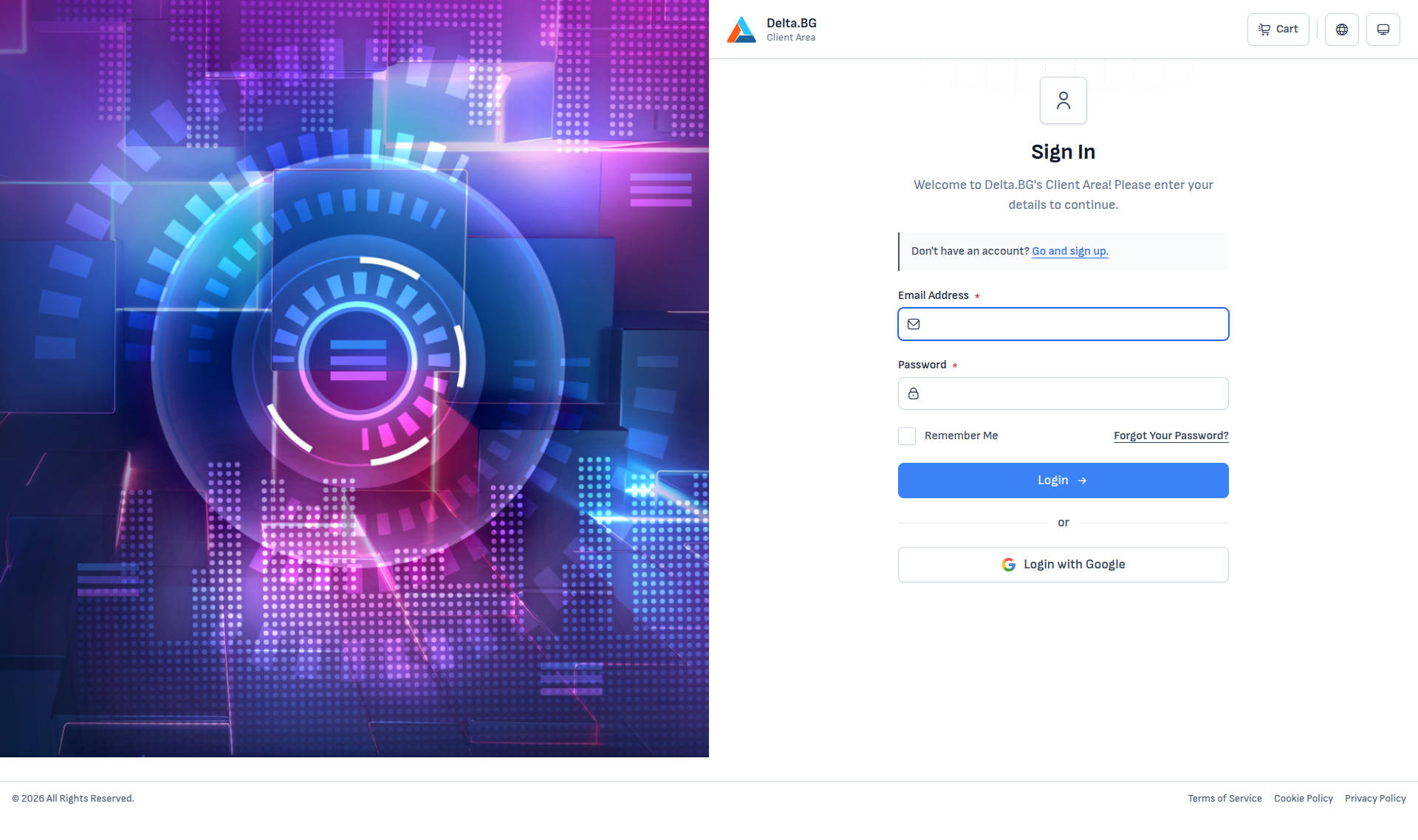
Sign-in methods
| Method | Description |
|---|---|
| Email and password | Standard sign-in with the credentials from your registration. |
| The Login with Google button uses your existing Google authentication. |
The Remember Me option keeps the session on this device longer between sign-ins.
If you forgot your password, use the Forgot Your Password? link — see Forgot password.
Multi-factor authentication (MFA)
If at least one MFA method is enabled in Settings → Security, after the email and password the system asks for a one-time code.
Choosing a method
When more than one MFA method is active, the system asks you to pick one:
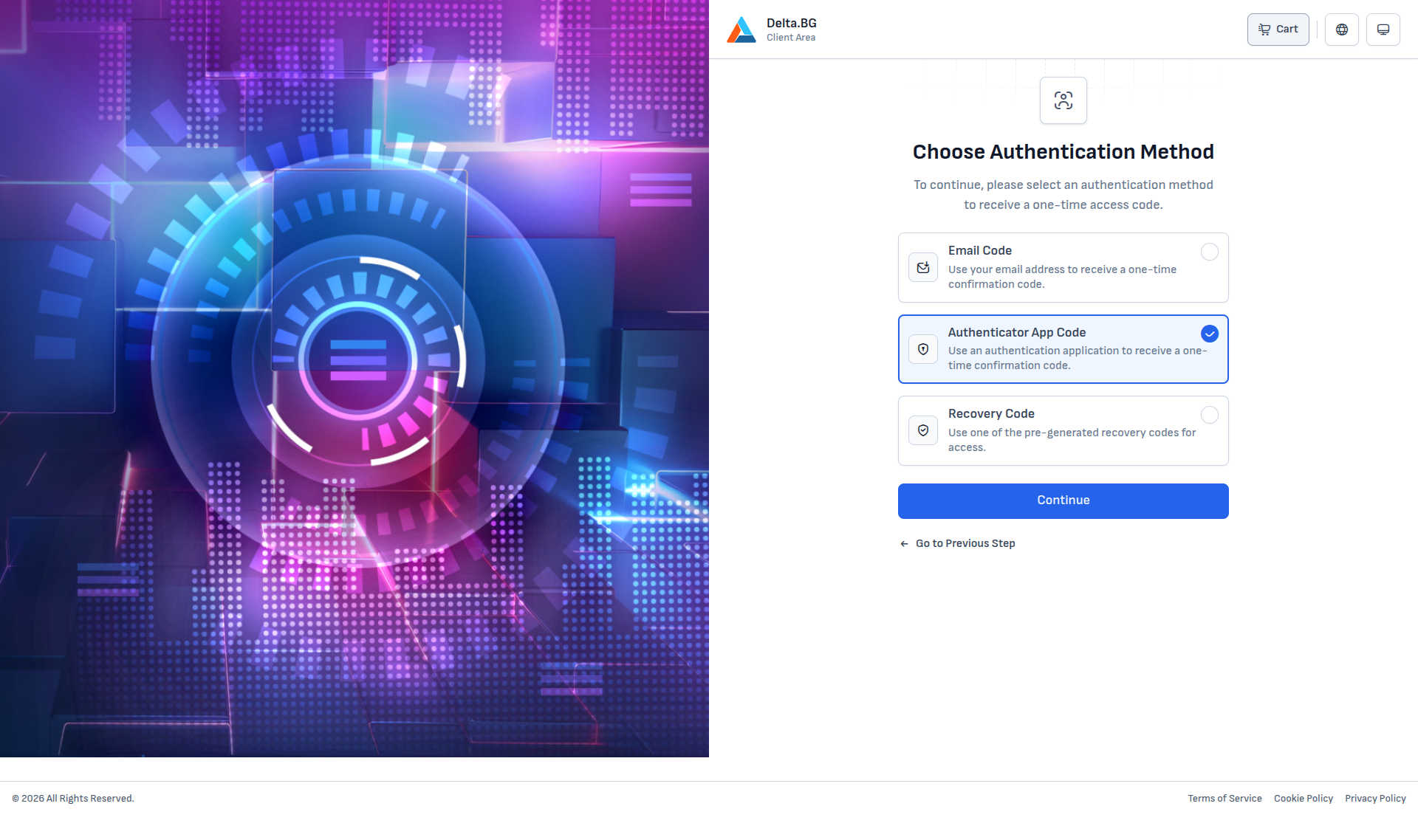
| Option | When to use it |
|---|---|
| Email Code | If email MFA is enabled. The system sends a one-time code to your registered email address. |
| Authenticator App Code | If you have a paired authenticator app (Google Authenticator, Authy, 1Password and similar). The app generates a new 6-digit code every 30 seconds. |
| Recovery Code | If the options above are unavailable — enter one of the 10 pre-generated recovery codes (each code works once). |
Select a method and press Continue.
Authenticator app code
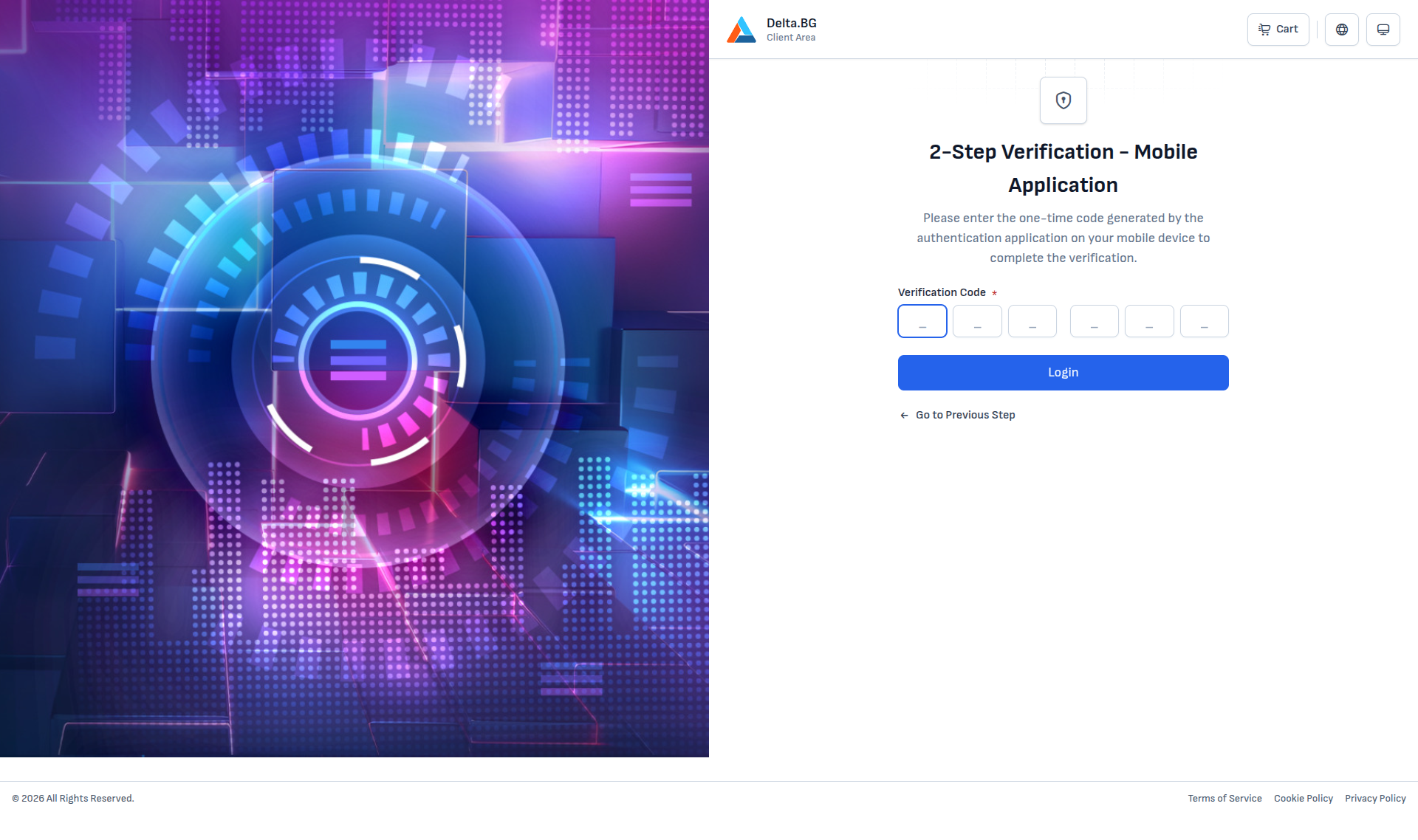
Open your authenticator app, find the Delta.BG entry and type the 6-digit code it currently displays.
Email code
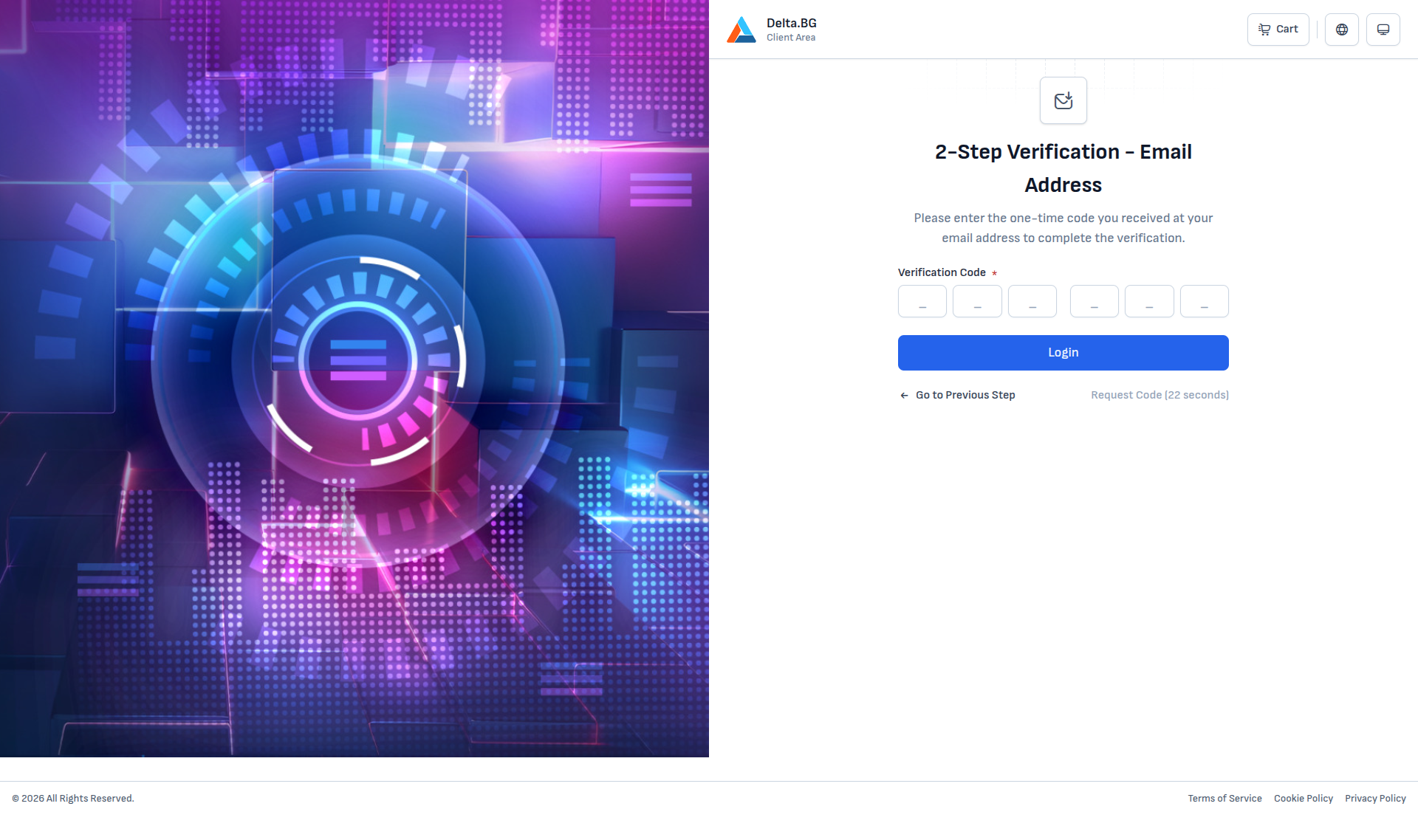
As soon as this step loads, a one-time code is sent to your registered email address. If the email does not arrive within a minute, use Request Code (unlocks after 60 seconds) to resend.
After a valid code you are redirected to the customer-area home page.
Info
To enable or disable MFA methods, open Settings → Security.