Creating a Protected Item
To create a new protected item, navigate to the "Protected Items" section on the service page and click the "+ Add Protected Item" button. This opens a multi-step wizard that guides you through the configuration process.
Step 1: Device & Backup Type
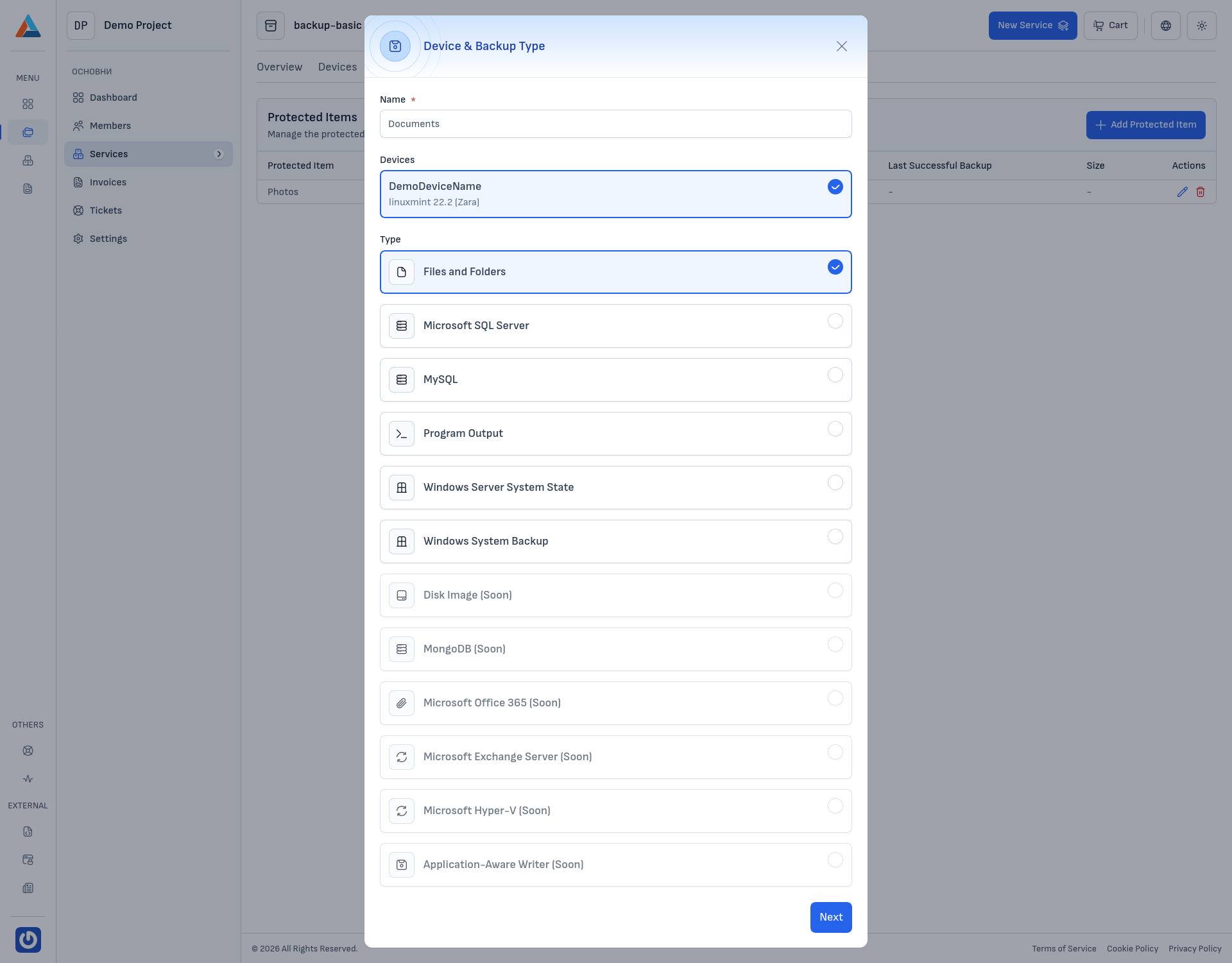
Select the device you want to back up and the type of backup you want to create.
Enter a Name
Provide a descriptive name for the protected item (e.g., "Web Server Files", "Production Database").
Select a Device
Choose the registered device on which this backup source is located. Only devices that are currently registered in your backup service will appear in the list.
Choose a Backup Type
Select the type of data you want to back up. The available backup types are:
- Files and Folders — back up specific files and directories from the device's filesystem
- Microsoft SQL Server — back up Microsoft SQL Server databases
- MySQL — back up MySQL databases with customizable connection settings
- Program Output — capture the output of a custom command or script
- Windows Server System State — back up Windows system state data (Active Directory, registry, boot files, etc.)
- Windows System Backup — back up entire Windows volumes
- MongoDB — back up MongoDB databases and collections
- Proxmox — back up Proxmox virtual machines and Linux containers (LXC)
Note
Additional backup types — Microsoft Office 365, Microsoft Exchange Server, Microsoft Hyper-V, VMware vSphere and Application-Aware Writer — are planned for future availability and are currently disabled.
Next Steps
After selecting the device and backup type, click "Next" to proceed to the type-specific configuration step. Then, the wizard continues with the following shared steps:
- Execution Commands — configure commands to run before, during, and after the backup
- Schedule — set the backup frequency, time, and storage vault
- Retention Policy — define how long backup data is kept