PostgreSQL
To back up PostgreSQL, use the "Program Output" backup type. The backup agent runs pg_dump on the device and streams the command's output straight to the storage vault. No temporary file is written to the server's disk. Every backup run stores a new version of the dump, which you can later restore with psql.
Requirements
- The backup agent is installed on the machine that runs PostgreSQL, and the device is online (see Adding a device (Linux)).
pg_dumpandpsqlare available on the machine. Thepg_dumpversion must be the same as or newer than the PostgreSQL server version.- You have a PostgreSQL user that can read the database (see below).
Preparing the server
Backup user
Create a dedicated user that can only read data. On PostgreSQL 14 and newer, the built-in pg_read_all_data role is enough:
On older versions, grant read access to the specific database:
CREATE ROLE backup LOGIN PASSWORD 'password';
GRANT CONNECT ON DATABASE shop TO backup;
\c shop
GRANT USAGE ON SCHEMA public TO backup;
GRANT SELECT ON ALL TABLES IN SCHEMA public TO backup;
GRANT SELECT ON ALL SEQUENCES IN SCHEMA public TO backup;
Password without a prompt (.pgpass)
The command runs with nobody at the keyboard, so the password cannot be typed in. Store it in the .pgpass file of the user the agent runs as. On Linux the agent runs as root, so the file is /root/.pgpass:
Each line has the format host:port:database:user:password. PostgreSQL ignores the file unless its permissions are 600.
Testing from the command line
Before you create the protected item, check that the command works as root:
sudo -H /usr/bin/pg_dump -h localhost -U backup -d shop --no-owner --no-privileges --no-password | head
If you see the beginning of an SQL dump, you are ready to continue. If the command asks for a password or returns an error, check .pgpass and the user's permissions.
Creating the protected item
Step 1: Device and backup type
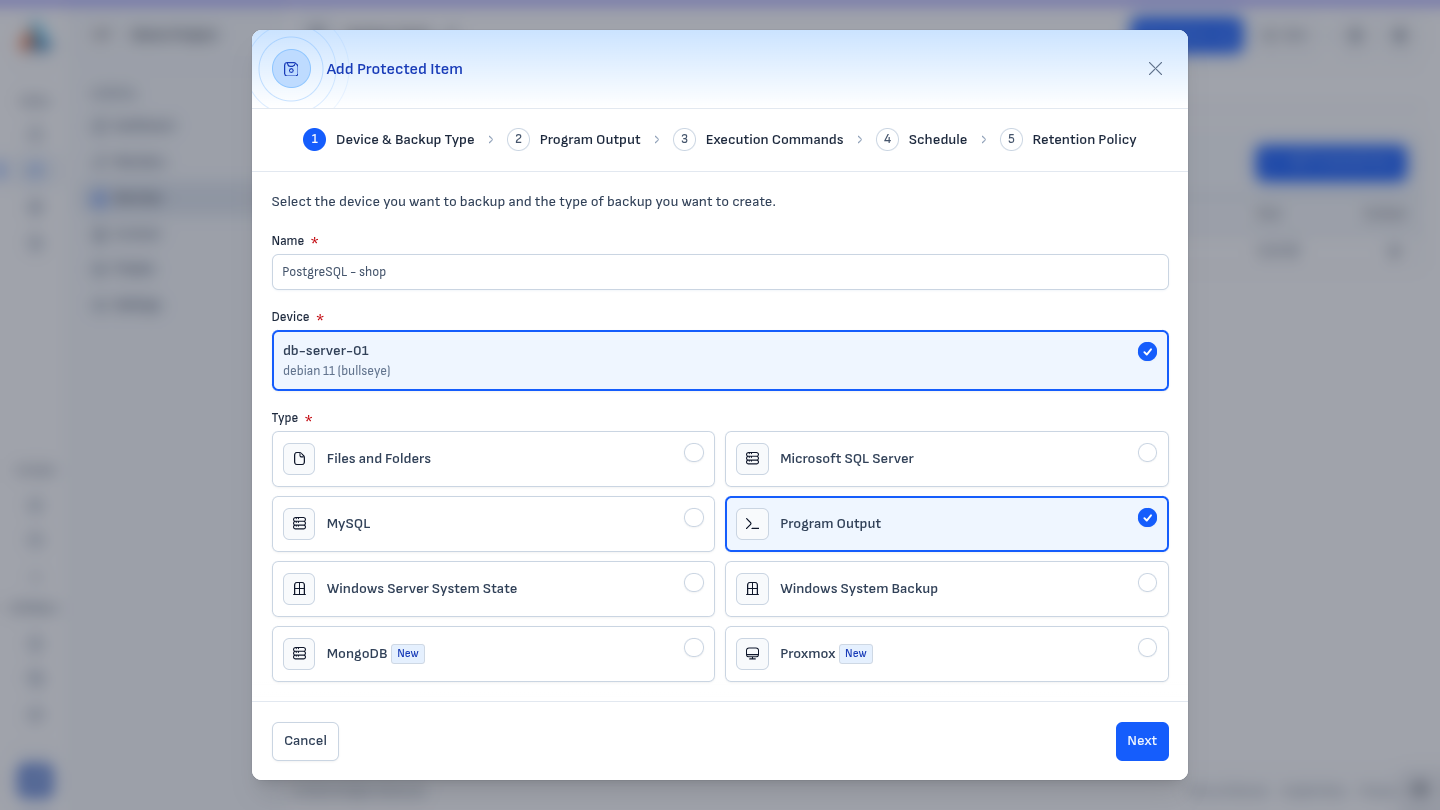
In the "Protected Items" section, click "Add Protected Item". Enter a name (for example PostgreSQL - shop), select the device that runs the database, and choose the "Program Output" type. Click "Next".
Step 2: Program Output
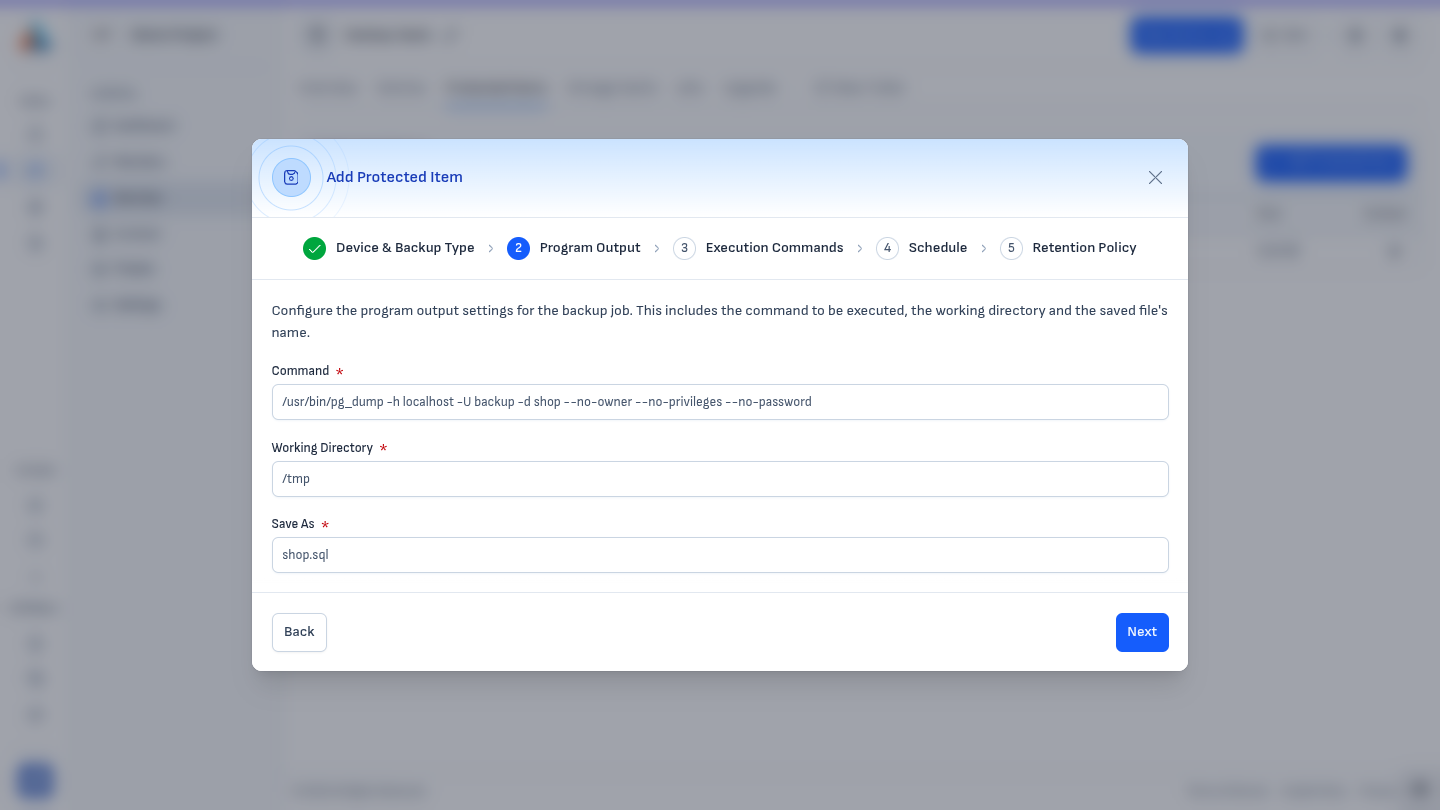
Fill in the three fields:
| Field | Value | Description |
|---|---|---|
| Command | /usr/bin/pg_dump -h localhost -U backup -d shop --no-owner --no-privileges --no-password |
The command whose output is backed up. Use the full path to pg_dump. |
| Working Directory | /tmp |
The directory the command is started from. |
| Save As | shop.sql |
The file name the dump appears under in the backup and when restoring. |
What the pg_dump options do:
-h localhost -U backup -d shop— the host, user, and database to back up.--no-owner --no-privileges— the dump contains noALTER ... OWNERorGRANTstatements. This lets you restore it as a different user without errors about missing roles.--no-password—pg_dumpnever prompts for a password. If the password is missing from.pgpass, the command fails immediately instead of hanging.
Tip
Use the plain SQL format, as in the example. It restores directly with psql, and the backup system already compresses and deduplicates the data, so extra compression with -Fc or gzip is not needed.
Complex commands
If you need redirections, environment variables, or several commands in a row, put them in a script (for example /usr/local/bin/pg-backup.sh), make it executable, and enter the script's path in the "Command" field. The script must write the dump to standard output.
Click "Next".
Steps 3–5: Commands, schedule, and retention
The remaining steps work the same as for other backup types:
- Execution Commands — optional
- Schedule — for example, daily at 00:00
- Retention Policy — how many versions of the dump to keep
Complete the last step to create the protected item.
Checking the backup
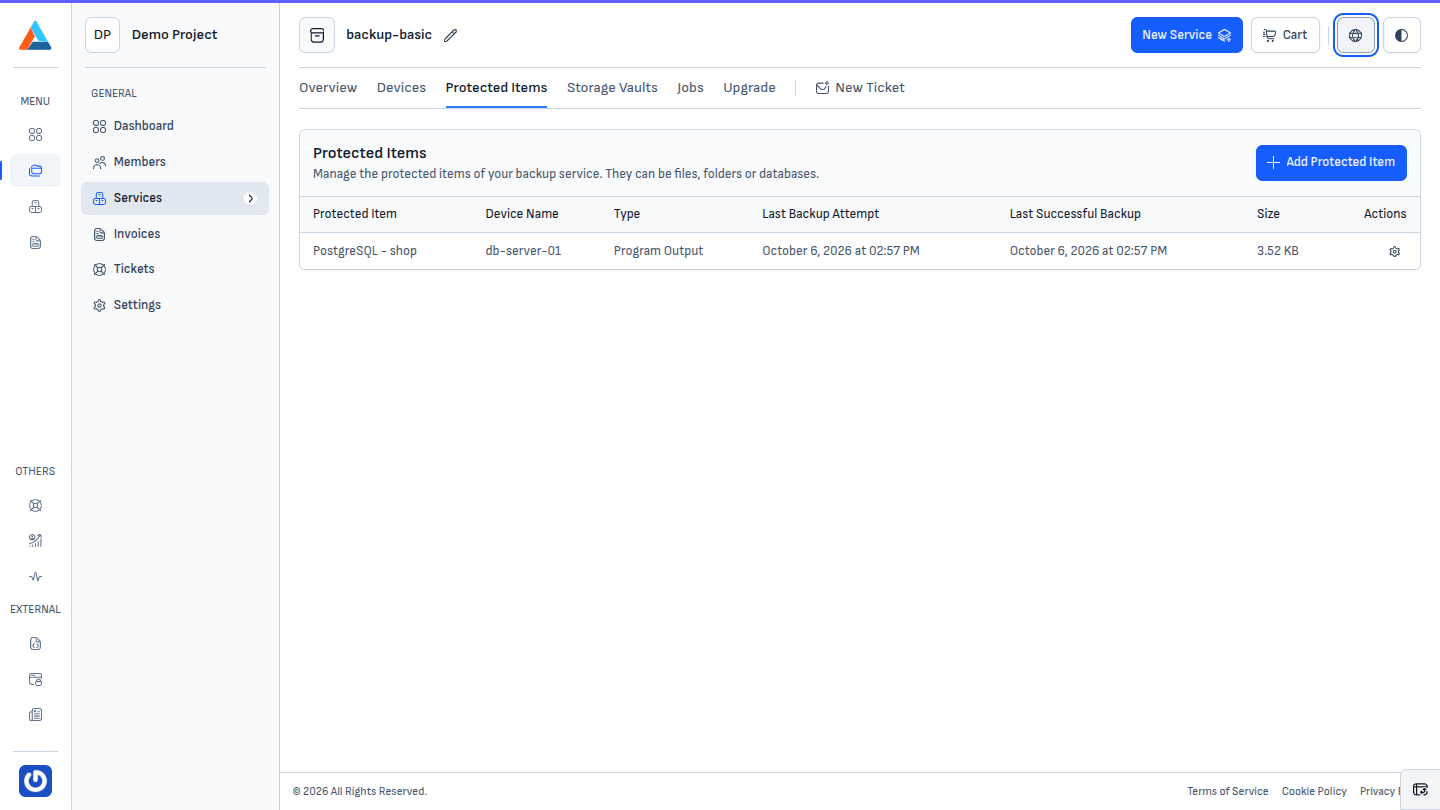
The new item appears in the list with the type "Program Output". To avoid waiting for the schedule, start the first backup manually from "Manage" → "Manual Backup".
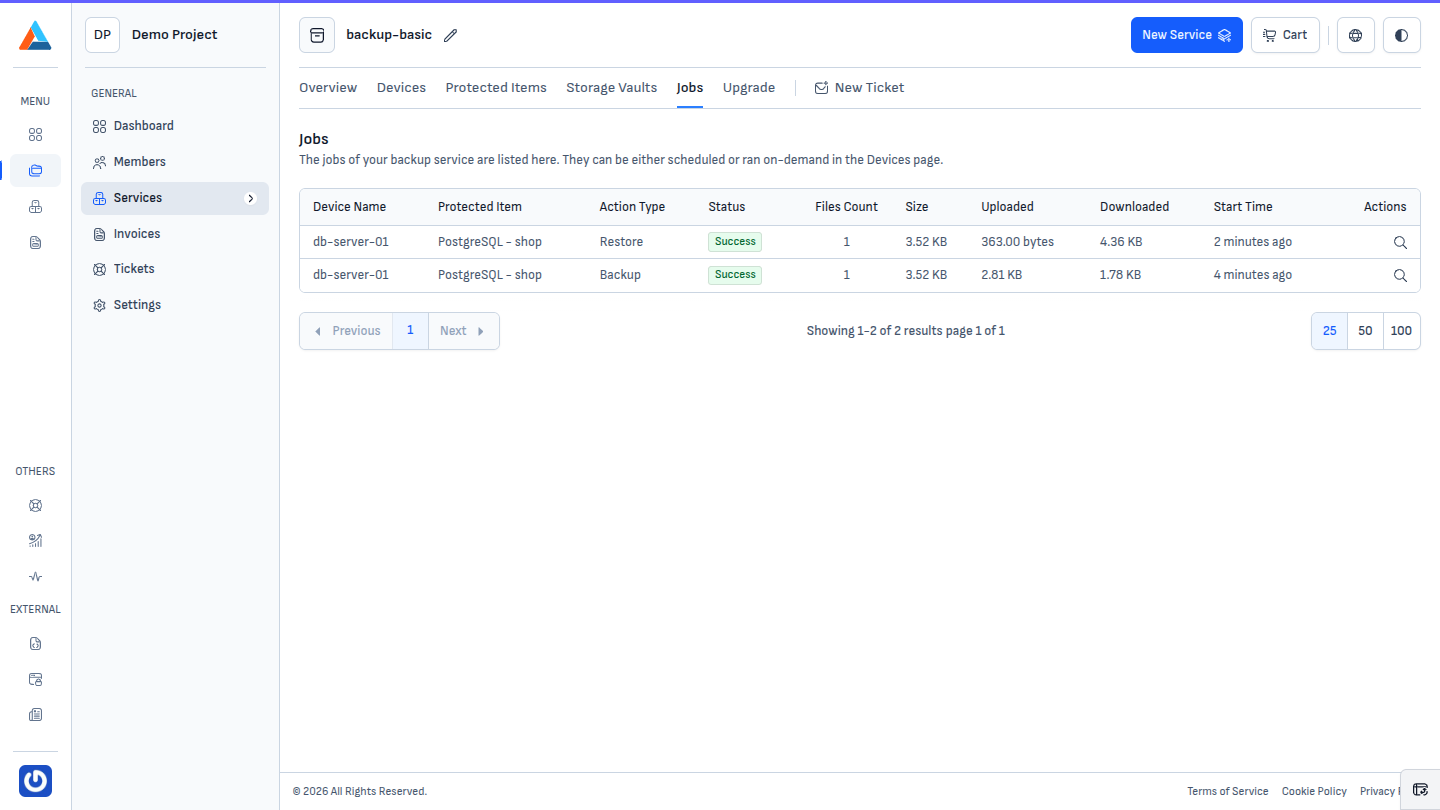
The result appears in the Jobs section. The job status depends on the command:
- Success —
pg_dumpfinished without errors. - Warning — the command wrote something to standard error (stderr). Open the job details to see the message.
- Failed — the command exited with a non-zero exit code, for example because of a wrong password or a missing database.
More than one database
pg_dump backs up one database at a time. Create a separate protected item for each database, with its own file name in "Save As". Each database then has its own schedule and retention policy and can be restored on its own.
If you want all databases and the global objects (roles, tablespaces) in one file, use pg_dumpall. It requires a superuser.
Next step
To bring the data from the backup back into PostgreSQL, see Restoring PostgreSQL.