Restoring PostgreSQL
A PostgreSQL backup created with the Program Output type contains an SQL dump (for example shop.sql). The fastest way to restore it is the "Program Input" restore type: the system streams the file from the backup straight into psql, without writing it to disk.
Preparing the target database
We recommend restoring into a new, empty database and checking the data before you use it in place of the old one. Create a user with write access and a database owned by that user:
Add the password to /root/.pgpass so psql can connect without a prompt:
echo "localhost:5432:*:restore:strong-password" | sudo tee -a /root/.pgpass
sudo chmod 600 /root/.pgpass
Caution
If you restore the dump into a database that already contains the same tables, psql stops with an error at the first conflict. Do not restore directly over the production database. Use a new database and, after checking it, rename it or point your application to it.
Restore steps
Open the "Devices" section, click "Manage" next to the device, and select "Restore Archived Data".
Steps 1 and 2: Storage vault and snapshot
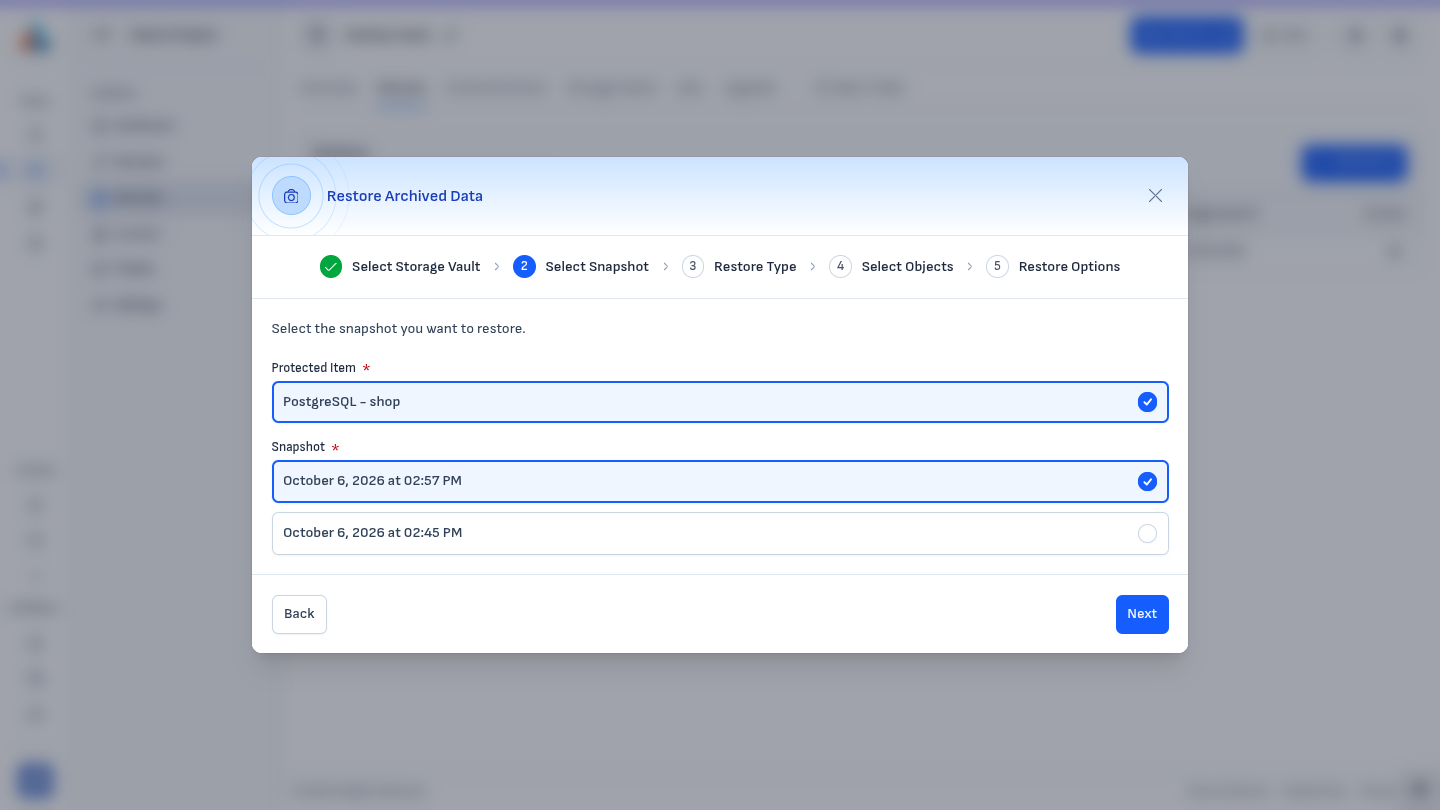
Select the storage vault, the protected item (for example PostgreSQL - shop), and the snapshot you want to restore from. The newest snapshot is at the top.
Step 3: Restore type
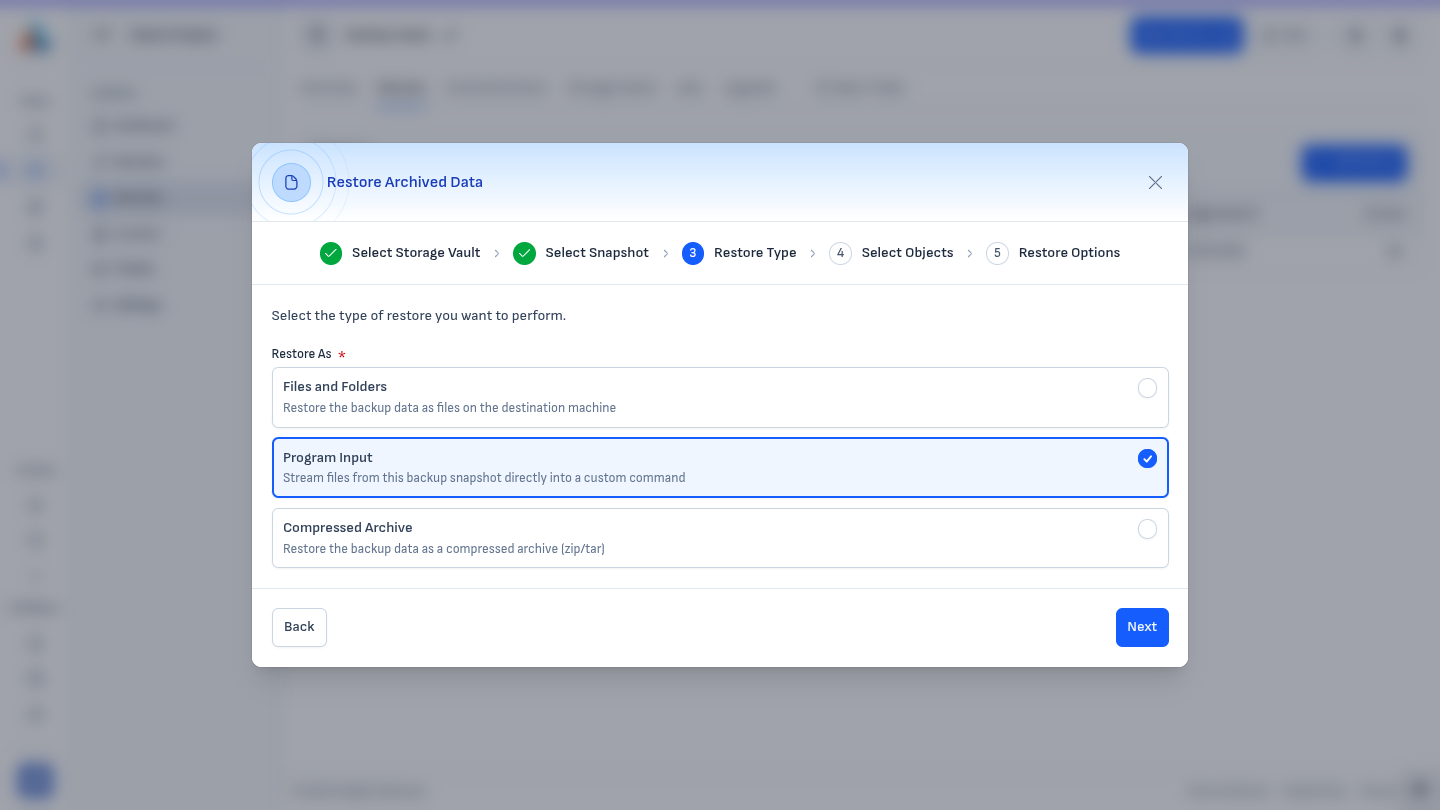
Select "Program Input".
Step 4: Select objects
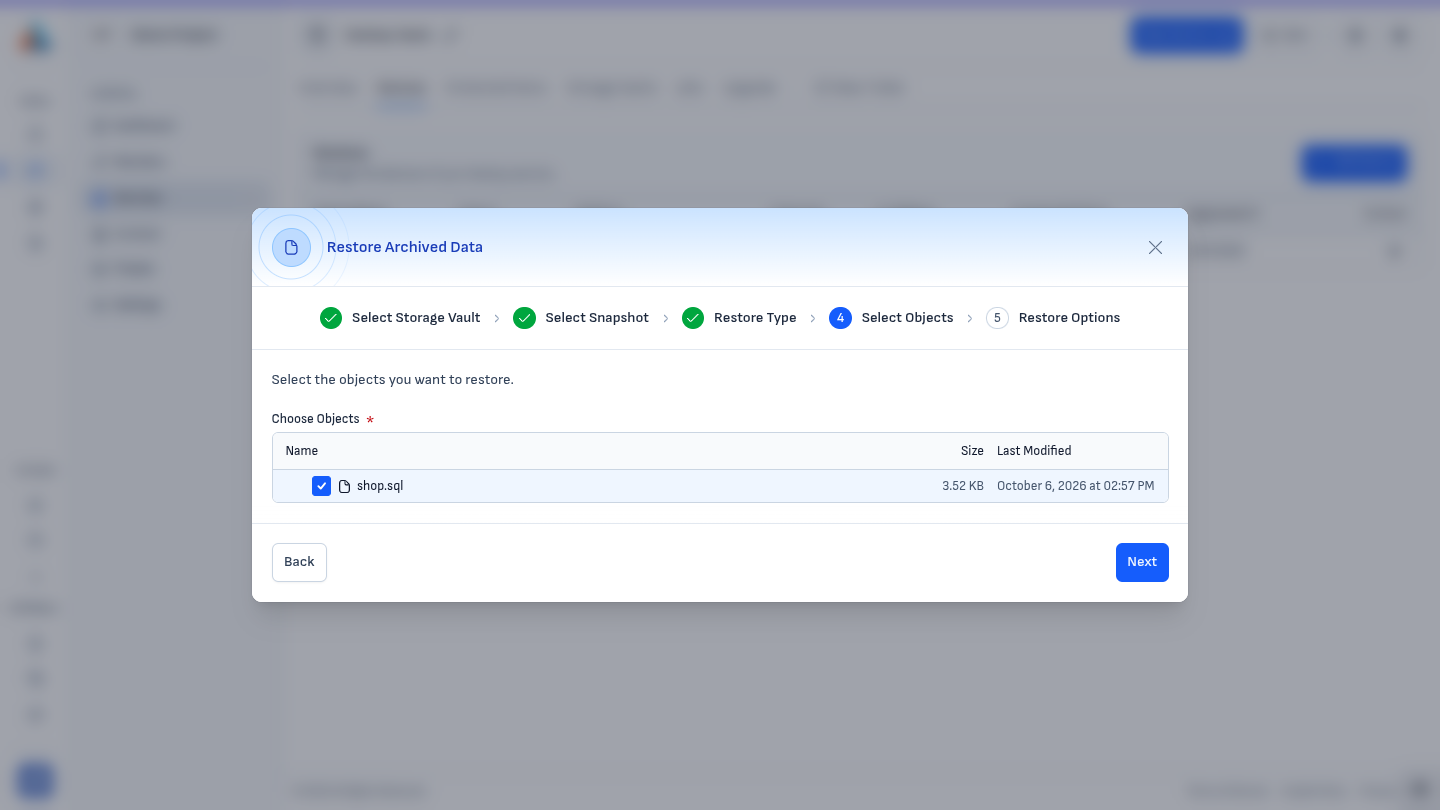
Check the dump file (for example shop.sql).
Step 5: Restore options
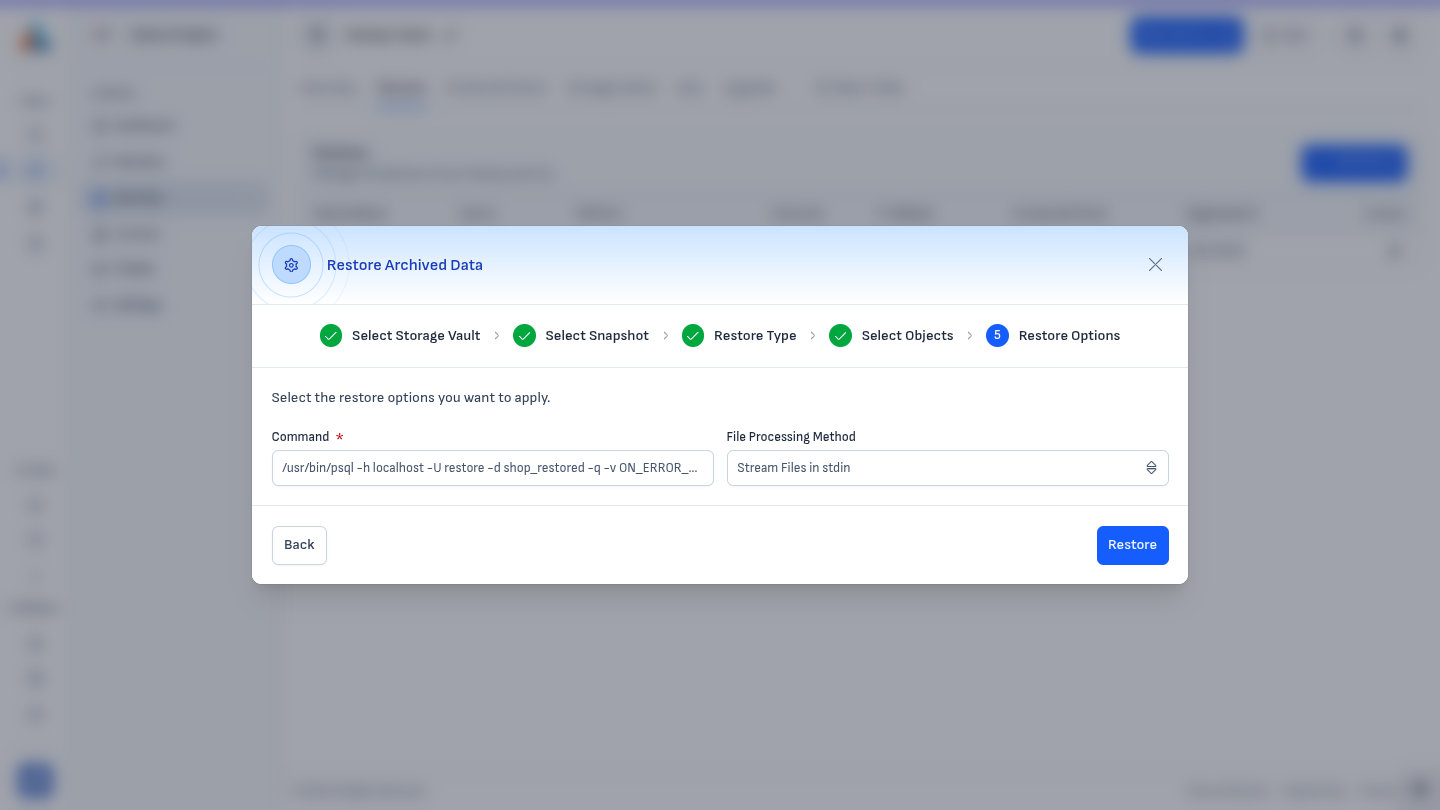
In the "Command" field, enter:
/usr/bin/psql -h localhost -U restore -d shop_restored -q -v ON_ERROR_STOP=1 --single-transaction --no-password
Leave "File Processing Method" set to "Stream Files in stdin" and click "Restore".
What the psql options do:
-d shop_restored— the database the data is loaded into.-q— quieter output, without a message for every statement.-v ON_ERROR_STOP=1—psqlstops at the first error and the job ends with the "Failed" status, instead of carrying on with incomplete data.--single-transaction— the whole dump is loaded in one transaction. If anything fails, the database is left unchanged.--no-password— the password is read only from.pgpass.
Checking the result
The restore job appears in the Jobs section with the type "Restore". The "Success" status means psql ran the whole dump without errors. If the status is "Warning" or "Failed", open the job details to see the messages from psql.
Then check the data in the new database, for example:
Other restore options
- Files and Folders — writes
shop.sqlto a directory on the device. You can then load it manually withpsql -f /path/to/shop.sql, for example if you want to review or edit the dump first. - Compressed Archive — saves the dump as a
ziportararchive, for example to move it to another machine.
Best practices
- Test restores regularly, not only in an emergency.
- Restore into a separate database or a test server before replacing production data.
- Use a
psqlversion that is the same as or newer than thepg_dumpthe backup was made with.