Reinstall
The "Reinstall" section allows you to change the operating system on your server. Reinstalling is useful when you want to switch to a different operating system or return the server to its initial state.
Warning
Reinstalling will erase all data on the server — including the operating system, applications, and configurations. Make sure you have a backup of your important data before proceeding, since Bare Metal servers don't offer snapshots from the client area.
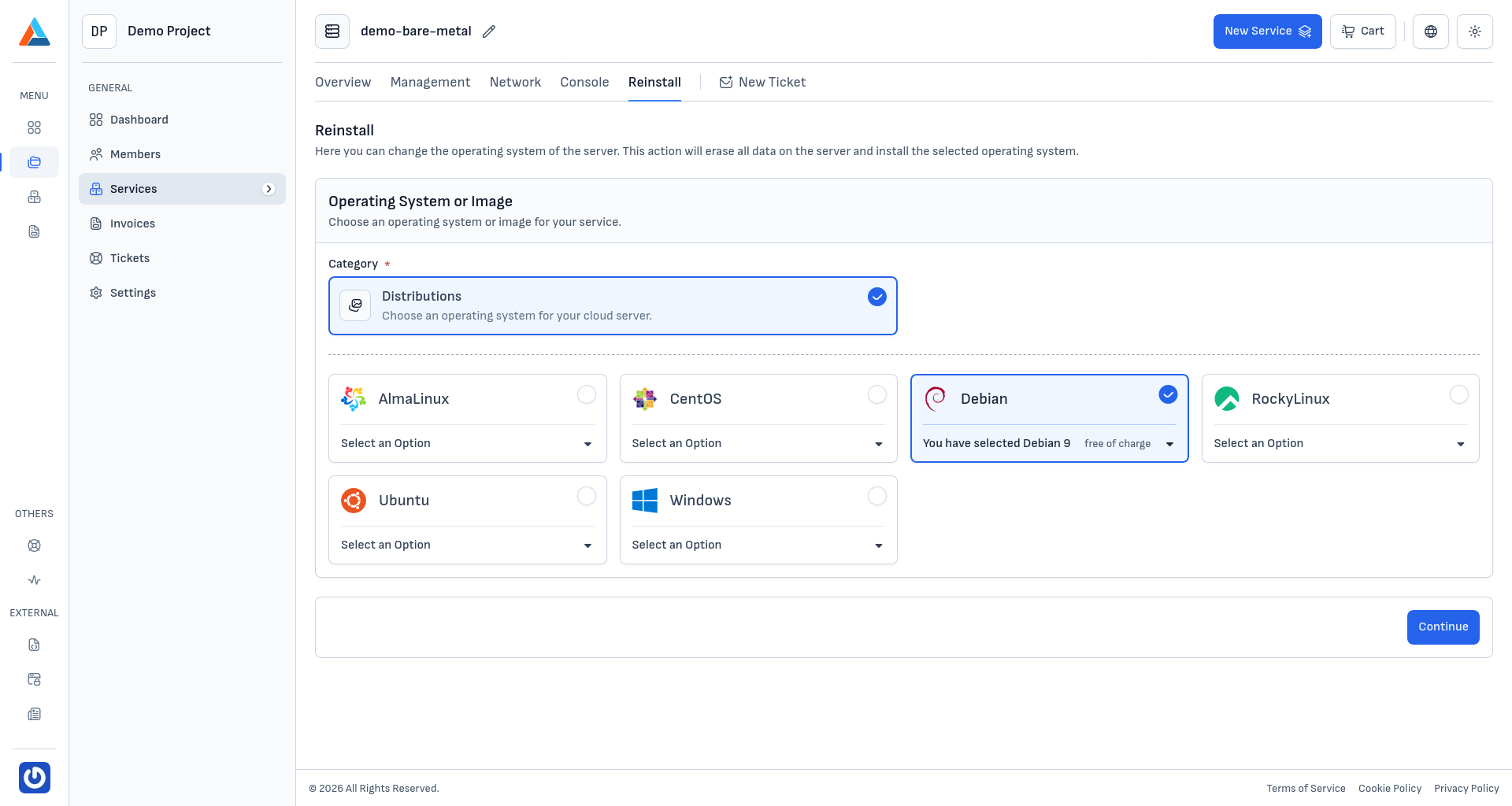
Operating System or Image
In the "Operating System or Image" section, you choose what to install on the server. Available distributions include:
- AlmaLinux, CentOS, Debian, RockyLinux, Ubuntu — Linux distributions included in the service price
- Windows — Windows Server distributions with an additional monthly license fee
For each distribution, select a specific version from the dropdown menu.
Note
The operating system is installed on top of the server's existing RAID configuration. The RAID scheme and disks themselves are not changed during reinstallation.
Reinstalling the Server
-
Navigate to the section
Navigate to the "Reinstall" tab on the service page.
-
Select an operating system
Choose the desired operating system and the specific version from the dropdown menu.
-
Review the summary
Review your selection and the new price (if applicable). Click the "Continue" button to proceed.
Note
If the selected operating system includes an additional license fee (e.g., Windows), it will be reflected in the summary and added to the monthly subscription.
-
Confirm
In the confirmation dialog, you will see a warning about the irreversibility of the action.
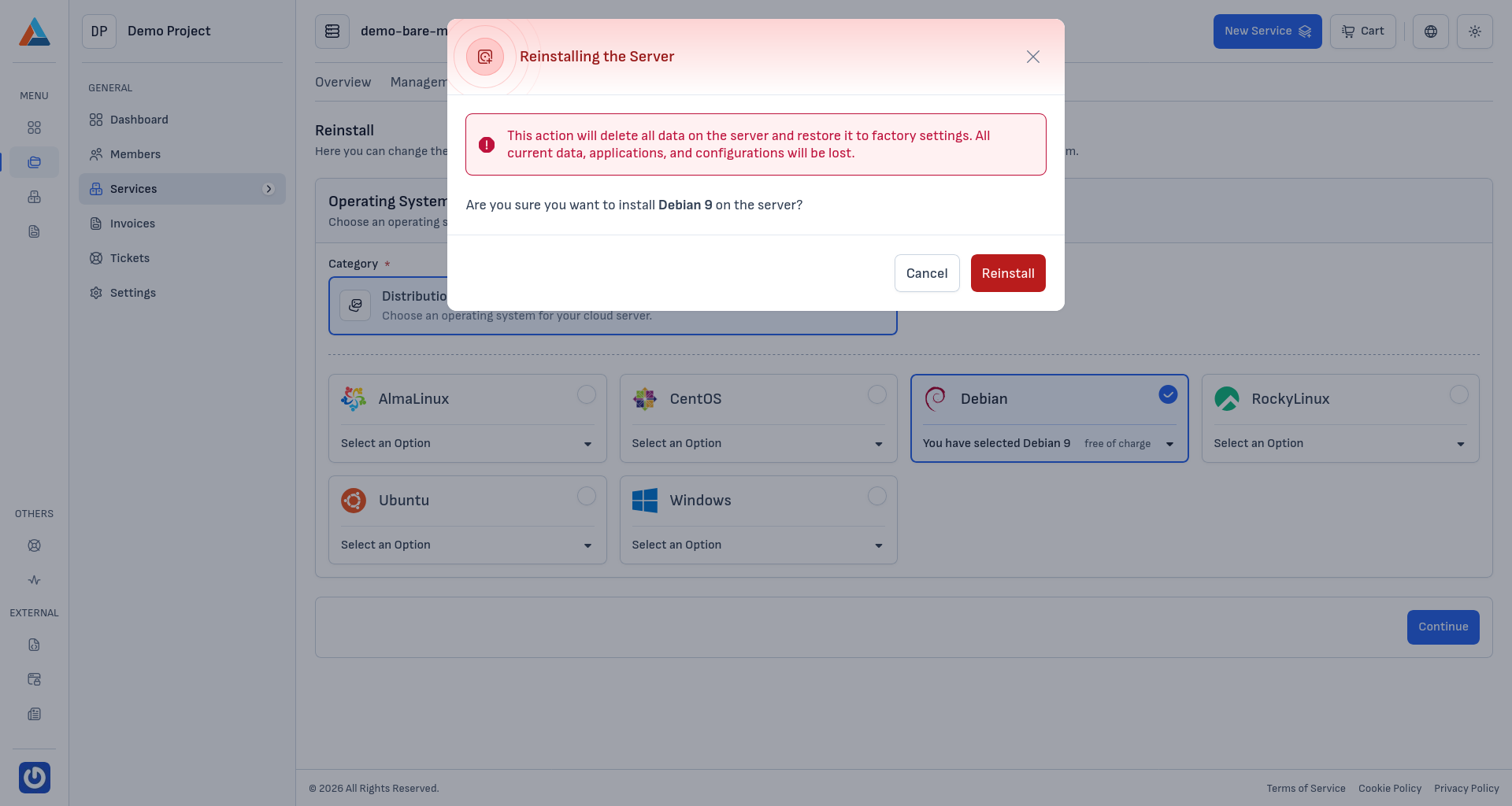
Click the "Reinstall" button to start the process.
Warning
This action will delete all data on the server to install the selected operating system. All current data, applications, and configurations will be permanently lost. If the selected operating system requires an additional license fee, the reinstallation will begin after the corresponding invoice is paid.
Reinstallation Process
Unlike virtualized services, reinstalling a physical server takes longer, as the process involves:
- Initialization — wiping the disks and preparing for installation
- Booting the installer — loading the installation image
- OS installation — unpacking the operating system onto the disks
- Initial configuration — setting up networking, users, and core services
- Rebooting — first boot into the new operating system
The entire process typically takes between 30 minutes and a few hours, depending on the selected operating system. After completion, the new credentials (username and password) will be visible in the Overview section.
Tip
After reinstallation, it's a good practice to update the operating system, replace the auto-generated password with your own, and configure SSH keys for more secure access.