Billing accounts
The Billing Accounts section (Settings → Billing Accounts) manages the records that your invoices are issued to. One account can have several billing records — for example a personal one and a company — and attach a different record to each project.
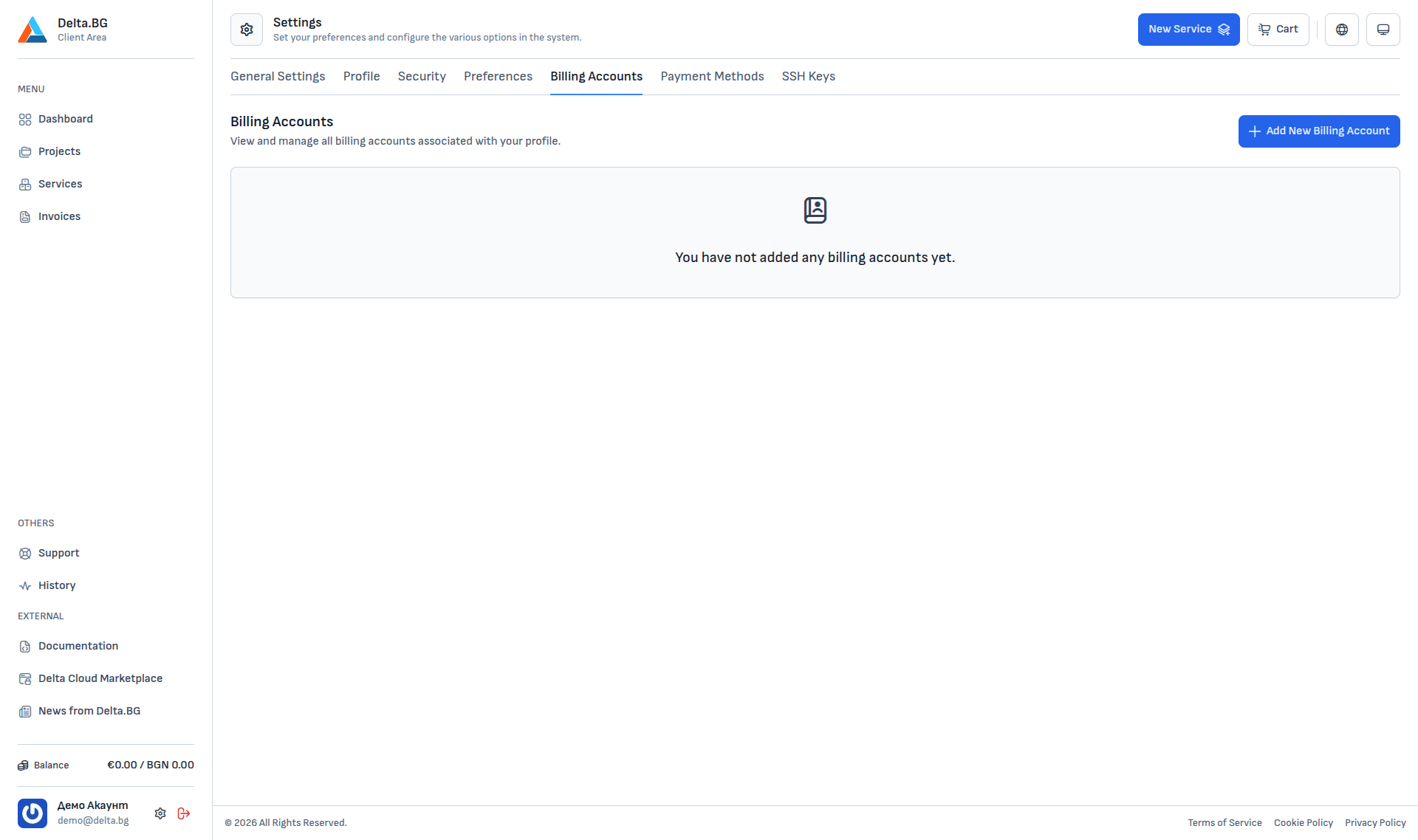
Adding a new record
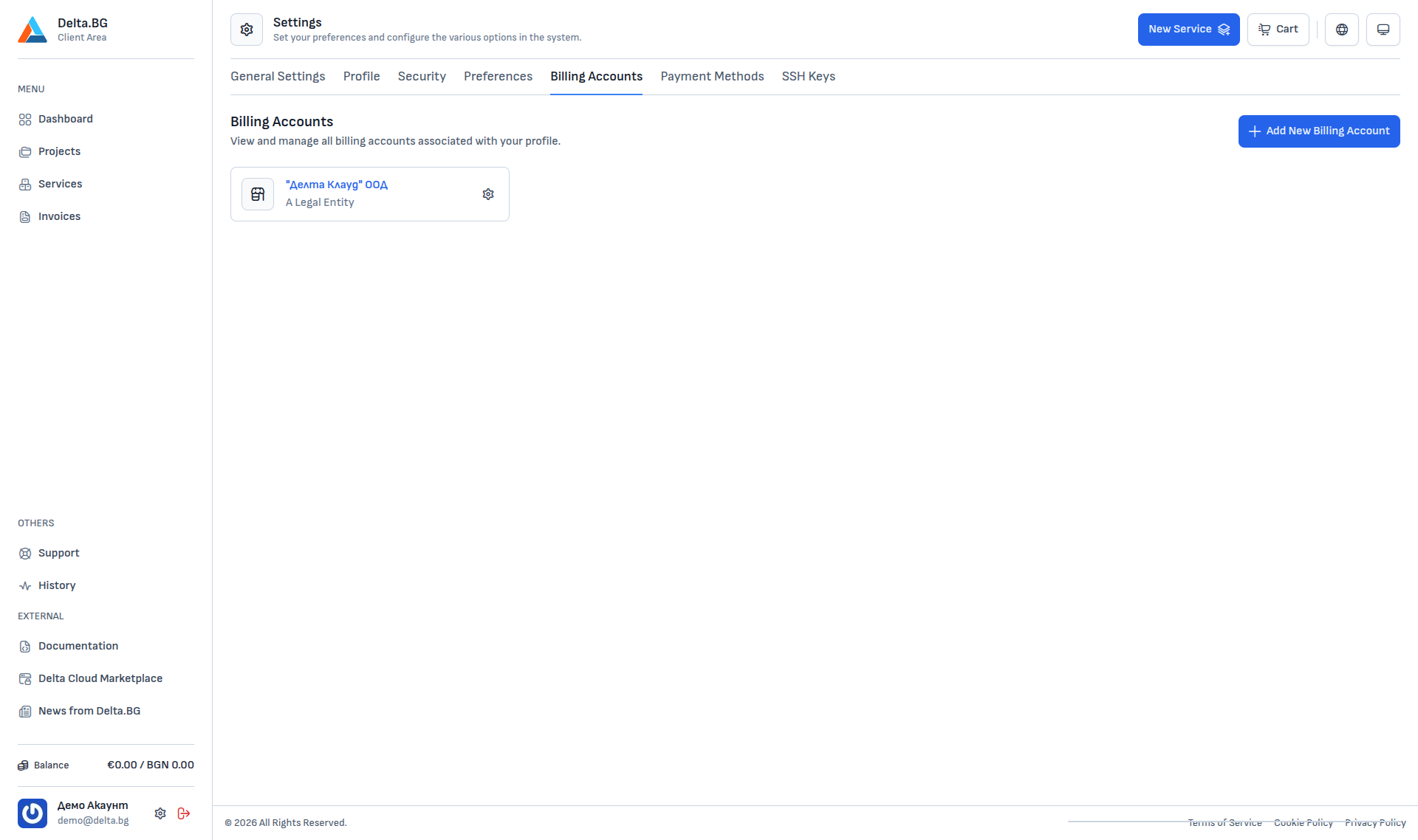
The "+ Add New Billing Account" button in the top-right opens a dialog where you pick the recipient type:
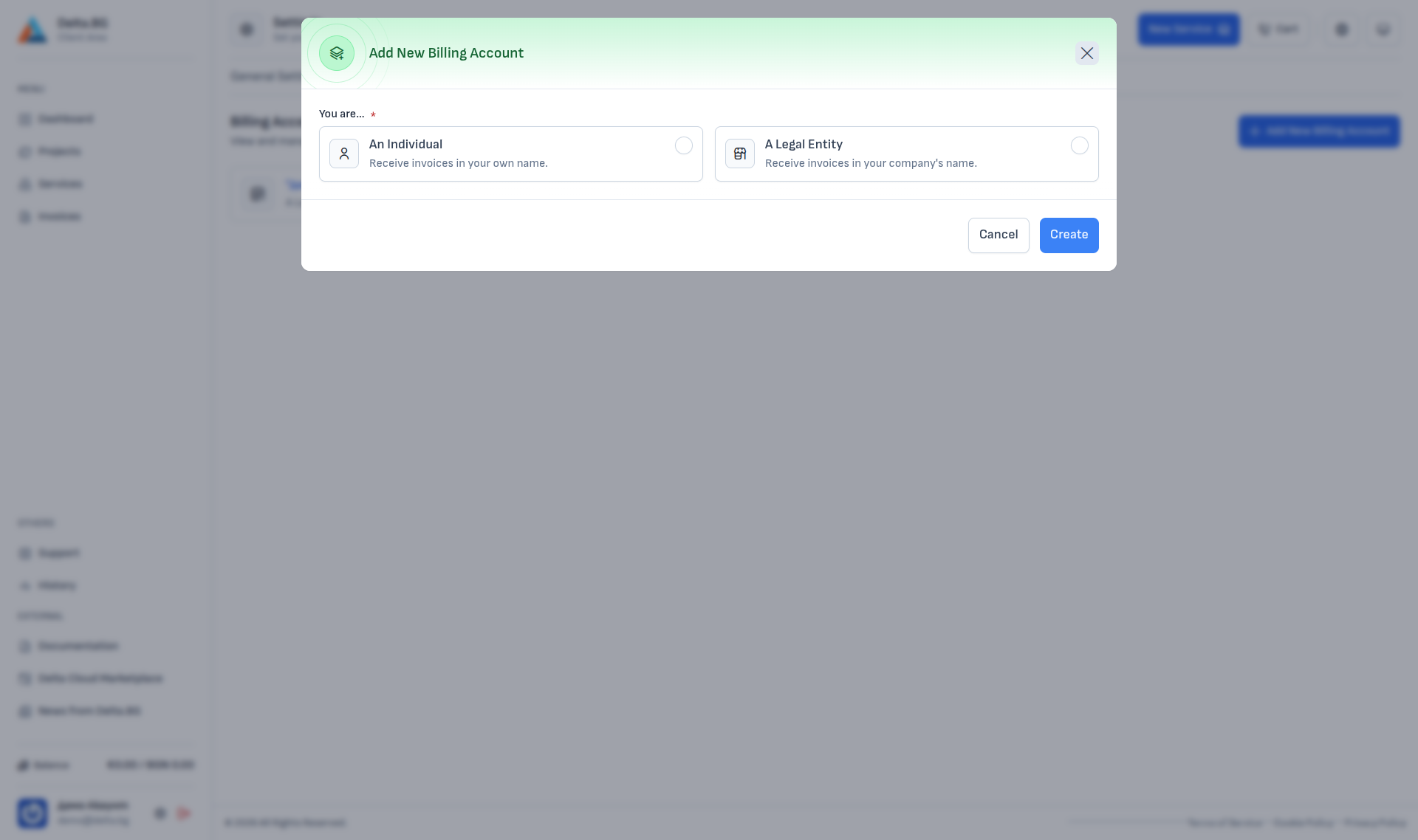
- An Individual — for invoices in your personal name.
- A Legal Entity — for invoices issued to a company.
Legal entity with autofill
Selecting A Legal Entity expands the dialog into the full form:
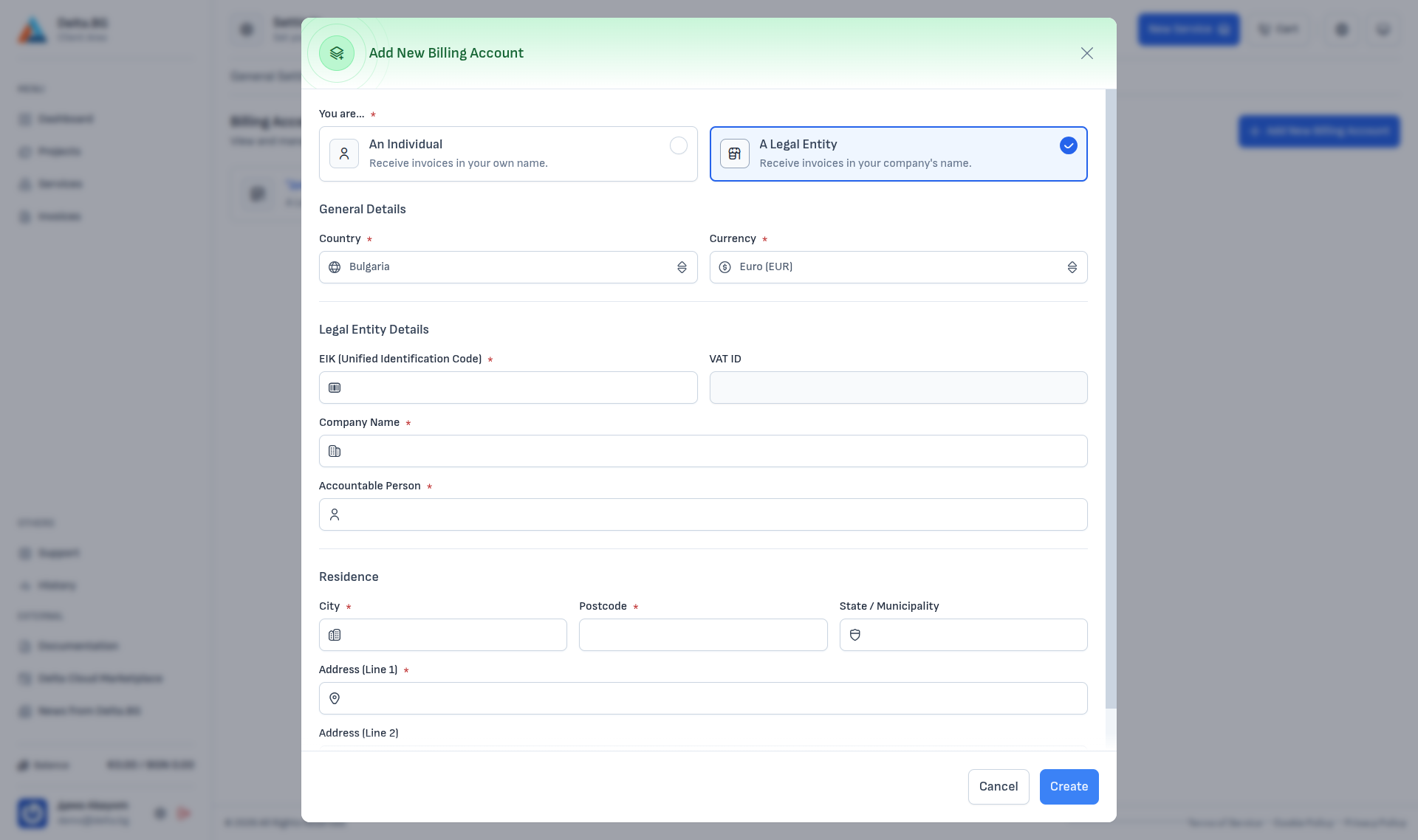
For Bulgarian companies, fill in the EIK (Unified Identification Code) — the rest of the fields (VAT ID, company name, accountable person, city, postcode, region and address) are populated automatically from the Bulgarian Commercial Register:
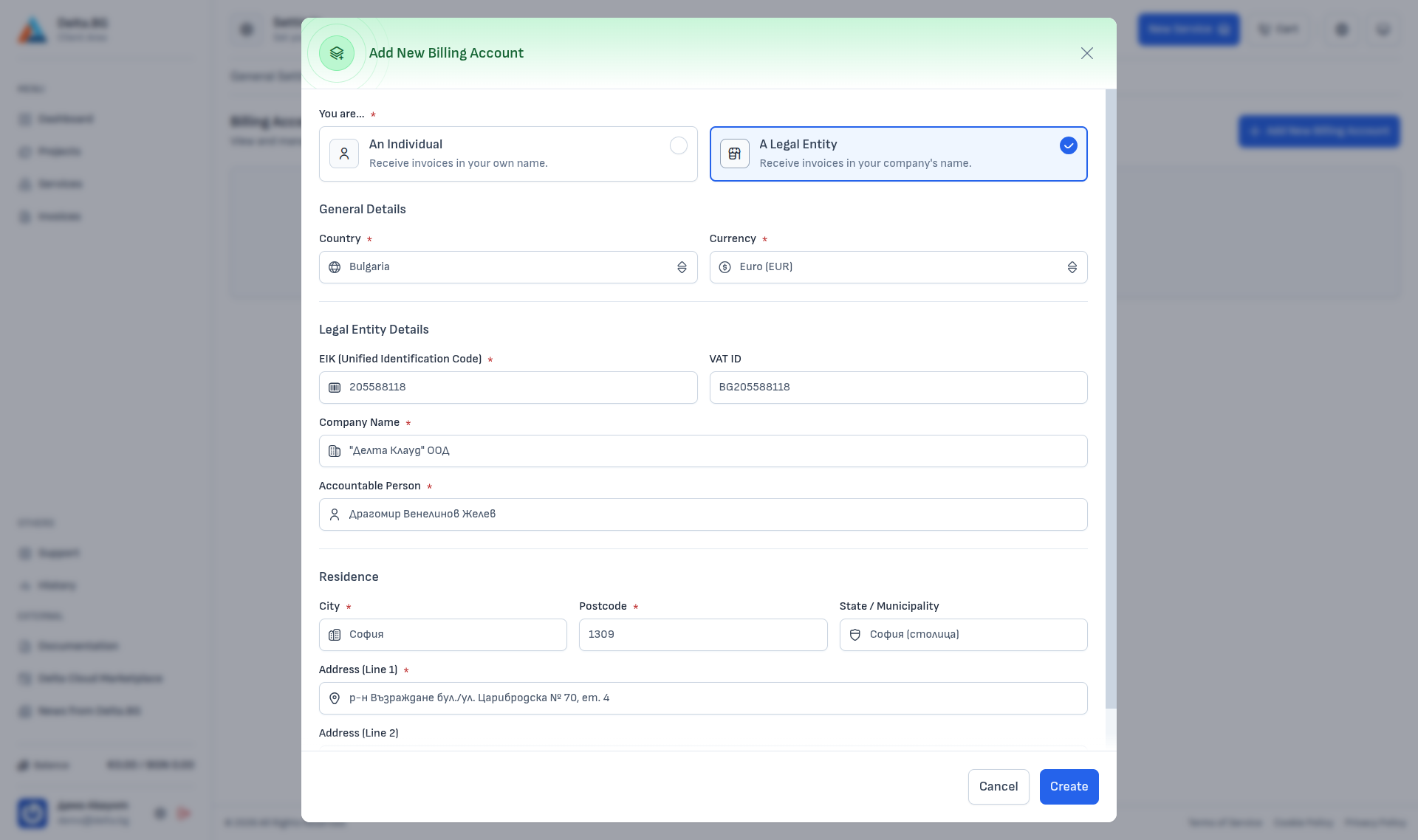
Review the data, adjust where necessary and press Create. The record appears in the list:
An individual
Selecting An Individual shows a shorter form with personal details and a correspondence address:
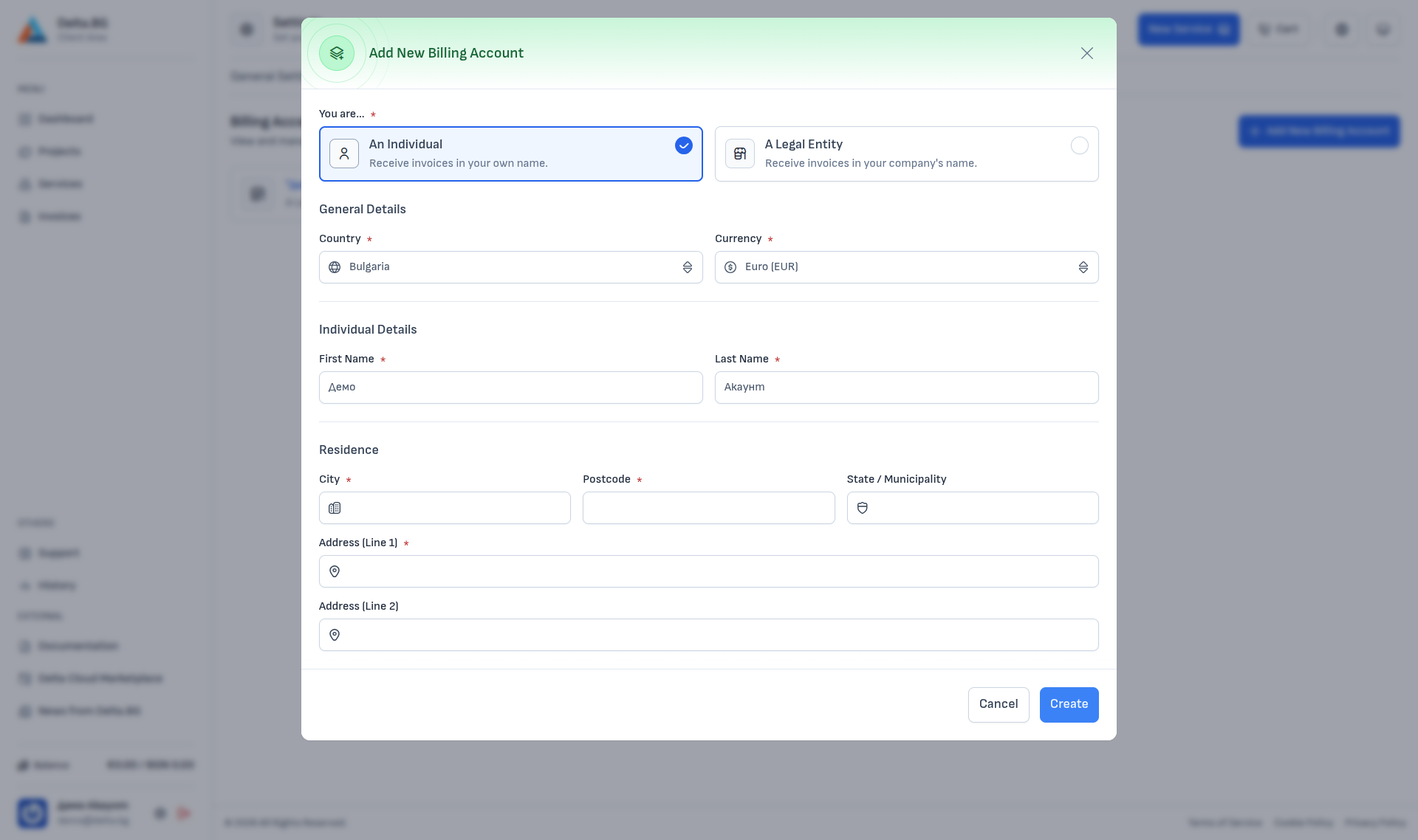
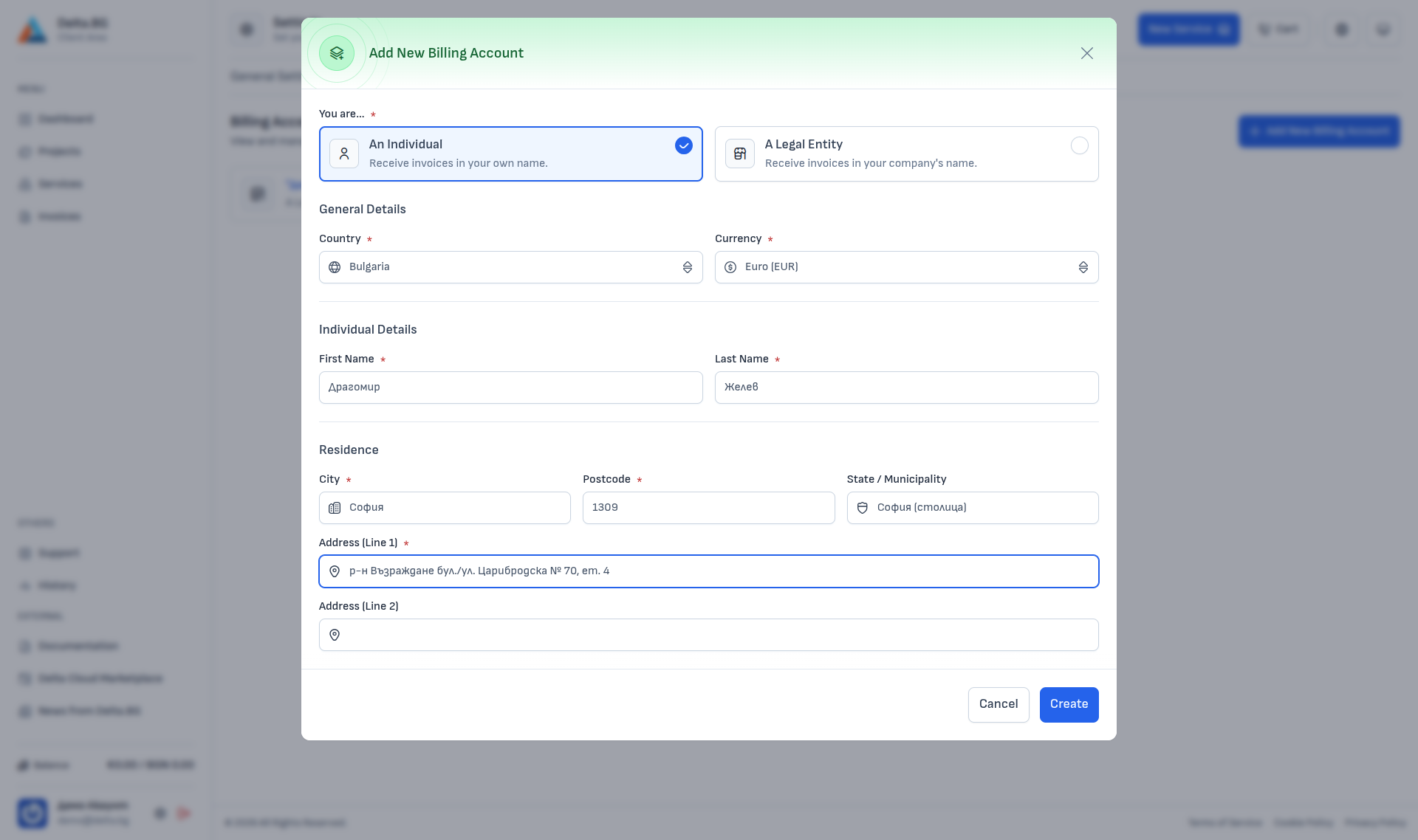
The First Name and Last Name fields come pre-filled from your Profile and can be adjusted. Fill in the address fields and press Create:
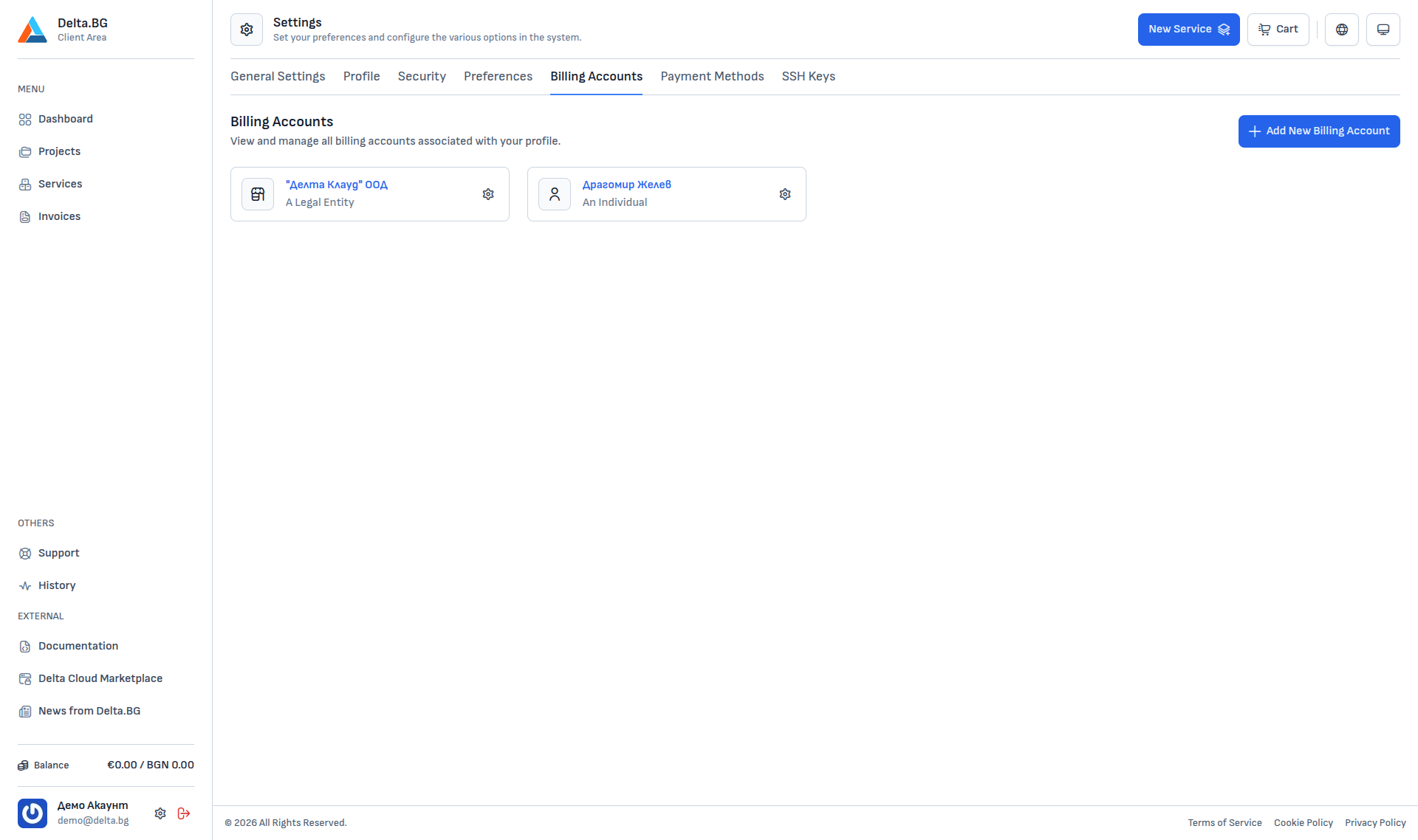
After saving, the individual record joins the list:
Required fields
| Field | Individual | Legal entity | Comment |
|---|---|---|---|
| Country | ✅ | ✅ | Bulgaria by default. |
| Currency | ✅ | ✅ | EUR by default. |
| First Name | ✅ | — | From profile; editable. |
| Last Name | ✅ | — | From profile; editable. |
| EIK | — | ✅ | 9–13 digits. |
| VAT ID | — | — | Autofilled for VAT-registered companies. |
| Company Name | — | ✅ | Autofilled from the EIK. |
| Accountable Person | — | ✅ | The representing person. |
| City | ✅ | ✅ | Registered office / correspondence address. |
| Postcode | ✅ | ✅ | On the address. |
| State / Municipality | — | — | Optional. |
| Address (Line 1) | ✅ | ✅ | Exact address. |
| Address (Line 2) | — | — | Additional address information. |
Per-country differences
The fields inside the Legal Entity Details and Residence groups depend on the selected Country. When you change the country, the UI reacts as follows:
- The company-identifier field is renamed — for example EIK for Bulgaria, SIREN for France, Chamber of Commerce Number for the Netherlands, EIN for the USA.
- The VAT / tax-ID field adapts as well — in some countries the two fields swap positions, in others one of them disappears entirely.
- The State / Municipality, Province and Postcode fields appear, hide or become required according to the local postal and registry standards.
Autofill from a public registry (as with EIK in the Commercial Register) is only available for Bulgarian legal entities. For every other country the data is entered manually.
Reviewing and editing
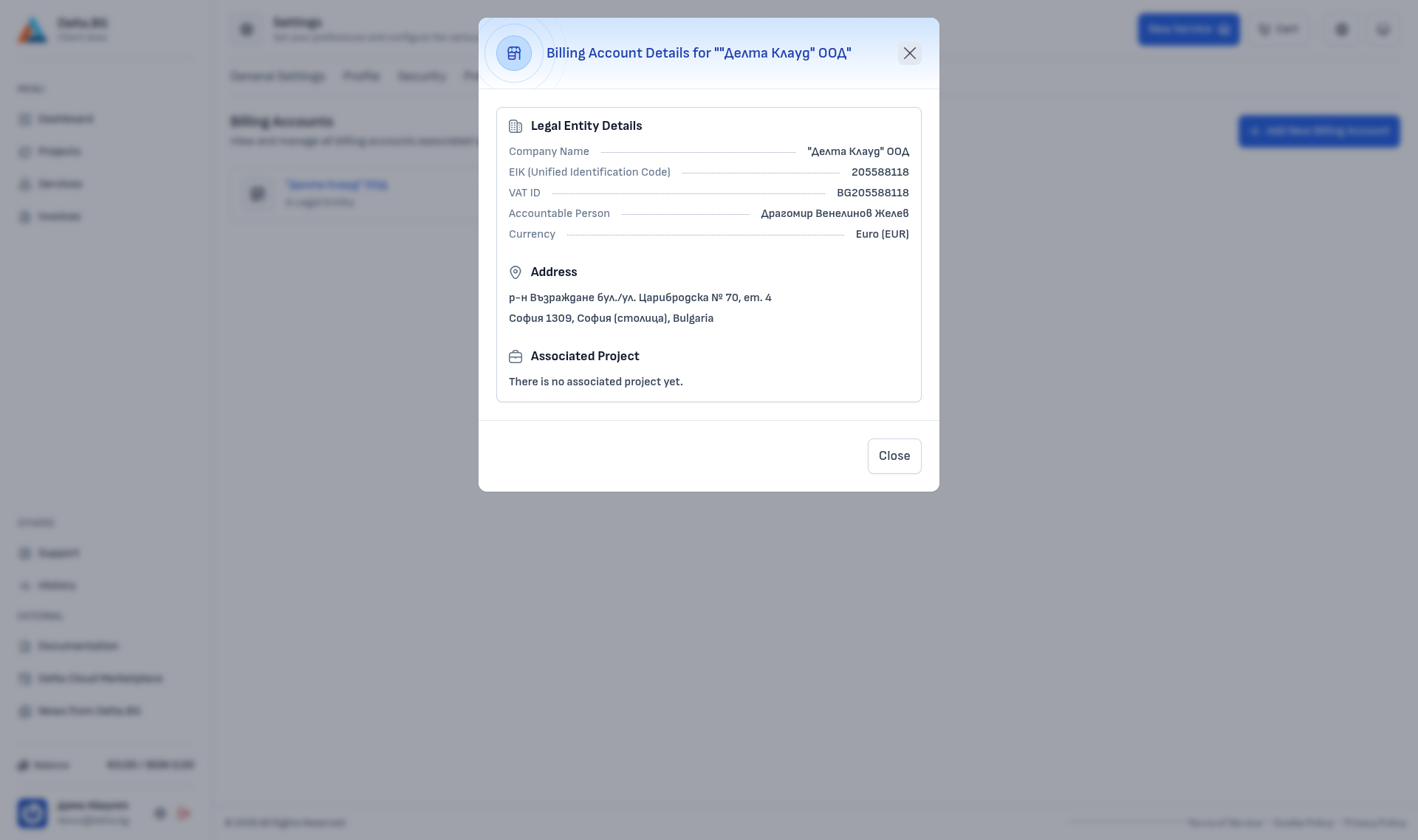
Clicking an existing record opens a detailed preview:
-
Legal entity
-
Individual
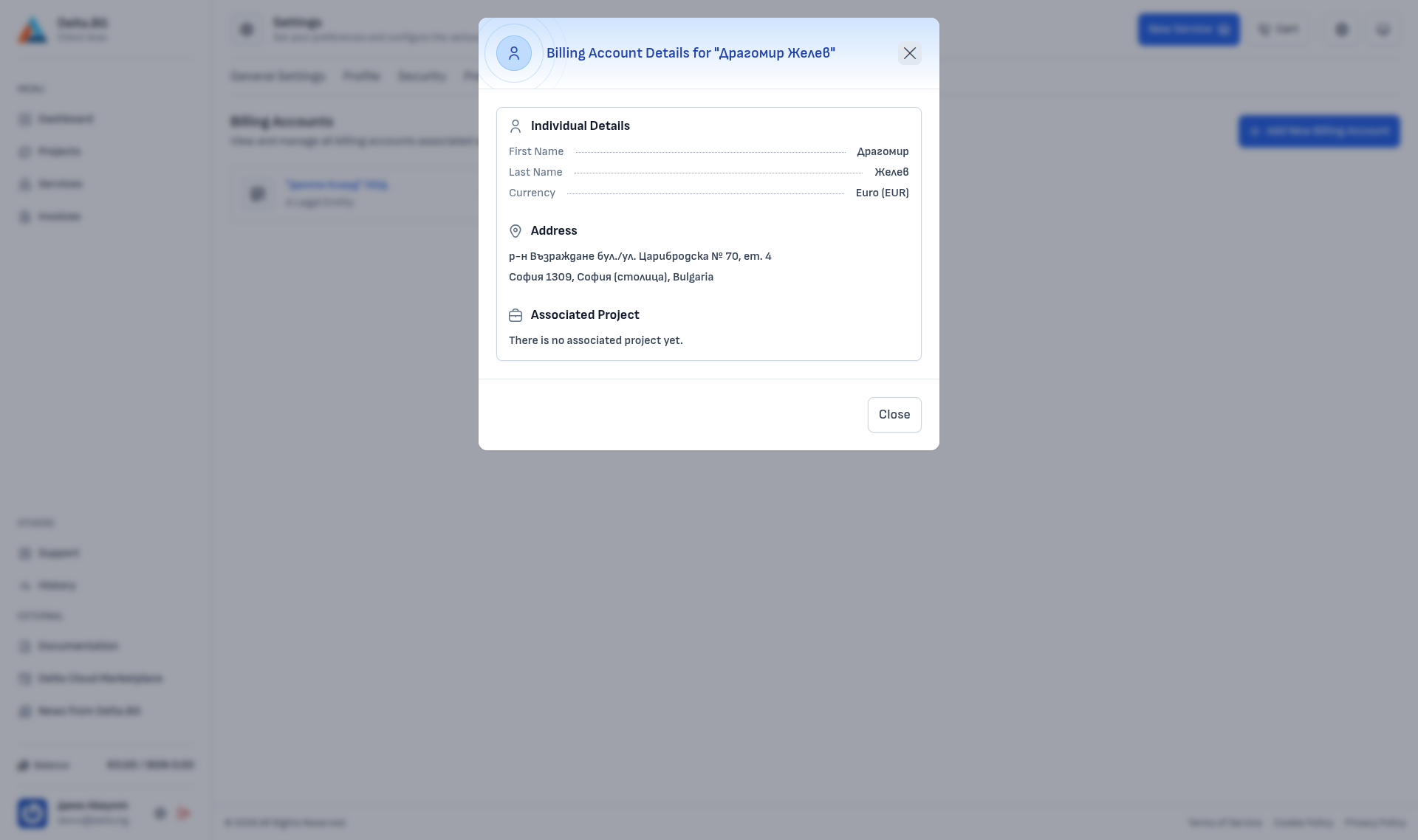
The view shows the full data and whether the record is attached to a project. Editing individual fields is done via the gear icon next to the record (will be documented once more sample data is added).
Tip
Placing an order only requires setting a default billing account on the project — adding a payment method is not mandatory. If you would like automatic charges, you can optionally also add a payment method and attach it to the project.